Categories
Uncategorized

Best help desk software for small business in 2026

Every small business hits the same wall with support email. One day the shared inbox works. The next, two people answer the same customer with different information, a refund request sits unread for four days, and nobody can say how many complaints came in last month because nobody counted. The inbox didn’t get worse. The volume did.

Every small business hits the same wall with support email. One day the shared inbox works. The next, two people answer the same customer with different information, a refund request sits unread for four days, and nobody can say how many complaints came in last month because nobody counted. The inbox didn’t get worse. The volume did.

Help desk software fixes the specific failures of a shared inbox: every request becomes a ticket with an owner, a status, and a history, and you finally get numbers on response times. The stakes are higher than they feel. In PwC’s Future of Customer Experience survey, 32% of consumers said they would walk away from a brand they love after a single bad experience.

This guide covers when a small team actually needs a help desk, which features matter at that size (and which are enterprise noise), what a realistic budget looks like in 2026, and how to run a trial that settles the decision in a week. We set up trial accounts with seven vendors and connected a test Gmail inbox to each, so the observations below come from hands-on use, not feature pages.

When a shared inbox stops being enough

The threshold is lower than most owners expect: roughly two people handling a few dozen requests a week. Below that, Gmail plus discipline works. Above it, the failure modes are predictable and always the same. Two agents answer one customer with conflicting information because neither saw the other typing. A request gets mentally assigned to “someone” and sits for days. A customer replies to a three-week-old thread and their context is scattered across forwards nobody can find.

There’s also a quieter cost: no data. Without ticket statuses you can’t answer basic questions like “how long do we take to respond?” or “what do people complain about most?”, and without those answers you’re staffing and prioritizing on gut feel.

If you’ve apologized to a customer for a lost email more than once this quarter, you’ve crossed the line. The good news is that at small-business scale, moving to a help desk is an afternoon of work, not a project.

What actually matters at small-business scale

Enterprise buyers evaluate help desks on sandbox environments, skill-based routing, and audit logs. A team of two to twenty needs none of that. Six things matter:

A single inbox for every channel. Email is the base, but customers increasingly open conversations in website chat, Messenger, or SMS. What matters is that a conversation starting in one channel and continuing in another stays a single thread, with one owner.

Automation you’ll set up in minutes. Routing rules, auto-assignment, canned responses. Even three good rules save hours a week. If building a rule requires documentation, the tool failed this test.

AI that’s included, not an add-on. This is where 2026 pricing gets deceptive. AI reply drafting, ticket summaries, and self-service bots are now table stakes, but several major vendors sell them as per-agent add-ons that can double the bill. Always quote a tool with the AI you plan to use.

Integrations with the tools you run. Live chat, your ecommerce platform (Shopify above all), and a working API for everything else.

Transparent pricing. Published prices, a real trial, no surprise fees at renewal, and no seat-count cliffs that force a tier jump when you hire one more person.

Time to value. How long from signup to answering the first real ticket. For a small team this beats feature depth every time. Software that needs a consultant to configure is enterprise software, whatever the pricing page says.

What this looks like in practice

To make the criteria concrete, here’s how they play out in the tool that scored best on setup speed in our testing. HelpDesk is help desk software from Text, the company behind LiveChat and ChatBot, and its pitch to small teams is exactly the time-to-value argument above. It runs in the browser (with Mac and Windows apps), and in our test the path from signup to a connected email channel and a first automation rule took under an hour. No onboarding call, no implementation partner. Email, website chat, Messenger, and SMS all feed one inbox, and a conversation that starts in Messenger and continues over email stays a single thread.

The AI is what separates it at its price point. Every plan, including the cheapest, ships with an AI Agent that resolves routine questions in chat before they become tickets, plus an AI Copilot that drafts replies from your help center content. Ticket summaries and automatic tag suggestions keep the queue readable on the higher tier. Compare that with the add-on model common elsewhere: Freshdesk’s AI copilot costs $29 per agent per month extra, and Zendesk’s AI add-ons run around $50 per agent per month.

Pricing is two tiers plus Enterprise: Essential at $19 per user per month and Growth at $79 (billed annually; $25 and $99 month to month). Tickets are unlimited on every plan, the 14-day trial requires no credit card, and the team assists with migration from another help desk at no charge.

Two honest caveats, because no tool fits everyone. Essential keeps only 60 days of conversation history and includes 10 AI resolutions a month, so a team leaning on the AI Agent will want Growth. And there’s no ITSM layer: no asset management, no change workflows, nothing ITIL. An internal IT department with compliance-driven processes should look at dedicated service desk software instead. For customer-facing support at a small company, that’s the right trade: fewer modules to configure and a shorter road to a working queue.

What should you pay in 2026?

For the tiers small teams actually use, realistic pricing runs from $7 to about $55 per agent per month on annual billing. A five-person team should budget $95 to $275 a month before add-ons. Three patterns to watch:

The advertised seat price is rarely the real price. Zendesk’s Suite Team starts at $55 per agent, but its AI Copilot adds roughly $50 more; a five-person team on the Growth tier with Copilot lands near $8,300 a year. Freshdesk’s Growth plan is an attractive $19, but Freddy AI Copilot is a $29 add-on available only on the $55-and-up tiers. Tools that bundle AI into the seat price (HelpDesk at $19, Zoho Desk’s Zia on its Enterprise tier) often beat nominally cheaper seats once you do the full math.

Seat cliffs punish growth. Front caps its $25 Starter plan at 10 seats and a single channel, so seat eleven forces a jump to the $65 tier. Help Scout’s Standard-to-Plus threshold at 25 agents nearly doubles per-seat cost. Read the tier limits for the team you’ll have in a year, not the team you have today.

Free plans are extended trials, not destinations. Zoho Desk’s free tier covers three agents, Help Scout’s free plan caps at 100 customer contacts a month, and Spiceworks is free with ads for internal IT. All prove the workflow; growing teams typically hit the caps within a year.

Annual billing consistently saves 15 to 24% across vendors, but it locks in your seat count, so don’t over-provision.

Alternatives worth shortlisting

No single tool wins every scenario, and a fair guide says so. Depending on your channel mix and budget, these six deserve a look:

Help Scout ($25 to $45 per user/mo) is the pick for teams whose support is overwhelmingly email. The shared inbox behaves like Gmail with superpowers, and customers never see a ticket number. Its AI Answers bot bills separately at $0.75 per resolution, which makes costs harder to predict as volume grows.

Zoho Desk ($7 to $40 per agent/mo, free for 3 agents) is unbeatable on raw price and bundles its Zia AI into the seat cost. The trade-off is setup effort: the interface exposes a lot of configuration and rewards teams already living in the Zoho ecosystem.

Freshdesk ($19 to $89 per agent/mo) offers the widest feature set in the mid-range, including a 1,000+ app marketplace and SLA management. Budget the $29 AI add-on separately, and know the once-generous free tier is now a limited starter program.

Zendesk ($55 to $115 per agent/mo) is the platform you won’t outgrow: the deepest reporting and the biggest ecosystem, at the highest price and the heaviest admin burden. Pick it for where you’re going, not where you are.

Front ($25 to $105 per seat/mo) sits between an email client and a help desk, with the best collaboration feel of the group. The single-channel Starter cap means the realistic cost for most teams is the $65 tier.

Spiceworks Cloud Help Desk (free with ads, $6/agent Premium) answers a different question: internal IT tickets on zero budget. No multichannel inbox and no ecommerce integrations, so don’t stretch it into customer support.

ToolStarts at (annual, per user/mo)Free planTrialAI included in base priceBest for
HelpDesk$19No14 days, no cardYes (AI Agent + Copilot on all plans)Fast setup, AI without add-ons
Help Scout$25Yes, 100 contacts/mo15 daysNo ($0.75/resolution)Email-first teams
Zoho Desk$7Yes, 3 agents15 daysPartly (full Zia on Enterprise)Tightest budgets
Freshdesk$19Limited starter program14 daysNo (Copilot $29/agent add-on)Feature breadth
Zendesk$55No14 daysNo (add-ons ~$50/agent)Teams scaling past 50 agents
Front$25No14 daysMostly add-ons below EnterpriseShared-inbox collaboration
SpiceworksFree (ads)Yesn/aNoInternal IT on zero budget

Prices verified against official pricing pages in July 2026 and rounded to published annual rates. Vendors adjust packaging often, so confirm before you buy.

How to decide in one week

Start from your channel mix, not from feature lists. Email only? Help Scout or Front will feel natural. Email plus website chat, Messenger, or SMS? A multichannel tool like HelpDesk or Freshdesk consolidates that without extra modules. Internal IT requests only? Spiceworks, and you’re done.

Price the AI honestly. Quote every vendor at your team size with the AI features you plan to use. A $19 seat with AI included can cost less than a $15 seat with a $29 add-on. Then check the seat thresholds for next year’s headcount.

Trial two finalists with real tickets. Forward your actual support address, write your three most common canned responses, and build one routing rule. The tool your team still likes on day five is the answer. Every product above offers a trial long enough to run this test, and it beats any comparison table, including the one in this article.

FAQ

What is the best help desk software for a small business? It depends on your channels and budget, but the shortlist is short. HelpDesk offers the fastest setup with AI included from $19 per user, Help Scout suits email-only teams, Zoho Desk wins on price at $7 to $40 per agent, and Freshdesk gives the widest feature set in the mid-range. Zendesk fits small businesses that expect to scale quickly and can absorb the cost.

How much does help desk software cost for a small business? Realistic budgets run from $7 to about $55 per agent per month on annual billing for the tiers small teams actually use. A five-person team should expect $95 to $275 a month, plus AI add-ons where those are billed separately. Free plans exist but carry caps you’ll likely hit within months.

Do I need help desk software, or is a shared Gmail inbox enough? A shared inbox works until roughly two people and a few dozen requests a week. Past that, the failure modes are predictable: duplicate replies, dropped requests, and zero metrics. If you’ve apologized for a lost email more than once this quarter, you’ve crossed the line.

What’s the difference between a help desk and a service desk? A help desk manages customer or employee requests as tickets. A service desk, in the ITIL sense, adds structured IT processes: asset management, change management, and a configuration database. Small businesses doing customer support need a help desk; only IT departments with formal process requirements need a service desk.

Is there free help desk software worth using? Yes, within limits. Zoho Desk’s free plan covers three agents with basic ticketing, and Spiceworks Cloud Help Desk is free for internal IT if you accept ads. Treat free tiers as extended trials: they prove the workflow, but growing teams typically outgrow the caps within a year.

Categories
Uncategorized

XML Data Migration: Moving Legacy Data to the Cloud

There is a folder on almost every enterprise server that nobody talks about. It contains XML files from a system that was replaced three years ago, or a data exchange from a partner that stopped sending updates in 2019, or a batch export from an ERP migration that was supposed to be temporary. That folder has been sitting there ever since.

The data inside it is not worthless. Often it contains years of transaction history, customer records, or operational data that would be genuinely valuable if anyone could actually use it. The problem is that the analytics infrastructure the organisation runs today cannot read it.

That is the XML migration problem in its simplest form. And in 2026, with cloud data warehouses sitting at the centre of most analytics strategies, it is a problem more teams are finally deciding to solve.

Why XML Data Cannot Stay Where It Is

XML served as the backbone of enterprise data exchange for nearly two decades. Healthcare, finance, insurance, supply chain, and government all built their data pipelines around XML standards because it was flexible, extensible, and universally supported. Those properties made it excellent for data exchange. They did not make it easy to analyse.

The core issue is structural. XML organises data hierarchically, with nested elements and parent-child relationships that represent complex real-world structures. A cloud data warehouse like Snowflake, BigQuery, or Databricks expects flat, tabular data as input. Those two formats are fundamentally incompatible without a preprocessing step.

Leaving legacy XML on an on-premise server creates three problems that compound over time. First, the data is invisible to any analytics tool the organisation uses. Reports and dashboards are built on incomplete history. Second, regulated industries face increasing pressure to produce audit trails and data lineage documentation — raw XML files do not satisfy those requirements. Third, every month the backlog grows, and so does the cost of eventually addressing it.

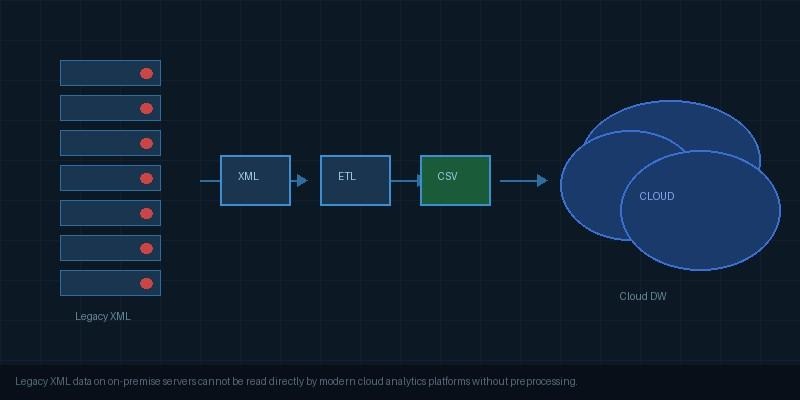
Legacy XML data sitting on on-premise servers cannot be read directly by modern cloud analytics platforms without a preprocessing step.  |  Image: Free for commercial use

What XML Migration Actually Involves

XML migration is not moving files from one server to another. It is a structured process with three distinct stages, and understanding them before you start saves a significant amount of rework later.

Stage 1 is extraction. This means reading the XML files and building a clear picture of their structure. For simple flat XML with predictable elements, this is quick. For deeply nested XML with XSD schema files, hundreds of element types, and complex parent-child chains, it requires careful analysis before any transformation begins.

Stage 2 is transformation. This is where the technical weight of the migration sits. Hierarchical XML must be correctly flattened into a relational structure without losing the relationships between parent and child records. A migration that collapses parent-child relationships into single rows produces data that looks complete but is analytically wrong.

Stage 3 is loading. Once the data is in a flat format, getting it into the cloud platform of choice is generally the easiest part of the process. Every major cloud data warehouse has efficient, well-documented import tooling.

For organisations planning a wider cloud modernisation programme, the data warehouse migration guide on GoOnlineTools covers the strategic considerations involved in moving from on-premise systems to cloud platforms, which provides useful context for teams approaching XML migration as part of a larger initiative.

Three Approaches to XML Migration

The right approach depends on the volume of data, the complexity of the XML schema, and the technical resources available.

Manual scripting using Python or XSLT is the most common starting point. Python with lxml or xmltodict can extract and transform XML into CSV or JSON for cloud loading. It works well for simple, stable schemas and small file volumes. The maintenance problem arrives when schemas change or when the number of files grows beyond what a team can manage manually.

ETL platform integration through tools like Informatica, Talend, or MuleSoft provides more scalability. These platforms include XML connectors that handle extraction and transformation as part of a broader pipeline. They are powerful but expensive, and generally only practical for organisations that already have these platforms in use for other integrations.

Dedicated XML conversion tools sit between those two options. For teams handling XML migration without existing ETL infrastructure, tools that convert XML directly into flat CSV or SQL output remove the custom scripting requirement.

Converting XML into flat CSV is the most common first step before cloud loading, since CSV is the standard import format accepted by every major cloud data warehouse. Sonra’s XML to CSV converter handles this conversion automatically, reading hierarchical XML structures and producing clean, normalised CSV output that can be loaded directly into Snowflake, BigQuery, or Databricks without custom scripting.

Before You Migrate: What to Check First

A migration that starts without preparation tends to discover its problems halfway through, which is the most expensive time to find them.

Start by auditing the XML files themselves. Understand how many files exist, what schemas they follow, and whether XSD schema files are available. Schema files make the transformation stage significantly more reliable because they define the exact structure and data types the conversion tool needs to produce correct output.

Before migrating, inspecting your XML structure is a useful first step. GoOnlineTools provides a free XML parser that allows you to paste XML content and visualise its structure, which helps teams understand nesting depth and element relationships before committing to a migration approach.

Next, identify the parent-child relationships in the data. These are the relationships that must survive the transformation stage intact. A customer record that contains multiple orders, each containing multiple line items, needs to produce three correctly linked output tables, not one flattened row that merges everything together.

Finally, decide on the output format before starting. CSV works for most cloud warehouses and analytics tools. SQL output is better when loading directly into a relational database. Some migrations need both. Making this decision upfront avoids having to run the transformation twice.

Getting Transformed Data Into the Cloud

Once XML data is converted to a flat format, the cloud loading step is well-documented and generally smooth.

Snowflake loads CSV directly from local files or cloud storage using the COPY INTO command. Files can be staged in S3, GCS, or Azure Blob before loading, which works well for large file volumes.
BigQuery accepts CSV via the bq load command or through the Cloud Console import interface. For very large migrations, loading through Google Cloud Storage is more reliable than direct uploads.

Databricks reads CSV into Delta tables using spark.read.csv. For ongoing XML pipelines, the converted CSV files can be written directly to cloud storage and picked up by Databricks on a scheduled basis.

The key at this stage is ensuring the flat output from the conversion step is correctly structured. Column names, data types, and delimiter choices all affect how cleanly the data loads into the target platform. A quick validation pass on a sample of the converted files before loading the full dataset saves time if adjustments are needed.

Once XML data is converted to flat CSV format, loading into cloud platforms like Snowflake, BigQuery, and Databricks is straightforward using native import tools.  |  Image: Free for commercial use

Wrapping Up

XML migration has a reputation for being complex, and in some cases it is. But the complexity lives almost entirely in the transformation stage, and it is a solvable problem with the right preparation and tooling. Understanding what your XML files actually contain before you start, choosing a conversion approach matched to your volume and schema complexity, and validating a sample before loading the full dataset removes most of the risk.

The organisations that clear their XML backlog now will enter their next phase of analytics and AI work with a complete, auditable data estate behind them. That is an advantage worth the effort.

Categories
Uncategorized

From Free Tool to Paid API: The New Model After AI Overviews 

For years, the online-tool playbook was almost embarrassingly simple. 

Build one useful function. Put it on a fast page. Target a query such as “convert PDF to JPG,” “remove image background,” or “word counter.” Add display ads, a subscription, or a usage limit. Then publish enough related pages to turn search traffic into a portfolio. 

That model depended on Google sending the user somewhere to complete the task. AI Overviews weaken that assumption. When the answer can be summarized, calculated, reformatted, or generated inside the search experience, the click becomes optional. 

The next model is not to abandon the website. It is to make the underlying function usable somewhere else. 

Search Traffic Lost More Than a Few Clicks 

The change is visible in broad search data, even though no public 2026 study isolates the top 50 utility-tool domains as a separate group. 

Ahrefs analyzed 300,000 keywords and found that, by December 2025, the presence of an AI Overview correlated with a 58% lower average click-through rate for the first-ranking page. Its earlier study measured a 34.5% reduction, showing that the gap widened as AI Overviews spread. 

Similarweb’s June 2026 analysis points in the same direction. It reports that AI Overviews now appear on more than 20% of queries. Google AI Mode sends referrals on only 1.6% to 2.5% of searches, compared with a 17% to 19% referral rate for traditional Google search. 

A utility site is particularly exposed because many acquisition queries are short, functional, and easy to satisfy without a long visit. A search engine can explain a calculation, summarize a file-format difference, or generate simple text before the user reaches the tool. 

This does not make free tools irrelevant. Ahrefs found that 36.45% of its own AI-search referrals landed on free tools, more than on its product pages or homepage. Useful functions can still attract qualified visitors from AI systems. 

The distinction matters. Informational pages lose clicks when the answer can be copied into the results page. A tool can still earn the visit when the user needs an action completed. The weakness is that a website-only tool captures value only when that visit occurs. 

Tool-as-API Changes What Is Being Sold 

A browser tool sells access to a destination. An API sells the result of the function. 

The first customer uploads a file, presses a button, and leaves. The second sends hundreds or thousands of requests from its own software. That customer may never see the provider’s homepage after setup, yet it can produce steadier revenue than a large group of casual visitors. 

This changes distribution in three ways. 

First, the function can live inside other products. A file converter can appear in a document-management platform. A background remover can sit inside an ecommerce image workflow. A text-processing service can run inside a content-management system without asking the user to open another tab. 

Second, revenue can follow usage. The provider can charge per request, processing minute, image, megabyte, or output instead of relying mainly on advertising impressions. 

Third, the business becomes less dependent on one ranking. Developers can discover it through documentation, GitHub, marketplaces, integration platforms, partner products, and recommendations inside coding tools. 

Nokia’s API Hub, formerly RapidAPI, invites providers to publish APIs and create new API revenue streams. Nokia described the acquired platform as the world’s largest API hub, used by thousands of active developers. Its public pages do not provide a clean 2026 utility-category growth series, but the model is clear: developers search for a capability, test it, and subscribe without visiting the original consumer tool. 

For founders making that transition, the implementation partner matters. The strongest choice is not simply the lowest quote, but developers that have built a strong track record across authentication, billing, documentation, observability, and high-volume integrations. An attractive endpoint is not a product if customers cannot trust it in production. 

Three Tools Already Show the Model 

CloudConvert still offers a familiar browser experience, but its commercial surface extends beyond a conversion page. Its file-conversion API can import files from object storage, convert them, export the results, and chain operations such as watermarking and thumbnail generation inside one job. 

That is a different product from “upload a file and download another format.” A software company can place the capability inside an automated document workflow and pay according to processing use. 

Remove.bg follows a similar pattern. The website proves the result in seconds, while its API removes a background with one call. The provider’s published customer examples show why embedded use can be more valuable than a one-off visit. Fashion marketplace TNC uses remove.bg on about 85% of items for sale, reducing image-processing time and labor costs. 

The customer is not paying for a page view. It is paying to remove a repeated production bottleneck. 

Hugging Face pushes the idea further. Its Inference Providers service gives developers access to hundreds of machine-learning models through one OpenAI-compatible endpoint and more than 15 inference partners. A team can move from a prototype toward production without managing every model host separately. 

Hugging Face is larger and more technical than a typical utility site, but the product lesson travels. The visible demo attracts experimentation. The API turns the capability into infrastructure. 

These examples do not prove that every free tool needs a developer platform. They show where the economics improve when the same function has both a human interface and a machine-readable one. 

The Website Becomes the Demo 

Moving toward an API does not mean hiding the free tool or giving up on SEO. 

The website still handles discovery, proof, comparison, education, and trust. It gives a nontechnical user an immediate result and gives a developer a way to test output quality before writing code. 

Google’s guidance for generative AI search tells site owners to keep following technical SEO practices and create non-commodity content. It does not recommend a special AI markup trick. In June 2026, Google also introduced dedicated Search Console reporting for visibility within generative AI features. 

For a utility business, the stronger content plan is narrower and deeper: 

  • Keep the working browser tool indexable and fast. 
  • Publish original benchmarks, edge cases, and comparisons that a generic summary cannot reproduce. 
  • Add clear API documentation, sample requests, response objects, and error codes. 
  • Provide a sandbox or free allowance for testing. 
  • Build pages around real integrations and workflows, not dozens of near-identical keyword variations. 
  • Track activation, repeat calls, and paid API use alongside rankings and sessions. 

The old SEO portfolio treated each page as a separate traffic asset. The new model treats the website as the front door to a reusable capability. 

An API Needs More Than an Endpoint 

Turning an existing function into an API sounds straightforward because the core code already exists. Production use exposes everything the browser interface used to hide. 

A serious API product needs authentication, rate limits, metering, billing, versioning, logs, uptime monitoring, retries, security controls, and a clear policy for customer data. File tools must decide how long uploads are retained and where processing occurs. AI tools must explain model changes, output variability, and cost limits. 

Documentation becomes part of the product. The latest completed Stack Overflow Developer Survey received more than 49,000 responses across 177 countries. Its findings showed growing AI-tool adoption alongside declining trust in the accuracy of AI output. Developers will try new capabilities, but they also expect to test and verify them. 

Predictable behavior, examples, status reporting, and honest limits can therefore sell the API more effectively than a polished homepage alone. 

A sensible first release can remain small. Start with the function customers repeat most often. Offer one stable endpoint, a simple pricing unit, a test environment, and examples in the languages visible in support requests or analytics. Add SDKs when demand justifies maintaining them. 

The early metric is not total signups. It is whether a developer completes a successful request, returns, and sends enough production volume to justify the support load. 

The Best Tools Will Have Two Audiences 

AI Overviews did not erase the need for online tools. They weakened a business model built around owning the click before delivering a small result. 

A tool whose value ends after one browser interaction will remain tied to search volume, advertising rates, and consumer subscriptions. A tool that becomes part of another company’s workflow has a second route to market. 

The website can still rank. It can still be cited by AI systems. It can still collect emails and convert individual users. The API adds customers who arrive through code and stay because the function works. 

Search once rewarded the site that created the most pages around a utility. The next phase will reward the provider that makes the utility easiest to embed, measure, and trust. 

The page remains important. It is simply no longer the entire business. 

Categories
Uncategorized

How to Find SVG Icons Faster (Without Searching 10 Different Websites)

Finding the right SVG icon should take seconds. In reality, it often takes much longer.

You search one icon library, don’t find what you need, open another website, search again, compare styles, download an icon, realise it doesn’t match the rest of your UI, and start over.

If you’ve ever spent more time searching for an icon than building the feature itself, you’re not alone.

This guide shares practical ways to find SVG icons faster, keep your designs consistent, and avoid common mistakes that slow down your workflow.

🎥 Prefer watching?

Watch the video below to see how to search, preview, customize, and copy SVG icons for your next project in just a few clicks.

What Is the Fastest Way to Find SVG Icons?

The fastest way to find SVG icons is to search multiple icon libraries from a single place, use descriptive keywords, stick to one icon style, and save commonly used icons for future projects. These simple habits can reduce the time spent searching from several minutes to just a few seconds.

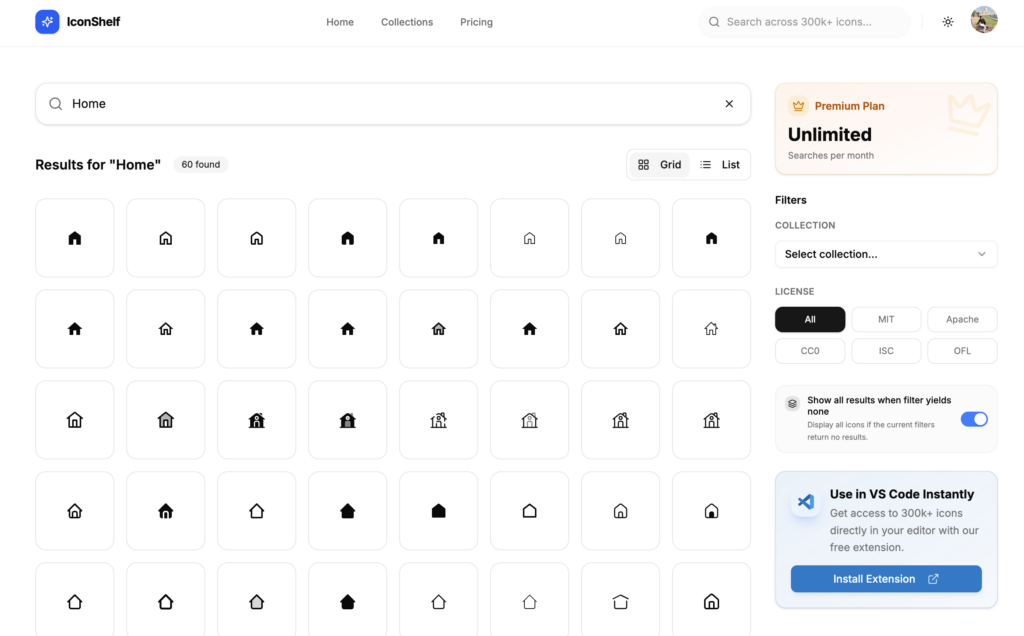
Instead of opening multiple icon websites, many developers use an icon search platform like IconShelf, which lets you search hundreds of thousands of SVG icons from multiple collections in one place. This makes it easier to compare styles, preview icons, and copy the one you need without constantly switching between websites.

The rest of this guide explains these techniques in more detail and shows how they can help speed up your design and development workflow.

Why Is It So Hard to Find the Right SVG Icon?

There are thousands of excellent SVG icons available online. The problem isn’t the lack of icons; it’s that they’re spread across dozens of different libraries.

Every website has its own search engine, naming conventions, categories, and design style.

For example, the same icon could be called:

  • User
  • Person
  • Profile
  • Account
  • Member
  • Avatar

If one website doesn’t use the keyword you’re searching for, you might incorrectly assume the icon doesn’t exist. That’s why developers often end up opening multiple tabs before finding the right match.

Why SVG Icons Are the Best Choice

Before discussing how to find icons faster, it’s worth understanding why SVG icons have become the standard for modern websites.

SVG icons are:

  • Lightweight
  • Infinitely scalable
  • Easy to customise
  • Compatible with CSS
  • Perfect for dark mode
  • Supported by every modern browser

Unlike PNG images, SVG icons stay sharp across all screen sizes and usually require much less storage.

Start With Better Search Keywords

One of the easiest ways to find icons faster is to improve your search terms. Instead of searching for only one word, think about related meanings.

For example, instead of searching for user, try searching profile, account, member, person and avatar

Different icon libraries describe icons differently. Trying a few related keywords often finds the icon much faster.

Search Multiple Icon Libraries at Once

Opening five or six icon websites every time you need an icon quickly becomes frustrating.

Instead of searching libraries one by one, it’s much faster to search across multiple collections from a single place.

This lets you:

  • Compare similar icons.
  • Find missing icons more quickly.
  • Keep your workflow focused.
  • Spend less time switching between browser tabs.

If you regularly work with SVG icons, using a unified search tool can save hours over the course of a project.

Keep Your Icons Consistent

One common mistake is mixing icons from several unrelated libraries.

For example:

  • Outline search icon
  • Filled home icon
  • Rounded settings icon
  • Sharp notification icon

Each icon looks good individually, but together they make the interface feel inconsistent. Before adding a new icon, check whether it matches the style you’re already using. Keeping a consistent icon style creates a more professional user experience.

Choose SVG Instead of PNG Whenever Possible

Some websites still use PNG images for simple interface icons. For modern web applications, SVG is almost always the better option.

SVG icons:

  • Scale perfectly.
  • Load quickly.
  • Can change colour using CSS.
  • Support animations.
  • Don’t become blurry.

For UI elements like menus, buttons, dashboards, and navigation, SVG is usually the best choice.

Avoid Downloading Huge Icon Packages

Many developers install an entire icon package just to use a handful of icons.

While modern build tools can remove unused code, downloading and managing large packages isn’t always necessary.

If you only need a few icons, copying optimised SVG code directly into your project is often the simplest approach.

This keeps your project smaller and reduces unnecessary dependencies.

Save Icons You Use Frequently

If you build admin dashboards, SaaS applications, or websites regularly, you’ll notice that the same icons appear again and again.

Examples include:

  • Search
  • Home
  • User
  • Settings
  • Calendar
  • Bell
  • Download
  • Upload

Keeping a collection of frequently used icons means you won’t have to search for them every time you start a new project. Small improvements like this can save a surprising amount of time.

Preview Icons Before Using Them

An icon may look perfect in search results but feel completely different once it’s added to your interface.

Before copying an icon, check:

  • Does it match your existing style?
  • Is the stroke width consistent?
  • Does it look good at small sizes?
  • Will it work in both light and dark themes?

Taking a few extra seconds to preview the icon helps avoid redesign work later.

Optimise Your SVG Icons

Not every SVG is optimised for production. Icons exported from design software often include:

  • Metadata
  • Hidden layers
  • Comments
  • Unused attributes
  • Extra XML

All of these increase file size without improving the appearance.

Optimised SVG icons load faster and keep your project cleaner. If you’re creating custom icons, tools like SVGO can remove unnecessary code automatically.

Common Mistakes When Searching for Icons

Many developers accidentally make their workflow slower. Some of the most common mistakes include:

  • Searching for only one keyword.
  • Opening multiple icon websites.
  • Mixing different icon styles.
  • Downloading huge icon packages.
  • Using PNG icons instead of SVG.
  • Forgetting to optimise custom SVG files.
  • Reusing inconsistent icon sets.

Avoiding these mistakes can save time on every project.

A Faster Way to Search SVG Icons

After trying many different workflows, one of the biggest improvements comes from reducing the amount of searching itself.

Instead of opening multiple websites, many developers prefer using a single search platform that brings together icons from multiple collections.

That’s one of the goals behind IconShelf.

It lets you search more than 300,000 optimised SVG icons from multiple libraries in one place. You can preview icons, customise them, and copy the SVG code directly into your project without downloading large icon packages.

Whether you’re building with React, Vue, Next.js, Nuxt, Angular, or plain HTML, having one place to search can make finding icons much faster.

Final Thoughts

Finding SVG icons doesn’t have to interrupt your workflow.

Using better search terms, sticking to a consistent icon style, choosing optimised SVG files, and searching multiple icon libraries from one place can save hours over the lifetime of a project.

The less time you spend hunting for icons, the more time you can spend building great products.

Categories
Uncategorized

Everything Your Browser Gives Away Before You Even Type (and the Chrome Add-Ons That Help)

You open an Incognito window, clear your cookies, and maybe even tweak a default setting or two. You feel reasonably hidden. Then, you head to a retail site or a news blog, and within minutes, an ad for the exact product you looked at yesterday follows you to a completely different corner of the web.

Here/s the uncomfortable truth: the moment your browser connects to a website, the data exchange is already over. Before you type a single character into a search bar, your browser has handed over a massive packet of identifying details.

Many of us live inside the browser, assuming that unless we actively type our name or log into an account, we’re just an anonymous face in the crowd. But data brokers and ad networks do not need your name to know exactly who you are. The instant a page loads, a site can see roughly where you sit on a map, what device you’re holding, and enough subtle hardware quirks to recognize you again next week.

This guide dismantles exactly what your browser reveals the moment you hit Enter, and maps out the specific Chrome add-ons that actually narrow that exposure without slowing your machine to a crawl.

See It For Yourself: What a Site Reads on Arrival

Abstract privacy warnings are easy to ignore. Verifiable data is not. If you want to see exactly how much your browser blabs to total strangers, you can audit your own setup in about 10 seconds using free, non-commercial diagnostic scanners.

Tools like BrowserLeaks, AmIUnique, and the EFF’s Cover Your Tracks are built specifically to show you what the web sees. They don’t sell software or harvest your data for lead generation: they simply mirror your browser’s raw output back at you.

When you run one of these scans, you’ll see three distinct layers of exposure:

  • Network Identity: Your public IP address, your approximate physical location, and the name of your internet service provider (ISP).
  • Device & Browser Signals: Your operating system, screen resolution, active timezone, system languages, and installed fonts.
  • Active Probes: Deeper scripts that test your graphics card capabilities (canvas rendering) and live communication protocols (WebRTC).

The most jarring number these scanners produce is your “uniqueness score.” This metric calculates how many other people among millions of scanned browsers share your exact combination of hardware and software traits. Most people expect to blend in. The reality is that your specific machine is likely a one-of-a-kind digital thumbprint.

What Your Browser Gives Away: The Leak Inventory

To fix a leak, you have to find it first. Data brokers treat your browser like a broken faucet, collecting dozens of tiny data points that seem harmless in isolation but create a terrifyingly accurate profile when bundled together.

1. Your IP Address and Location

Your public IP address is a digital mailing address assigned directly by your ISP. It travels with every single request your browser sends. If you click a link, the destination server must know where to send the data back.

Because of this basic architectural requirement, any site you visit instantly learns your approximate city-level location and who you pay for internet every month. It’s the most direct “who and where” signal available, and it acts as a stable anchor that data companies use to link your morning browsing on a laptop to your evening scrolling on a phone if both devices share the same home Wi-Fi network.

If you want to check yours, head over to Windscribe’s free What Is My IP tool

2. Browser and Device Fingerprint Signals

This is where the tracking industry shifted when users started blocking traditional tracking files. Fingerprinting is a collection technique that gathers a long list of mundane specifications from your machine:

  • Your user-agent string (the specific version of Chrome and your OS)
  • Your screen resolution and color depth
  • The exact list of system fonts installed on your hard drive
  • Your local timezone and language layout
  • Your hardware concurrency (how many CPU cores your device has)
  • Canvas rendering quirks (how your specific graphics card draws a hidden 2D shape)

Individually, knowing that you use English and have an Intel processor tells an advertiser very little. Combined, these variables create a near-unmistakable identifier. Large-scale fingerprinting studies show that over 80% of desktop browsers are completely unique.

Here’s the catch, though: unlike a tracking file, a fingerprint is never actually stored on your device. You cannot go into your settings, click “delete,” and wash it away. The website computes it on the fly every time you arrive by measuring how your machine responds to basic script requests.

3. WebRTC: The Leak That Defeats a Half-Measure

Web Real-Time Communication (WebRTC) is a fantastic, built-in browser technology. It allows applications like Google Meet or Discord to stream voice and video directly inside a webpage without requiring clunky, third-party software installations.

But WebRTC has a structural flaw that online thieves and data miners exploit. To establish a direct, high-speed audio or video connection between two users, WebRTC has to look past basic network shields to find the fastest path. A malicious or overly aggressive webpage can execute WebRTC commands to query your browser for your true, raw public IP and your internal local network IP.

It does this silently in the background. It’s the primary reason why turning on a basic proxy or poorly configured security tool can still leave you completely exposed: the tool changes your superficial address, but WebRTC blurts your real one out the back door.

4. Request Headers and What They Quietly Announce

Every time your browser requests a webpage, it sends a bundle of text known as HTTP request headers. Think of these as the metadata envelope for your web traffic. 

These headers announce your user-agent, your preferred language settings, and often the “referrer” header, which tells the destination site exactly which web link you clicked to get there. If you read an article on a forum and click an external link, the new site frequently knows the exact page you just departed.

5. Cookies and Trackers

Chocolate cookies are yummy… but the digital ones? Not so much. Third-party cookies and tracking scripts are small files dropped by ad servers that act as digital breadcrumbs, following you around as you hop across completely unrelated websites.

Cookies are the sloppiest, most primitive form of web tracking. Because they’re physical data fragments left on your machine, they’re highly vulnerable to basic cleanup tools. The tracking industry knows this, which is why they rely on cookies for basic advertising but turn to fingerprints and IP tracking when they want a profile that you cannot easily delete.

Why Incognito and Clearing Cookies Don’t Cover You

The tech industry spent years training users to rely on Incognito mode as a total privacy shield. That framing is a corporate illusion.

Let us look at what Incognito or private browsing actually does: it tells your local browser not to save your search history, your form entries, or your cookies on your own hard drive once you close the window. That’s it. 

It protects your privacy from the next person who physically sits down at your computer. It does absolutely nothing to protect your privacy from the websites you visit.

When you open an Incognito tab, your public IP address remains completely unchanged. Your hardware fingerprint stays exactly as unique as it was in a standard window. WebRTC will still hand over your local network coordinates to any script that asks nicely. Your ISP still logs every single domain you connect to, and your office network administrator still sees exactly what you loaded during lunch.

Clearing your cookies is equally incomplete. It resets the easiest tracking layer while your deeper hardware signature remains completely intact. Browser privacy is not a master switch that you can turn on and forget. It requires reducing your exposure across several independent channels, and that is exactly where targeted, single-purpose add-ons come into play.

Before we look at the tools that help, we have to address one incredibly uncomfortable wrinkle: the add-ons people install to fix this mess can quietly become part of the problem.

A Quick Warning: Extensions Are a Leak Vector Too

The internet is full of privacy listicles recommending that you stack 15 different extensions to lock down your browser. That advice is downright dangerous.

First, installed extensions are themselves completely fingerprintable. When a webpage loads, its scripts can test the DOM (Document Object Model) to see if specific extensions are altering the page. 

If you’re running an obscure, highly customized cocktail of 10 different privacy tools, your browser becomes so radically distinct that you have effectively handed ad networks a perfect, unique ID. You become easier to track, not harder.

Second, extensions represent a massive data-risk surface. Chrome extensions run with deep privileges, and the ecosystem is plagued by supply-chain hijacks. 

For example, the documented 2024 Cyberhaven supply-chain incident highlighted how malicious updates can be pushed to previously benign extensions once an original developer sells their project to a shadowy buyer. Dozens of supposedly helpful utilities and AI-powered add-ons have been caught quietly harvesting browsing histories and shipping them back to third-party brokers.

To keep your browser from turning into an active liability, use a strict selection rule:

  • Install as few extensions as possible. More code means more risk.
  • Insist on open-source verifiability. Never trust a closed utility with your traffic.
  • Audit permissions. If a simple color-picker or text-highlighter requests permission to “read and change all your data on all websites,” deny it and delete it immediately.

With that defensive filter in hand, let us look at which specific add-ons reduce your data exposure, and which ones actually still function after Chrome’s recent architectural changes.

Hiding Your IP and Location: The Browser VPN

So, how do you hide your personal details from your browser? By using a browser VPN extension, like Windscribe for Chrome. 

A browser VPN extension functions as a localized proxy. It intercepts the traffic traveling exclusively through your browser app and routes it through a remote, secure server. As far as the websites you visit are concerned, your home address doesn’t exist. They only see the IP address and physical location of that remote server.

We’re obviously biased here, but this specific headache is exactly why we built Windscribe’s Chrome VPN extension. 

Windscribe is a privacy toolkit designed to stop ISPs, ad brokers, and network snoops from monitoring your habits. At its core, it encrypts your browser traffic and masks your identity. But instead of just acting as a simple, dumb pipe that changes your location, the extension is explicitly engineered to combat the multi-layered tracking we just broke down.

First, it forces your browser to adopt the remote server’s IP, instantly hiding your city-level coordinates. Second, it natively tackles the sneaky protocol leaks: it includes built-in WebRTC blocking and location-spoofing features. This means when an aggressive script tries to query your browser for your real local network interface behind the scenes, Windscribe feeds it fake data that matches your proxy location.

What Browser Add-Ons Can’t Do: Honest Limits

No single extension or collection of tools provides total, uncompromised invisibility. Anyone selling a “one-click anonymity button” is lying to you to secure a quick download or an affiliate signup.

A browser-scope VPN like Windscribe’s protects the data moving inside that specific browser app. It does not touch your whole device. If you have a chat app, a game launcher, or a torrent client running in the background on your operating system, their traffic travels completely out in the open through your normal ISP connection. To cover those, you need a full-device application, not a browser add-on.

Aside from that, extensions cannot save you from behavioral tracking. If you use an anti-fingerprinting extension, mask your IP, and clear your cookies, but then log straight into your personal Google or Amazon account, your privacy shield evaporates. You have voluntarily handed over your master identity key, and those companies will instantly tie all your masked technical traits straight to your real name and payment history.

Layering a few smart, well-maintained tools reduces what you give away by default. It turns your browser from an open book into an annoying puzzle for data brokers. But reduced exposure is the realistic, pragmatic goal: total digital vanishing acts do not exist on the modern web.

Frequently Asked Questions

Does a VPN stop browser fingerprinting?

No. A VPN like Windscribe masks your public IP address and physical location, which alters your network identity. It does not change your screen resolution, your installed fonts, or your graphics hardware configuration. To combat fingerprinting, you need to pair your network protection with a canvas randomizer or a privacy-focused browser setup.

Is Incognito mode private?

Only from people who share your physical computer. Incognito mode stops Chrome from saving your local browsing history and cookies once the session ends. It does not hide your web traffic from your ISP, your employer, the websites you visit, or the ad networks that use fingerprinting to track your hardware.

Are Chrome extensions safe to use?

Only if you are extremely selective. Extensions run with high browser privileges and are frequent targets for malicious software updates after being acquired by third parties. Stick to open-source utilities created by highly visible, trusted developers, keep your total extension count under five, and regularly review their data permissions.

What happened to uBlock Origin on Chrome?

Google’s transition to the Manifest V3 extension framework removed the technical capabilities required for the original uBlock Origin to run on Chrome. While the full version is no longer available there, its streamlined successor, uBlock Origin Lite, works perfectly fine under the new rules.

What is the difference between a VPN extension and a full VPN app?

A browser extension acts as a proxy that only reroutes the traffic generated inside that specific web browser. A full-device application runs at the operating system level, encrypting and securing all data that leaves your computer, including background software updates, messaging apps, and system queries.

Categories
SEO & Search Optimization

How to Increase Your Website’s Google Ranking

We all want our website to be at the top of search results. It’s as obvious as wanting a sunny day for a beach trip. But how do you get a higher search engine ranking? 

That’s the million-dollar question.

One that we’ll answer in this article; with practical and actionable steps that can take your site from the shadows to the spotlight.

Get comfortable, here’s how to rank higher on Google.

On-page SEO optimization

The first step to ranking higher is optimizing your website itself. This is on-page SEO and it involves adjusting your content and structure to signal to search engines that your site is relevant and valuable to users.

Some important ways to optimize your website pages include:

1. Keyword research and integration

Find specific phrases and questions that your users type into search engines. 

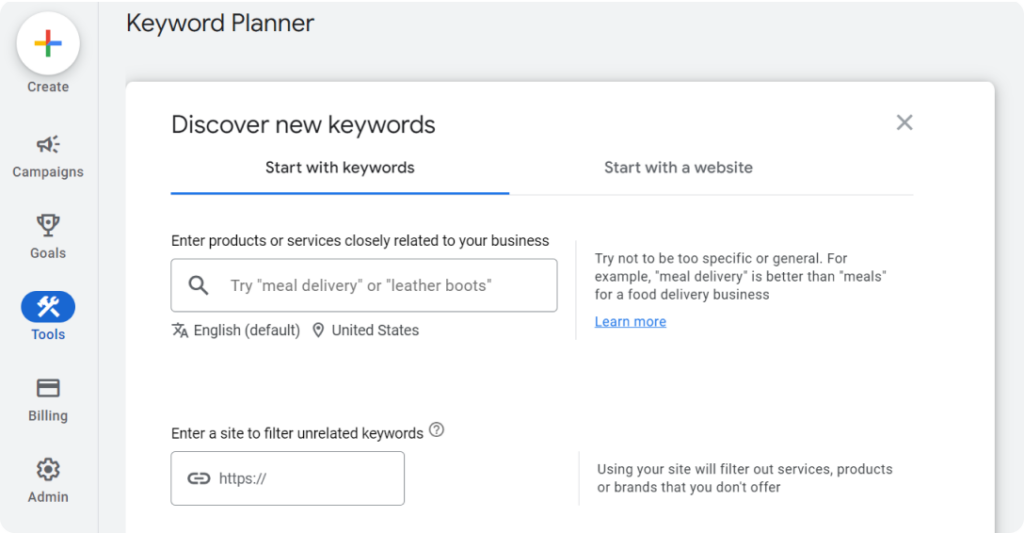
  1. In Google Keyword Planner
  2. Click Discover new keywords
  3. Enter the products or services you offer
  4. Enter your website in the input field below it
  5. You can tweak your language or location
  6. Click Get results
Google Keyword Planner page
Source: Google

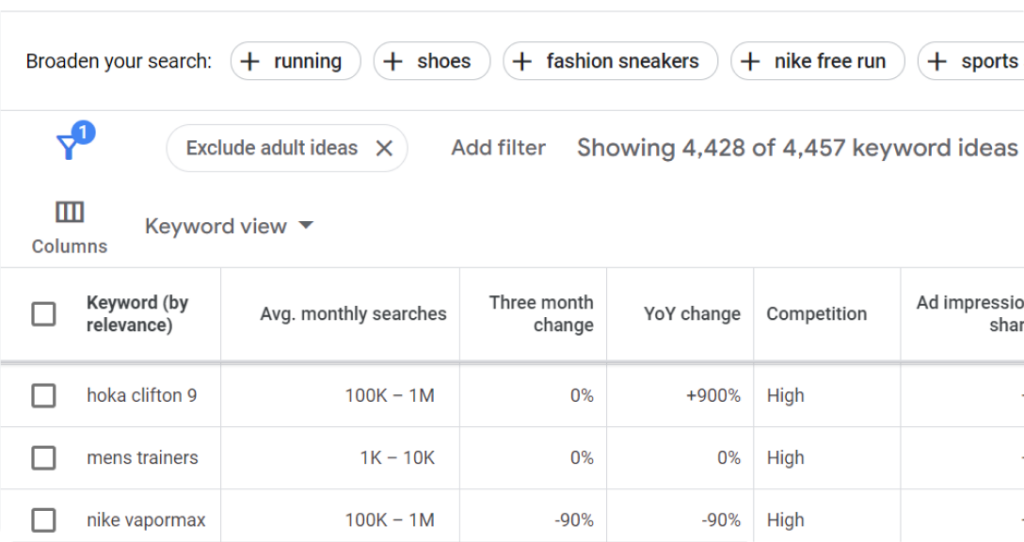
Exclude brands/products you do not offer, filter your results, and select keywords with high search volume but lower competition.

Google Keyword Planner page showing keywords for “running shoes”
Source: Google

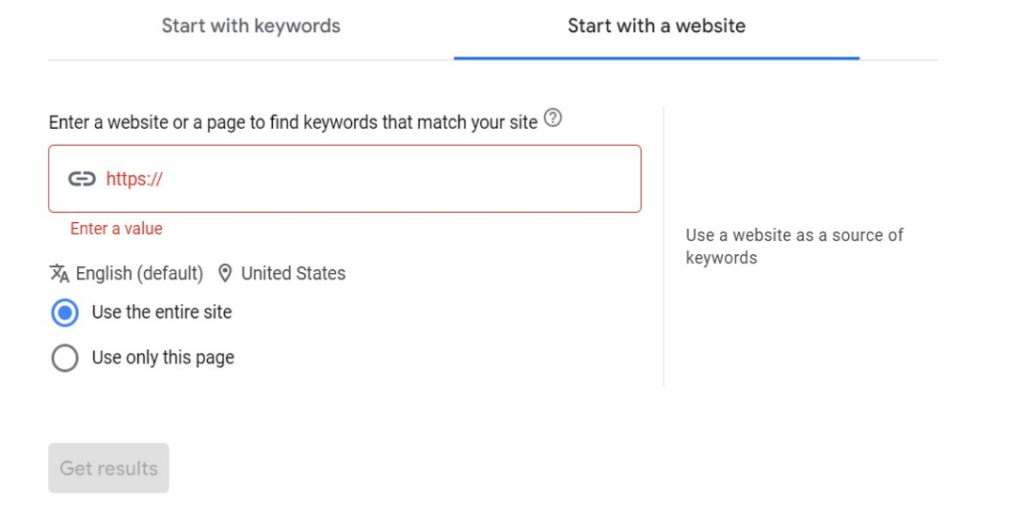
If you’re interested in your competitors’ keywords—and you should be—use the “Start with a website” feature instead.

Google Keyword Planner page showing ‘Start with a website” feature.
Source: Google

Pro tip: Don’t focus on single-word “head terms” with high competition. Pick long-tail keywords too. These are more specific phrases users add to their search.  

For instance, instead of just “running shoes,” a long-tail keyword could be “best lightweight running shoes for women.” These keywords often have lower competition and higher conversion rates since people who search for them are further along the buyer journey.

2. Target topic clusters

Structure your content around topic clusters. These are groups of interlinked pages that comprehensively address a central theme. 

You can actively target topic clusters by weaving in Latent Semantic Indexing (LSI) keywords throughout your content.

A good way to find low-hanging topic clusters is through the “People also ask” section on Google search.

Screenshot of People also ask section for the “running shoes” search term

3. Match user intent

Create articles that align with your users’ search goals. 

For instance, a Google search for “best running shoes” shows that most websites focus on educational content and product comparisons—not a sales pitch for their brands ❌

Search results for best running shoes

You should do the same. However, you can differentiate by providing evergreen content like “Best Running Shoes for Beginners.” 

Bottomline is, if people cannot find what they need quickly, Google will assume your site is not useful, so it’ll be demoted.

4. Add internal links

Internal linking involves connecting relevant pages on your website with hyperlinks.

For instance, on your product page for “running shoes,” you could link to a blog post titled “Choosing the Right Running Shoes for Your Needs.” 

You can find your internal links through a site search (site:domain.com “[keyword]”)

Finding internal links through a site search

Internal linking helps users discover deeper content, improves website navigation, and distributes “link juice” (ranking power) throughout your site.

5. Optimize images

High-quality, relevant images engage the reader, yes. But, they also contribute to a high search engine ranking. 

Screenshot of Google’s image results for the keyword “running shoes”

Here’s how to optimize them:

  • Make them meaningful (infographics, workflow screenshots, charts, etc)
  • Optimize image sizes for faster loading times.
  • Add descriptive alt text and relevant keywords. This helps search engines understand the image content and improves accessibility for visually impaired users.
Instead of "picture1.jpg," use "Red running shoes for women on a mountain trail."

6. Provide helpful content

The heart of on-page SEO lies in offering content that’s genuinely valuable to your users. We’ve covered a bit of this in User Intent, but to be more specific, your content should follow Google’s E-A-T principles

No, they’re not burgers. It stands for:

  • Expertise
  • Authoritativeness 
  • Trustworthiness
How to write E-A-T content for Google

Pro tip: Remember to regularly update your website with fresh content to keep users engaged and signal to search engines that your site is active and relevant.

Technical SEO considerations

Technical SEO involves optimizing the technical aspects of a website to help search engines crawl, index, and understand your site. Some often overlooked aspects of technical SEO include:

  • Site speed: Fast-loading pages provide a better user experience.
  • Mobile responsiveness: All elements of your site should load accurately on mobile.

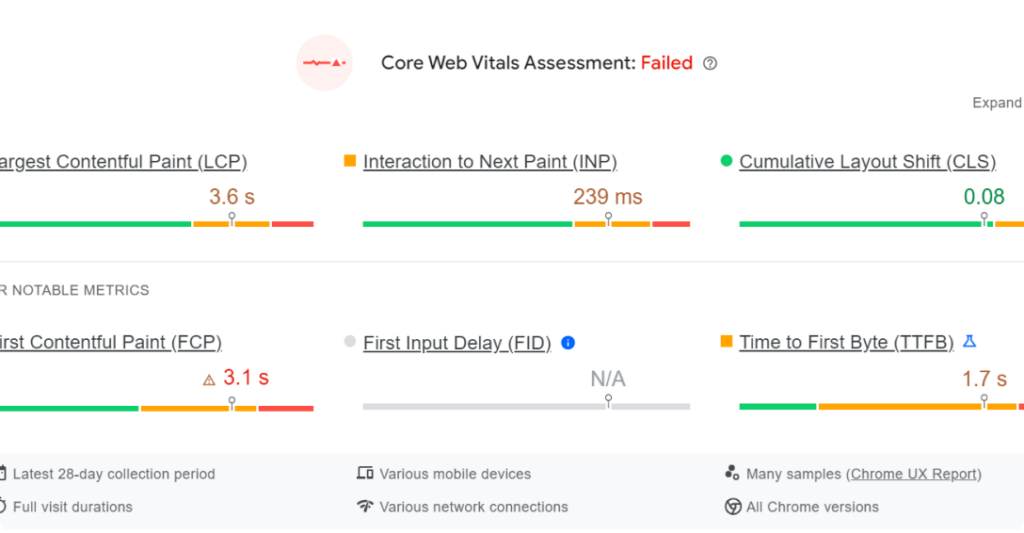
Pro tip: You can test site speed and mobile-responsiveness with Google’s PageSpeed Insights.

PageSpeed Insights showing a failed assessment.

Source: Google

  • Secure sockets layer (SSL): Site security contributes to your page experience, which is an important ranking signal for Google. So, be sure to use an SSL to secure your site.
Screenshot of Google Developer documentation on Page Experience. 
Source: Google
  • Duplicate content: Avoid duplicate content issues by setting up canonical URLs and using the `rel=canonical` tag properly.

Off-page SEO strategies

Off-page SEO are activities outside your website that influence its search engine ranking and credibility. It’s primarily focused on building the authority of your website through links, social media, and mentions from other sites—backlinks.

How to build backlinks

The more high-quality websites linking to you, the more authority you gain in Google’s eyes. Some ways to build strong backlinks include:

Broken link building

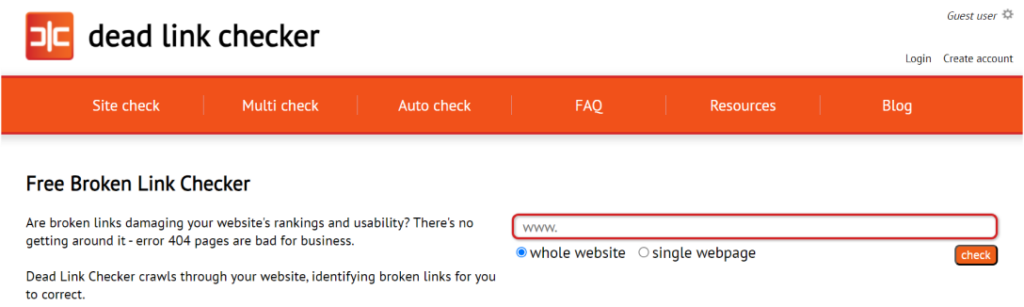
  • How to do it: Find relevant websites with broken or outdated links on topics related to yours. You can search for a website’s deadlinks with Deadlinkchecker.
Screenshot of Deadlinkchecker’s homepage. 
Source: Deadlinkchecker
  • Action: Contact the website owner and suggest your high-quality content as a replacement in exchange for a backlink.

Guest blogging

  • How to do it: Identify high-authority blogs in your niche that accept guest posts.
  • Action: Pitch them a well-written and informative guest post idea that aligns with their audience’s interests.

Brand building & online reputation management

  • How to do it: Submit your websites to trusted platforms like Google My Business, G2, or Yelp. 
  • Action: Encourage customer reviews on those platforms and on social. Respond to both positive and negative reviews professionally.

Multilingual SEO for international businesses

Regular SEO focuses on optimizing your website for search engines in one language. While this is important, international businesses have the potential to reach a much wider audience by implementing multilingual SEO.

And here’s how to do so.

  • Conduct language-specific keyword research: Remember that direct keyword translation may not capture the right intent.
  • Choose a good website structure: Decide on a structure (country-code top-level domain, subdomain, or subdirectory) for each language version of your site.
  • Make locally relevant content: Localize content beyond translation by considering cultural context and regional trends.
  • Add hreflang tags: Implement hreflang tags to specify the language and geographical targeting of a webpage
  • Implement local link building: Get links from websites in the target language region to improve local search relevance.
  • Optimize metadata: Translate page titles, meta descriptions, and alt text for images.

Juggling all these elements and their translations is difficult, especially when done in a rush. Consider using a website localization platform to streamline the process and ensure consistency across all languages. It’s also important to build your multilingual SEO strategy while you’re developing your local website.

Pro tip: You can simplify your multilingual SEO process with a translation management tool that doubles as a project manager. It’ll do all the checks, manage your translations, and keep you on track.

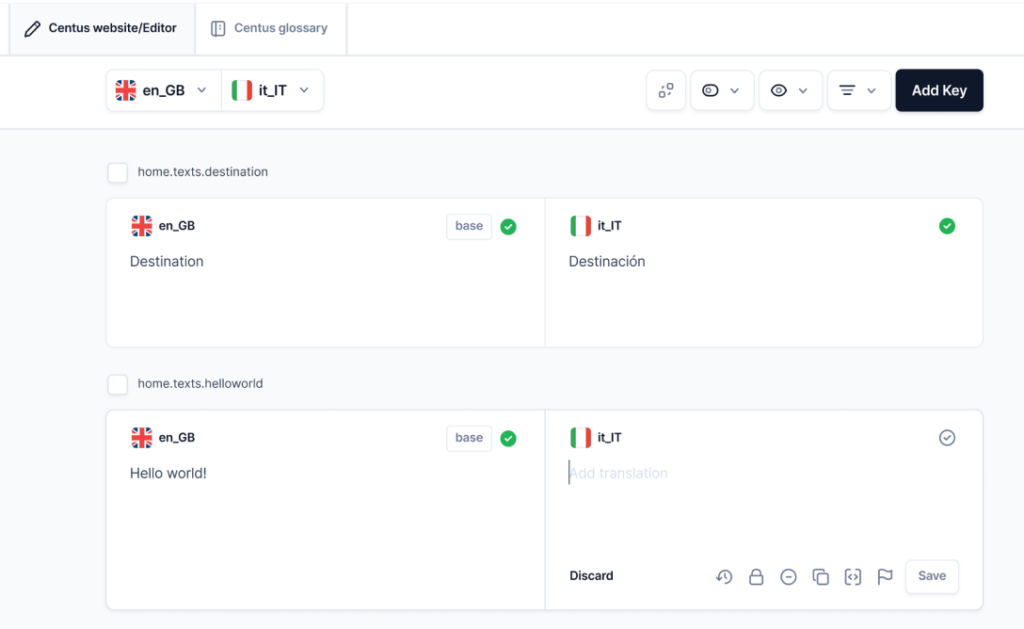
A screenshot of a translation management tool/project manager (Centus)

Parting thoughts

We’ve explored various strategies to help you improve your website’s Google ranking. They can be summed up in 4 simple sentences.

  • Create high-quality, informative content that answers your target audience’s search intent.
  • Ensure your website is mobile-friendly, loads quickly, and has the appropriate keywords.
  • Build backlinks from reputable websites to your content and establish your website’s authority in your niche.
  • Prepare for multilingual SEO if you want to expand to other markets.

Remember, SEO is not stagnant. Track your website’s performance using analytics tools and see what’s working and what’s not. Don’t be afraid to experiment with different tactics and see what drives the most traffic.

Categories
Online Tools & Software Reviews

6 Best CRM Software for Medium-Sized Business for 2026

Customer relationship management software is the foundation of any expanding company since every firm wants to increase lead generation, boost lead-to-deal conversion rates, and deliver top-notch customer care.

Nowadays, many leading CRM businesses offer comparable features, and many business owners are confused about how to select a CRM system that is suited to their particular requirements and ongoing difficulties.

Because of this, we have compiled a list of the best 6 CRM programs that include features like: Overview of the platform, Important pieces of functionality, Top well-known clients using the best CRM software, and Pricing plan overview.

Criteria for Selection: Key Features to Consider in CRM Software

When searching for the ideal CRM software, consider it like selecting a new smartphone. You want something that fits just right, not too complex, but with all the necessary bells and whistles. 

Here’s what to keep your eyes on:

Customizability: You want a CRM that fits your business like a good suit. It should adapt to your processes, not the other way around.

Scalability: Think future-proof. Whether you’re scaling up or down, your CRM should handle the changes without breaking a sweat.

Integration capabilities: It should play nice with other tools you use. Seamless integration means less hassle for you and your team.

User-friendliness: Nobody wants to spend hours training on a new platform. It should be intuitive and easy to navigate, something everyone can get on board with quickly.

Customer support: Good support is like a reliable friend always there when needed. Make sure the CRM provider offers excellent service.

Pricing structure: Money matters, right? Look for transparent pricing without hidden fees that fit your budget.

Choosing the right CRM is crucial, so take your time, weigh these features, and pick the one that best suits your business vibe!

Top 6 CRM Software for Medium-Sized Businesses in 2026 

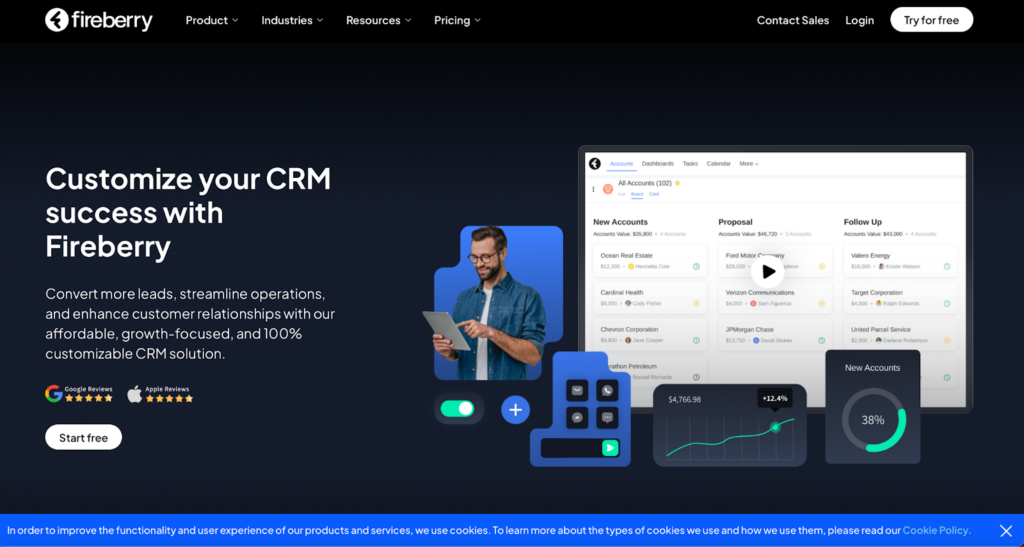
1. Fireberry

Screenshot from Fireberry website

Ever stumbled upon Fireberry? If not, it’s high time you did because it’s quickly becoming the MVP in the CRM league. Think of Fireberry as that super cool newcomer everyone wishes to buddy up with because they just nail their tasks.

What’s the Buzz About?

Fireberry has features that make your daily grind feel like a breeze. We’re talking sleek automation tools that streamline your workflow, detailed reports that don’t spin your head, and customization that lets you do your thing your way. It’s the dream setup for any business looking to keep things neat and efficient. 

The Ups and Downs

People can’t stop talking about how Fireberry makes their lives easier. But let’s be honest, no CRM is flawless. Some users find it tricky to get the hang of it, and a few wish for more integrations to spice things up.

What’s the Damage?

When it comes to pricing, Fireberry has you covered with various plans that cater to different needs and budgets. They even offer a free trial, so you can try it out before spending a dime. It’s like test-driving a car but in the software world.

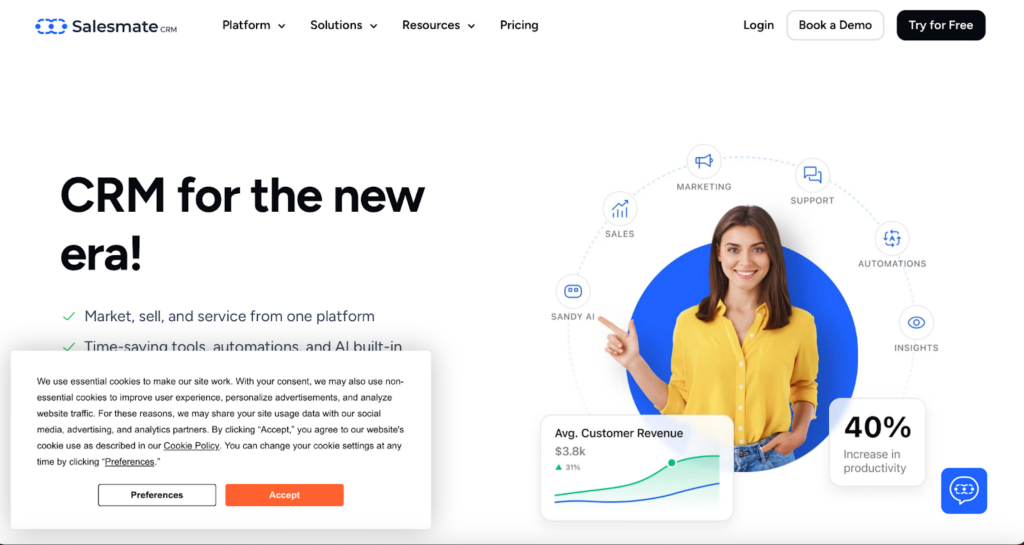
2. Salesmate CRM

Screenshot from Salesmate CRM website

Meet Salesmate CRM, your new best friend if you’re a medium-sized business looking to improve your game. This CRM is not just any other tool; it’s crafted to make your business operations smooth and impactful.

Key Features

Dive into Salesmate, and you’ll find some nifty features. From sales pipeline management that guides you like a GPS to seamless email integration and mobile accessibility, this CRM goes wherever you are, ensuring you’re always connected, whether at a café or mid-flight.

Good & Not-so-Good

Users love Salesmate for its user-friendly design that scales with their business; it’s like a CRM that grows with you. However, some feel it could offer more customization options, and larger enterprises might find it a tad restrictive.

Pricing Tiers

Salesmate has various pricing options designed to fit various needs and pockets. They’re upfront about what each plan includes, helping you dodge those annoying hidden fees. They also offer flexible payment options, monthly or yearly, whatever floats your boat.

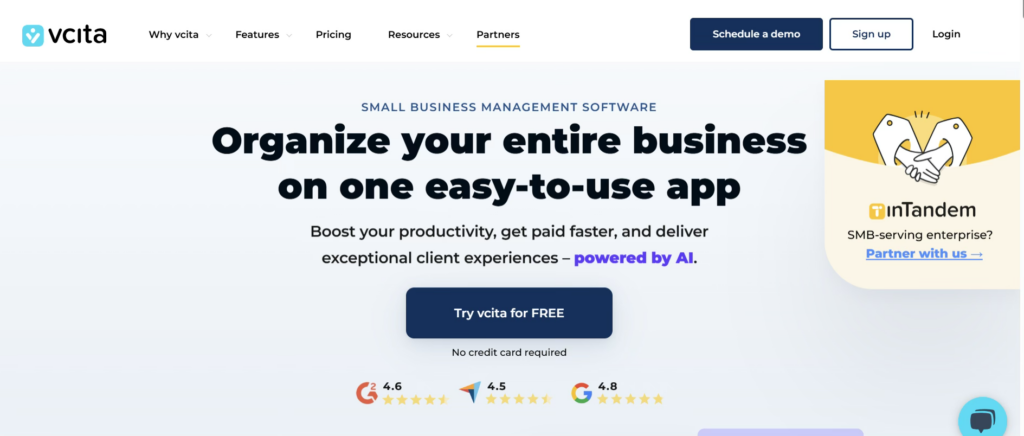
3. vcita

If you’re running a small or service-based business and juggling clients, scheduling, payments, and follow-ups, vcita might feel like the all-in-one helper you didn’t know you needed. Designed with simplicity and automation in mind, vcita focuses on helping businesses manage client relationships without overwhelming complexity.

Key Features

vcita brings together CRM, scheduling, payments, and client communication into a single dashboard. Its standout features include automated appointment scheduling, client intake forms, invoicing, online payments, and built-in CRM tools that track every interaction. The client portal is a big plus, allowing customers to book services, pay invoices, and communicate with businesses effortlessly.

Good & Not-so-Good

Users appreciate vcita for its ease of use and how well it supports service-oriented businesses like consultants, coaches, and local service providers. The automation tools save time and reduce manual follow-ups. On the downside, businesses with highly complex sales pipelines or enterprise-level needs may find vcita somewhat limited in advanced customization and reporting compared to larger CRM platforms.

Pricing Tiers

vcita offers multiple pricing tiers tailored to small and medium-sized businesses. Plans are transparent and scale based on features such as automation, client management tools, and integrations. While it’s not the cheapest CRM on the market, many users feel the bundled scheduling, payment, and CRM features justify the cost.

Best Suited For

vcita is ideal for freelancers, consultants, and service-based businesses looking for a streamlined way to manage clients, appointments, and payments without adopting multiple separate tools.

4. HoneyBook

Screenshot from Honeybook website

HoneyBook isn’t just another tool; it’s a full-fledged assistant designed to simplify how you manage projects, communicate with clients, and handle payments. It’s especially great for freelancers, small business owners, and anyone managing multiple client projects.

Key Features

Jump into HoneyBook, and you’ll find a plethora of features designed to ease your workload. From robust project management tools and effortless communication functions to a straightforward invoicing system, it’s like having your own business admin, communication, and finance teams all wrapped into one.

The Sweet and the Sour

Users rave about how HoneyBook turns chaotic workflows into smooth operations. They dig the intuitive design, which is easy to navigate. However, larger projects might find it lacking in scalability, and some wish for more detailed customization in reports.

Pricing Plans

HoneyBook offers clear pricing options that cater to various budgets, often with special deals that add extra sweetness. Whether you’re starting fresh or upgrading, they have a plan that’s just right.

5. Pipedrive

Screenshot from Pipedrive website

In the bustling world of CRM, Pipedrive stands out by putting sales teams in the driver’s seat. It’s favored by sales pros who want to close deals quicker and with fewer headaches.

Key Features

Pipedrive has features that make sales management as intuitive as checking your rearview mirror. Visual sales pipelines provide a clear view of your deals, automation tools reduce busywork, and superb integration capabilities ensure everything runs smoothly.

Pros and Cons

Users adore Pipedrive for its user-friendly interface and efficient setup, which truly understands the sales grind. However, it might fall short for larger enterprises needing more advanced features.

Pricing Simplified

Pipedrive’s pricing is straightforward, with plans suited for various business sizes and needs, from startups to seasoned teams.

6. Zoho CRM

Screenshot from Zoho website

Zoho CRM is a powerhouse for medium-sized businesses looking to boost their operations. Known for its versatility and intelligent features, it’s a top pick for companies aiming to stay competitive.

Key Features

Zoho CRM excels with AI-driven insights for predicting trends, automating tasks, and making smarter decisions. It’s highly customizable and integrates well with your existing apps, creating a seamless business ecosystem.

The Good and the Complicated

While users praise Zoho for its comprehensive features and customization, some initially find its array of options overwhelming. Also, unlocking its full potential can be costly.

Pricing Diversity

Zoho CRM offers varied pricing plans, from a free basic version to advanced options packed with features suitable for every budget and business stage.

Conclusion: Final Thoughts on Choosing the Best CRM

Selecting the right CRM software isn’t just a minor decision; it’s foundational and can shape how your business operates and grows. 

Before making your final decision:

  • Take the time to evaluate your specific business requirements.
  • Consider factors like team size, the complexity of your sales processes, and the level of customer interaction.
  • Don’t hesitate to take advantage of free trials or demos offered by these platforms.

They are a great way to see each CRM in action and gauge which one feels right for managing your customer relationships effectively.

Categories
Uncategorized

8 Best Pinterest Video Downloader in 2025

Do you want to download a video from the Pinterest website? If so, this article is especially for you. I will show you the seven best Pinterest video downloaders in this article and their features.

Pinterest started as an image-sharing social media platform, but for some time Pinterest allowed video sharing so now people also share short videos on Pinterest.

Best Pinterest Video Downloader

  1. SavePin
  2. BotDownloader
  3. Expertstool
  4. PintoDown
  5. Pinterestvideodownloader.io
  6. Offeo
  7. Pinterest Downloader
  8. Pinterest Video

1. SavePin

SavePin is the most popular Pinterest video downloader in 2025. Pinterest is amongst the most famous platforms where you can share your videos and photos. SavePin is safe, secure, and compatible with all devices.

Using savepin almost 42 million videos downloaded till now and it has 1.5 million active users.

2. BotDownloader

BotDownloader is another free Pinterest video downloader. This tool is not different from others. You can use BotDownloader to download Pinterest videos, images, or GIFs. You can also convert Pinterest videos to mp4 with botdownloader’s built-in features.

The best part of this tool is it’s free and you don’t need to sign up to use their service. The worst part of this tool is it contains ads.

3. Expertstool

Expertstool is a simple cloud-based Pinterest video downloader tool that doesn’t need any installation. Just paste a link to the content you want to own and get it right on your device fast. Downloading Pinterest videos, stories, and reels Pinterest are made easy with this tool.

The best part of this tool is you can download Pinterest videos, stories, and even reels and the worst part of this tool is it takesa little bit more time to provide downloading links.

Also read – Best Online Photo Editor

4. PintoDown

PintoDown is not different from other Pinterest video downloaders. It is a simple and easy video downloading tool that can be used on your pc, desktop, laptop, tablet, or Android smartphone.

The best part of this tool is you can download videos in different video qualities i.e., 240p, 360p, 480p, 720p, and 1080p. And the worst part of this tool is it contains too many ads.

Also, read – Best Youtube Video Downloader

5. Pinterestvideodownloader.io

Pinterestvideodownloader.io is similar to other Pinterest downloader tools in terms of its functionality. This user-friendly tool allows you to effortlessly download videos from Pinterest on various devices such as PCs, desktops, laptops, tablets, and Android smartphones. 

It supports both Short and Long URLs and you can download unlimited videos using the tool without any link break.

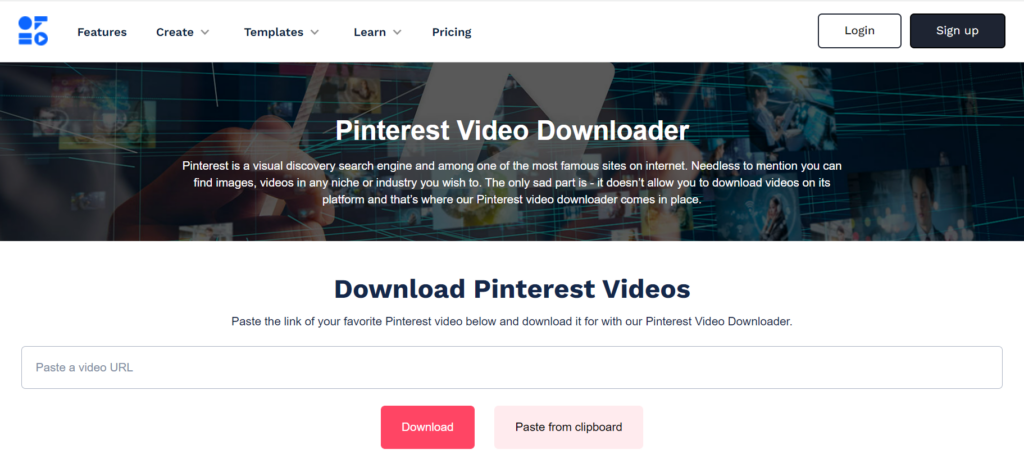
6. Offeo

Best Pinterest Video Downloader

Offeo Pinterest downloaders are apps that enable you to download videos from Pinterest and save them in video or music format on your device so you can play them anytime you like.

The best part of this tool is you can download videos in 4K if the video is uploaded in 4K and I did not find any worst part of this tool.

Also, read – Best Instagram Video Downloader

7. Pinterest Downloader

Best Pinterest Video Downloader

Pinterest Downloader is a free Pinterest video downloader online tool. You can also download Pinterest Images and GIFs directly to your computer, tablet or mobile by using Pinterest Downloader.

The best part of this tool is you can download videos and gifs in high definition and the worst part of this tool is it takes too much time to provide downloading links.

8. Pinterest Video

Best Pinterest Video Downloader

Pinterestvideo is one of the best tools for downloading videos, gifs, stories and reels from Pinterest sites in high quality. Using this tool you can download Pinterest videos in HD, SD, and, FULL HD and 4K.

The best part of this tool is Fast downloads and conversions with no rate limiting and the worst part of this tool is it contains ads.

In this article, I listed almost all the popular Pinterest video downloaders. Now you need to choose which one is suitable for you.

Categories
Online Tools & Software Reviews

9 Best Free Video Editors in 2025

Are you looking for the best free video editor? If yes, then this article is especially for you because in this article, I will show you the 9 best free video editors in 2025.

Good video editing software helps you showcase your products from every possible angle. It gives your product a professional promo for social media platforms like Instagram, Facebook, YouTube, etc., where you can share these videos like your brand videos. Several easy-to-use free video editing programs may help you stand out from others on the internet.

Well-produced video products have a more engaging form of content marketing than just photographs alone, and something authentic that automatically reduces a customer’s hesitation in making a purchase. E-commerce product videos can increase conversion rates up to around 144 per cent. Therefore, making a well-collected and enjoyable video can help you get a lot of responses online.

There are many modern laptop and desktop-based editing software available for businesses looking to make something promotional as their brand videos. The most substantial advantage of free video editing software for laptops or desktops is that they tend to have more additional features than smartphone video editing applications.

Suppose you are someone looking to edit your promotional video on a simple and small budget. In that case, the applications below are just perfect for you as you can use them to edit long forms of content for social media platforms like YouTube or your eCommerce site.

There is a list of the best video editing software from all around the internet. Each entrepreneur has their own needs and requirements, so this list runs down some of the most valuable features of each best free video editors.  

Best Free Video Editors:

  1. Filmora
  2. Camtasia
  3. Video Pad
  4. InVideo
  5. Adobe premiur pro
  6. iMovie
  7. Final Cut Pro
  8. Animotica
  9. HitFilm Express

1. Filmora (Recommended)

Wondershare Filmora is one of the top and best free video editors. Filmora comes with many amazing features, but picture-in-picture mode, green screen, split screen, auto reframe, silence detection, motion tracking and AI portraits are the best features.

Filmora is a popular video editor among YouTubers and video content creators.

Top features:

  • Audio Equalizer
  • 4K Resolution Editing Support
  • GIF Support
  • Split Screen
  • Video And Audio Controls
  • Layer Multiple Video Clips
  • Video Stabilization
  • Colour Grading Presets
  • Advanced Text Editing
  • Tilt-Shift
  • Mosaic (Blurring)
  • Noise Removal
  • Social Import
  • Frame By Frame Preview
  • Speed Control
  • Audio-Mixer
  • Chroma Key Backgrounds
  • Screen Recording
  • Audio Separation

If you want to try filmora for free, then check out the filmora free trial guide.

2. Camtasia

Camtasia allows you to create engaging instructional content using powerful video content as well as other features. These include animated backgrounds, graphics, callouts, and clickable links within the videos created. Therefore, your end-user can easily be engaged by your finished product due to these features available in Camtasia Studio. Nevertheless, Camtasia is not free.

Top features:

  • Video Capture
  • Image Editor
  • Scrolling Capture
  • Text Extraction
  • Screen Record
  • File Sharing
  • Platform Search

3. Video Pad

Video Pad is a great free option for anyone who wants to make some high-quality videos without having to spend a dime on it. With the help of this video editing software, you will find all kinds of simple and easy-to-use features, for example, 3D video editing and a sound effects library to try various types of video compositions and styles.

You can use editing features like special effects, overlays, texts and transitions, colour adjustments, and sound effects on your video to make it look more stunning and eye-catching. Then you can even export all your finished videos directly to social media platforms like YouTube and Facebook, or directly to your Google Drive and other mobile devices quickly and easily.

Top Features:

  • It has a built-in double screen for easy and intuitive editing.
  • It has pre-made, customizable transitions for more polished professionalism
  • Exporting presets to easily create video files for specific platforms is very easy in this software

4. InVideo

InVideo helps you change your video clips into spectacular videos. They have helped many media companies, small businesses, and brands and have extended their audience engagement with the help of video content.

The one thing that every user would love in the application is that they have at least 100 different categories of templates to choose from, where every template is captivating and straightforward.

The templates also use an artificial intelligence (AI) engine. That works behind all the scenes to provide you with all the visuals and music selections, so you do not have to spend time searching for them. It has an all-the-time open world-class support system, making it a very dependable application at any time needed.

Top features:

  • 60 unique video exports a month.
  • 4000+ fully customisable templates.
  • Access to 1M+ images and video clips.
  • Make videos in any language.
  • Unlimited users.
  • Add your branding.
  • Automated text-to-speech.

5. Adobe Premiere Pro

Adobe Premiere Pro is the most popular video editor that can turn your computer into a full-featured device for creating multimedia files that include gaming videos. You can include this program on your list as it gives you high-quality results. It does not even have any limitations when it comes to importing your video in different formats. It has the following features included;

Social media sharing and publishing tools to share videos online through the applications themselves. It has an extensive library of video transitions and visual effects to customise videos. Premiere Pro also includes some more innovative features, including an AI video editor for faster, more advanced editing across all skill sets, and other professional-grade video optimization tools like stabilization.

But this video editor has a straightforward user interface and can be very simple for some advanced video editors. It does not even have as many advanced features as other free video editing software on this list, but it has features like light effects, fine-tuning colours, and over texts and images; there’s enough here to make it worthy of your download.

Top features:

  • Simultaneous Projects.
  • Motion Graphics Templates.
  • Shared Projects.
  • VR Editing.
  • VR Rotate Sphere.
  • VR Audio Editing.
  • Video Titling & Graphics.

6. iMovie

The iMovie users also get optional templates to use. That means people can add their photos and videos with titles and music to their timelines together to create stunning videos.

Top features:

  • The biggest pro of iMovie is that it has some fantastic tools for free.
  • Many special effects are available, including slowing down or speeding up the video clip, the picture-in-picture feature, and the green screen effect.
  • If a user does not want to add their music to the video, then the application offers more than 80 soundtracks to use, and it also has the option to use your voice as the soundtrack.
  • The users can also shift between Mac devices to work on the projects.

With such excellent capabilities, many people can get motivated to give this software a crack.

Also read – Best Online Photo Editor

7. Final Cut Pro 

Best Free Video Editor

Many professionals use it now and then, and it allows you to combine your video editing tools with a media organisation. It helps you to extend your capabilities by adding features like third-party workflow extensions.

If you are looking for an option that Adobe does not own, this software is your best option. With little work and patience, you can master the software without any problem whatsoever. Final Cut Pro is very significant with Mac systems and is also compatible with iPads. The software is smooth even when you work with large media files.

It has many features like drag and drop, colour correction, etc., which give you high-level results. The user interface is simple and easy to use; it supports almost all kinds of video and audio formats.

Top features:

  • Workflow extensions.
  • Batch sharing.
  • Video noise reduction.
  • Timecode window.
  • Comparison viewer.
  • Tiny planet.
  • Comicization,
  • Improvements to 360° video

8. Animotica

Best Free Video Editor

This video editor and movie maker is straightforward to use and has a very user-friendly Video Editor, Movie Maker, and Slideshow video maker interface. The software encompasses all the traditional tools and features that you would expect from top-quality video editing software.

This video editor and movie maker software has features like video trim, split, combining video and phone, adding music, and so much more. The software becomes an accessible replica of a professional video editing application like Adobe Premiere Pro.

Top features:

  • Chroma key / Green Screen.
  • Speed Up & Slow Down Video and Audio.
  • Export In 4k.
  • Blur Video Background.
  • Video Blending.
  • Fade the video to White/black. 

9. HitFilm Express

Best Free Video Editor

If you do not have a lot of experience with video editing, this application will make you a little advanced at first. This application is usually used to produce Hollywood-style films, but it’s worth the learning curve as it’s one of the best video editors available.

HitFilm includes animation tools that would let you create and edit audio-video transitions without the need to create composite shots, which is a huge time saver when it comes to editing.

Top Features:

  • It has professional-grade video editing with motion tracking, colour pickers, and cropping tools.  
  • This video editor gives you composite shot enhancements that allow you to animate two separate shots together for surreal video effects.
  • It even has an auto stabiliser to make shaky footage look smooth
  • You will get different transition options like push, zoom, dissolves, etc, from this awesome editor.

Conclusion

So, these are the best free video editors that you must try in 2025. So, without wasting any more time, start trying them. Each option may come with its own set of advantages and disadvantages. Hopefully, with the help of this list, you will be able to find out the most useful features of each editor.

According to that, pick Filmora editor if you want a free video editor, and if you want a premium editor, then go with Camtasia and start video editing to make them utterly impressive for the audience. Happy video editing!

Categories
Online Tools & Software Reviews

10 Best Facebook Video Downloader in 2025

Are you looking for the best Facebook video downloader? If yes then this article is especially for you because in this article I listed the 10 best Facebook video downloaders in 2025 😍

What is Facebook Video Downloader?

Facebook video downloader is an online website or application that can be used to easily download any videos from Facebook. Facebook video downloader comes with many excellent features. So it’s an important subject to know all about this type of website/application.

Best Facebook Video Downloader:

  1. FBDOWN.net
  2. GetfVid
  3. BitDownloader
  4. KeepVid
  5. ClipGrab
  6. Savefrom.net
  7. iTube
  8. FB Downloader
  9. Snapsave
  10. ContentStudio

1. FBDOWN.net

Best Facebook Video Downloader

FBDOWN.net is a free website that helps users download their favourite videos off Facebook and save them for offline viewing by generating direct links to the Facebook video.

Features of FBDOWN.net:

  • Chrome Extension 
  • Support HD videos.
  • Multi-language Support.
  • Download the video from Facebook.
  • Download private Facebook videos.
  • Download videos from the news feed.
  • Download videos from the groups and pages.

Availability:

  • Website
  • Extension

2. GetfVid

Best Facebook Video Downloader

Getfvid is one of the best online tools for downloading videos from Facebook. This tool helps convert videos from Facebook to mp4 (video) or mp3 (audio) files.

Features of GetfVid:

  • Download the video in a single click
  • Convert video directly
  • Download the video in any available format
  • Download private video
  • No subscription required
  • Extension available

Availability:

  • Website
  • Extension

3. BitDownloader

Best Facebook Video Downloader

BitDownloader is a free downloader tool that allows you to download videos from many platforms including YouTube, Facebook, Instagram, and many other services. 

Features of BitDownloader:

  • Download videos from multiple platforms
  • Download the video in the available format
  • Download the Facebook page video
  • Download the Facebook group video
  • No subscription required
  • Extension available

Availability:

  • Website
  • Extension

4. KeepVid

Keepvid is the place to download Facebook videos. Keepvid offers multiple formats and can convert your FB video to MP3. If you need a Facebook video downloader, keepvid is one of the best solutions.

Features of KeepVid:

  • Instant downloading
  • Download any type of Facebook video
  • Convert Facebook video to mp3 
  • Download video in high-quality
  • Know the size of the video

Availability:

  • Website

5. ClipGrab

ClipGrab is a multi-platform software package for downloading videos from various websites such as YouTube, Vimeo, Dailymotion, or Facebook.

Features of ClipGrab:

  • Built-in search tool
  • Supports lots of video-sharing websites
  • Download Facebook video
  • Clipboard monitoring
  • Allows video-to-audio conversion

Availability:

  • Windows app

6. Savefrom.net

Savefrom.net helps you to download Facebook videos in mp4 or mp3 without leaving the website, you have to install “SaveFrom.Net Helper!”. It is a free browser extension that helps you to save preferred videos without the need to leave the website.

Features of Savefrom.net:

  • Download private Facebook video
  • Download the live Facebook video
  • Download the video in any available quality
  • Download the video in mp4 or mp3

Availability:

  • Website
  • Extension

7. iTube

With iTube HD Video Downloader, you’re able to download videos or extract audio from YouTube, Facebook, Vimeo, etc. You can download videos by pasting the URL or using the browser plugin (available for Chrome, Safari, and Firefox) to download full HD videos in the browser directly.

Features of iTube:

  • 10,000+ Video Sites Supported (including Facebook)
  • Download HD Video
  • Download YouTube to MP3
  • Download Audio Only
  • Batch Download Videos
  • Fast Download Speed

Availability:

  • Website
  • Windows app
  • Mac app

8. FB Downloader

FB Downloader is a fast and free way to download and save Facebook videos as MP4s. FB downloader also enables you to convert Facebook videos to MP3 audio files.

Features of FB Downloader:

  • Download Facebook video
  • Download private Facebook video
  • Download the live Facebook video
  • Download unlimited videos
  • Completely free

Availability:

  • Website

9. Snapsave

Snapsave is high quality Facebook video downloader. You can download all types of Facebook videos for free. Snapsave also provides a native Android app for free.

Features of Snapsave:

  • Download high-quality video
  • Download any type of Facebook video
  • Download live stream video
  • Download the video in 4K
  • Free android app

Availability:

  • Website
  • Android App

10. ContentStudio

ContentStudio provides a free facebook video downloader that helps you to download Facebook videos without a watermark in high quality. It supports the fastest downloading of video.

Features of ContentStudio:

  • Download the video without the watermark
  • Download video in high-quality
  • Easily share fast video downloadable link

Availability:

  • Website

I mentioned almost all popular Facebook video downloaders. Now you need to decide which one is best for you.