Here you’ll find honest guides, comparisons, and lists of useful online tools and software. These posts help you choose the right tools for work, business, productivity, and everyday tasks.
Increasing productivity is one of the most frequent priorities for both businesses and individuals. A personal task manager has long gone beyond a to-do list in a notebook: today it’s a bundle of tasks, a calendar, reminders, habits, notes, and sometimes entire projects. Choosing the right tool depends not only on the convenience of planning, but also on whether you can maintain focus and actually get things done.
Therefore, it is important to choose a service for your workflow: some people need a simple task list, others need more advanced planners, and others want to combine tasks, a knowledge base, and communication in one place. A wrong choice leads to overloaded interfaces, task duplication, and you stop trusting your system.
Below is a list of the best tools that actually work well for personal and work productivity in 2026.
The Most Useful Productivity Apps in 2026
Time Tracking Systems & Time Trackers
If you don’t track your time, you can’t manage it. To spend time more efficiently, it is essential to know exactly where your time goes. Special time tracking systems or time trackers are usually used for this purpose. Their main difference is that the first type is small programs that work in the background and record all your activity during the working day: which buttons were pressed and when, which sites were visited, how much time was spent in a particular program, and what you were doing.
The second type is a special timer that starts when you start working on a task and stops when you take a break or finish. At the same time, it does not track any actions, and often it doesn’t start automatically; you have to turn it on and off manually.
Here is a list of the most popular and widely used time tracking systems and time trackers:
Kickidler: a full-fledged time tracking system with many functions and user-friendly reports, suitable for both corporate and personal use.
TimeDoctor: an excellent time tracker with monitoring of computer activity, best suited for business.
Toggl: one of the most popular time trackers for freelancers and personal use.
TMetric: a budget time tracker for freelancers and small teams.
Harvest: a time tracker with a built-in billing function for the time worked.
Task Planners & Project Management Programs
If tracking tools tell you how you spent your day, then planners explain why you did it. Productivity growth begins with a clear goal, and then you break that goal into tasks. Planners help keep this list of tasks under control: from a large project to a small routine.
It helps you get things out of your head, free up mental space for important things. At the team level, planners help teams stay organized and aligned. If the tasks are not fixed, are not divided into stages, and are not assigned to the right people, it is just chaos.
Here are some tools that will help you plan more effectively:
ProofHub: a basic task manager that covers all the basics.
Trello: a very easy-to-learn task scheduler, one of the most popular on the market.
AI Bots & Communication Automation
AI bots in 2026 are not only chat assistants, but also algorithms embedded in schedulers, time tracking systems, and even corporate messengers.
The choice of a specific assistant depends on your preferences:
ChatGPT is an industry standard that handles almost any task in seconds, from writing text to structuring and summarizing large amounts of information.
DeepSeek is the Chinese equivalent, almost as good as ChatGPT, but it may require waiting between requests due to server load.
Alexa is a smart assistant from Amazon, a pioneer in this field that handles simple tasks.
Nicegram is a convenient messenger that allows you to use advanced filters, folders, and manage multiple chats simultaneously, which allows you to effectively organize and control conversations in one place using a built-in AI bot assistant.
Habit Managers
The key thing to remember is that increasing productivity is not a sprint, but a marathon: you don’t need short bursts of motivation. It all comes down to habits: get up at the same time every day, start the morning with deep work on critical tasks, check your mail no more than twice a day, do anything that takes less than 2 minutes right away, and so on. It sounds simple, but it’s quite difficult to keep up with all of this.
Habit managers are apps that help reinforce repeated actions and turn them into habits. Here is a list of apps that you can try out as such an assistant:
TickTick: a very simple task manager for everyday tasks, synchronized with Google Calendar.
SingularityApp: a task scheduler with the functionality of a habit tracker, very well suited for routine management.
Brite: a habit manager with a lot of customization options, you can customize many aspects of your daily activities.
TickIt: an excellent free choice for Android, which provides useful stats.
Conclusion
Productivity is not checking off tasks or the feeling of constant workload, but a clear balance between results and resources you use: time, attention, and effort. To ensure that this balance doesn’t get out of balance, it is important not only to work actively but also to be intentional about how you work and approach it consciously.
The most effective productivity systems combine task management, time tracking, and communication tools into a single workflow. Choose the tools that work for you and your team. Start small with time tracking or a focus timer, and gradually build your productivity system.
I’ll admit it, I’m terrible at cleaning up digital stuff. My desktop has folders from 2019 labeled “temp” that are definitely not temporary anymore. My email inbox is a graveyard of “I’ll deal with this later” messages. And somewhere in the middle of all that chaos, I found something I’d completely forgotten about: an Xbox gift card.
It wasn’t even hidden. It was right there in my promotions tab, buried under newsletters and sale alerts. A $50 code from a credit card reward program I’d signed up for during a move last year. At the time, I thought, “Oh cool, free game money!” Then life happened, I got busy, and the card just… disappeared into the digital void.
For months, it sat there unused, unnoticed, and honestly, kind of useless to me. I don’t own an Xbox anymore. I build PCs, tinker with Linux, and buy almost everything on Steam or GOG. The Microsoft Store? I haven’t opened it in over a year.
But instead of deleting the email like I usually do with old receipts, I paused. What if I could actually get something out of this?
Turns out, I could. And it didn’t involve sketchy Discord DMs or waiting weeks for a stranger to “send payment.”
Why So Many of Us End Up With Unused Xbox Cards
You don’t have to be disorganised to end up with a gift card you’ll never use. It happens to the best of us.
Gifts from well-meaning relatives: “You like video games, right? Here’s an Xbox card!” (Never mind that you’re deep into PC-only mods.)
Retail or credit card bonuses: Sign up for a new card, get a $25 gift card as a thank-you. You file it away… and forget.
Online rewards programs: Complete a survey, watch a video, earn points and redeem them for a digital card you never intended to use.
Platform shifts: You sold your Xbox to fund a GPU upgrade, but forgot to spend the leftover store credit.
Sound familiar? If so, you’re not alone. And more importantly, you’re not stuck with it.
What Most People Assume (And Why They’re Wrong)
A lot of folks think: If I don’t use Xbox, this card is worthless.
But that’s not true. The value is still there, it’s just locked in a format that doesn’t work for you.
Others try to give it to a friend or post it in a Facebook group. That can work, sure, but it’s slow, unreliable, and sometimes risky. What if the person ghosts you after you send the code? What if they claim it didn’t work when it did?
And no, Microsoft won’t let you cash it out. You can’t convert store credit to real money through their system. That’s by design.
So what’s left? Selling it to a service that actually wants it and pays you quickly and fairly.
How I Actually Did It (Step by Step, No Fluff)
Here’s what I did, exactly as it happened:
I opened the email and copied the 25-digit code and the PIN (it was under a “show code” button).
I Googled “sell Xbox gift card” and looked for sites that specialised in digital cards, not general marketplaces.
I picked one that looked clean, simple, and didn’t ask for weird info (like my Xbox login or ID).
I pasted the code, hit submit, and got an offer within seconds: $44 for my $50 card.
I chose PayPal as my payout method, confirmed, and closed the tab.
The next morning, $44 was in my PayPal.
No phone calls. No waiting. No “please verify your identity.” Just paste, click, and get paid.
I used that money to buy a new thermal paste tube and a set of zip ties for cable management. Small things, but they made my latest build look cleaner and run cooler. Not a huge win, but a win nonetheless.
How to Spot a Legit Service (And Avoid the Scams)
Let’s be real, there are a lot of fake sites out there. Some look convincing but disappear after you submit your code. Others ask for way too much info.
Here’s what I look for now:
They only ask for the gift card code and PIN, nothing else.
They show the payout amount before you commit, no bait-and-switch.
They support fast payout methods like PayPal or bank transfer.
They have a clear contact page or support email, not just a contact form that goes nowhere.
They’ve been around for a while a quick search shows real user comments or reviews.
After trying a couple, I’ve stuck with sell xbox gift cards. It’s plain, no-nonsense, and pays reliably. No flashy banners, no fake urgency (“Offer expires in 5 minutes!”), Just a clean form and a fair offer.
A Few Things to Keep in Mind
Only sell unredeemed cards. If you’ve already added the code to your Microsoft account, you can’t sell it.
Double-check the code before submitting. One wrong digit and the offer gets rejected.
Don’t wait too long. Even if the card doesn’t expire, you might lose the email or forget where you saved it.
It’s okay to start small. Even a $10 card can cover a coffee or a phone accessory.
This isn’t about getting rich. It’s about not leaving money behind just because it’s in the wrong format.
Why This Feels Good (Beyond the Cash)
There’s something satisfying about cleaning up digital clutter, especially when it turns into something useful.
It’s like finding a $20 bill in an old jacket. You didn’t expect it. You didn’t plan for it. But it’s yours, and now you can actually use it.
In a world where we’re constantly spending money on upgrades, repairs, and new gear, recovering even a little bit of stranded value feels like a win. And it takes less time than reorganising your browser bookmarks.
Final Thought: Check Once
You don’t have to become a digital hoarder hunter. Just do this once:
Open your email
Search for “Xbox gift card” or “Microsoft gift card”
Check your notes app, password manager, or that old notebook on your desk
If you find a code, don’t delete it. Don’t ignore it. Turn it into something real.
Because of that forgotten card? It’s not junk. Its potential is waiting for you to unlock it.
In today’s hyperconnected world, web dashboards have become the financial compass for digital markets. From traders to analysts, real-time visualization tools are redefining how people understand Bitcoin’s movement and market rhythm.
Data moves faster than ever. For digital coins, the ability to read, interpret and respond to real-time information shapes how global audiences engage with the marketplace. Information-tracking platforms that monitor trends like the Bitcoin price are transforming intelligent ecosystems, merging statistics, usability and automation to bring digital finance to non-professional traders. As the web becomes the secondary way the world watches markets, the technology powering real-time dashboards is quietly building the modern crypto experience.
The Pulse of the Digital Marketplace
The notion of tracking cryptocurrency once involved stale charts and the labor of manually updating. Now, live dashboards have evolved that experience. These platforms really visualize blockchain data, trading volume and price movement across multiple exchanges. This creates a unified, real-time view of Bitcoin’s performance.
Currently, 1 Bitcoin is valued at $111,448.35 USD, reflecting a 3.78% drop over the past month. This is a sign of market volatility and global reach. Whenever prices fluctuate, dashboards respond within milliseconds using APIs that gather information from multiple sources. For both institutions and individuals, this transparent access isn’t just about curiosity but understanding.
Quoting Binance Research, “Although volatility traders may see continued calm next month, as seasonal statistics show October and November are historically the two months with the lowest Bitcoin volatility, for price action traders, October is also known for reversing September’s weakness.” Real-time dashboards are the graphical front end for interpreting these cyclical shifts by rendering the complexity of the market more understandable by incorporating design and data unification.
Why Real-Time Data Is Important to Decision-Makers
Every second counts in digital markets. Whether it’s financial news, analysis, or retail interactions, real-time information enables smarter decisions. Real-time dashboards do more than display prices; they evaluate them, revealing transaction levels, liquidity shifts and sentiment cues.
Speed and transparency advantages benefit trading but spread further. Fashion stores monitoring crypto-enabled payments or tech companies leveraging tokenized structures all rely on real-time data to remain in sync with digital economies.
Accuracy and performance define the way users experience credibility. A 2025 article by Medium quotes Statista that “53% of users abandon sites that take over 3 seconds to load, underlining the importance of performance optimization,” highlighting how important performance optimization has become for any online financial platform. Slow dashboarding dashboards are open to misinterpretation. A delay of seconds in a fast market will bend perception by a hundred percent.
APIs, Widgets and Browser Extensions that Drive Price Insights
The web tools that enable real-time Bitcoin tracking function like a virtual nervous system. APIs (Application Programming Interfaces) receive data from exchanges, aggregators and blockchain explorers through continuous activity. Widgets embedded in browsers convert raw data into visually accessible insights, from candlestick charts to moving averages.
Such tools are no longer reserved for experts. Open-source incorporation has enabled media sources, research institutions and startups to integrate Bitcoin tracking modules directly into their websites. It has become democratized real-time data that goes to both non-professionals and professionals.
Developers now create dashboards that adapt to user intent. Some have simple views, while others feature blockchain and sentiment-backed analytics. This reflects the diversity of crypto participants, from institutional analysts to casual learners.
Speeding Up and Clarifying Crypto Dashboards in Design
With finance, design isn’t about attractiveness anymore; it’s about readability. Dashboards have to make dense datasets easy and natural to read. Simple layout, color-keyed signals and plain charts lower the cognitive load so that the end-user will immediately see the major movements.
Usability also fuels retention. The same 2025 Medium post citing UXDesignInstitute noted that “88% of users are less likely to return to a site after a bad experience, highlighting the impact of usability on customer retention,” substantiating that functionality directly impacts credibility. For crypto dashboards, milliseconds and interface simplicity may decide if users remain informed or become detached.
They are improving interface speed and usability. Dark mode, data compression and predictive search are once-trendy features that are now essential, a trend that makes dense data more user-friendly and trustworthy.
Smarter Dashboards, Smarter Markets
With the integration of crypto analytics and artificial intelligence, future dashboards will move beyond monitoring. Machine learning algorithms today flag anomalies, forecast liquidity shifts and chart the relationship between social sentiment and price.
These developments might turn dashboards from reactive to predictive dashboards, then present early indicators of change in the marketplace. As the algorithms become more accurate, web tools transform from static trackers into interpretive systems.
Web3-ready dashboards also redesign transparency by directly retrieving verified information from blockchain nodes. This guarantees users access to genuine real-time data, a crucial step towards a more responsible digital marketplace.
A Networked Perception of the Future
The tale of Bitcoin isn’t conveyed in digits alone but in the web technologies that translate data into meaning. The virtue of these technologies, their precision, swiftness and ease of use, determines today how the world understands digital money. What once were mere price tickers have become highly evolved visualization systems that show accessibility breeds confidence. For companies, programmers and analysts, viewing Bitcoin’s movements in real time demonstrates the increased maturity of technology and market demands. With growing crypto markets, dashboards will continue to connect data and decision-making, the compass navigating users through the relentless beat of a sleeping market.
Those working in the beauty service industry are no exception to knowing the stress that comes with managing client bookings.
Some customers expect to receive multiple reminders because they are prone to forgetfulness. Others prefer not to visit salons in person or make phone calls. Instead, they’d much rather book an appointment via an app, just like they’d order a food delivery online.
And then there are last-minute cancellations, double bookings, or an endless exchange of messaging just to lock a booking.
Sounds like a nightmare, right? Thankfully, there is a way to minimize these problems by eliminating some redundancy and streamlining scheduling-related tasks.
Let’s take a look at the 5 best scheduling software for tattoo artists. If you haven’t tried incorporating such a tool into your business, you should not hesitate to try it.
1. Goldie
Goldie is one of the best booking apps for tattoo artists. It stands out as a universal scheduling solution for wellness businesses, including those running tattoo parlours.
The software works great regardless of whether you are an individual artist or a large tattoo salon.
Key Features:
Appointment scheduling: flexible calendar views and color-coding, sync with Apple and Google calendars, and real-time info at a glance.
Reports: track income and expenses, see business performance, highlight in-demand services, identify loyal clients, and spot the most popular products.
Payments: collect booking deposits to reduce no-shows, accept payments anytime, and go for contactless payments if you want.
Inventory management: ensure products are in stock, track revenue from sold products, and allow customers to browse and purchase products.
Pricing:
Goldie has a free plan that offers 20 bookings per month. As far as paid options go, there are two. Both have unlimited bookings with a plethora of additional features. The Pro plan costs 29.99€/mo, and the Pro Plus costs 59.99€/mo.
2. Misfit Tattoo
Misfit Tattoo is another solid choice for a booking solution for tattoo artists. Use it by integrating the tool with iCloud, Outlook, or Google Calendar.
Clients book a convenient appointment time, and the platform sends automated reminders with clear instructions.
Key Features:
Messaging: social media integration support to unify client interactions.
Instructions: pre-care and after-care instructions to provide the best experience for the customers.
Consent forms: digital forms and waivers for clients to complete before getting a tattoo.
Reminders: automated reminders to alert customers in advance and reduce no-shows.
Pricing:
The software has three plans. Solo, which is ideal for self-found artists, costs $47/mo. The Duo plan is $97/mo. And the final Shop plan made for larger shops is $197/mo.
3. YouCanBookMe
With YouCanBookMe, artists are free to customize their booking page. The platform also has a feature to screen for age limits or set how many appointments you can do per day.
As an artist, you have pretty much full control over your schedule, so it becomes much easier to manage the client work.
Key Features:
Payment system: receive payments via Apple Pay, credit cards, Stripe, etc.
Flexible scheduling: limit booking numbers, set restrictions, enable cancellation rules, and add buffers where necessary.
Individual pages: create booking pages for individual artists to encourage variety and more for clients to choose from.
Pricing:
The platform offers a free plan to get started with one calendar connection and one booking page. From there, it’s about the scale of operations. The Individual plan costs $9/mo, the Professional is $13/mo, and Teams is $18/mo.
4. Venue Ink
Venue Ink sends unique links to clients for booking. The customers see available slots on their end and can choose the most convenient time.
As expected, the platform also automates other booking-related tasks to help tattoo artists be more productive.
Key Features:
Flash uploads: sell your flash, set pricing, and book clients instantly.
Automated booking: send reminders, confirmations, and other information regarding bookings.
Custom forms: gather information about tattoo size, placement, or reference images before making an appointment.
Pricing:
The pricing for Venue Ink is a bit tricky. Independent artists can use it for free, but each client gets charged 10% to process deposits or card payments. To avoid this, there is a Solo Pro plan for $50/mo and Studio Pro $150/mo.
5. Porter
Porter is the last tool to round up the list. To use it, artists have to customize the booking form and share the link on Instagram, website, or another channel.
Once customers click on the link, they can submit the booking information and arrange the appointment.
Key Features:
Marketing campaigns: send emails and texts to promote sales and other available services.
CRM: clients who book appointments leave details, which you can use for personalization and retargeting.
POS: let customers pay by swiping or tapping their cards.
Automated deposits: the platform collects deposits during the booking.
Pricing:
The software offers a 30-day free trial. After that, artists can choose between two paid plans. The Essentials plan costs $35/mo, and the Pro plan costs $65/mo.
Conclusion
To sum everything up, tattoo artists looking to streamline their booking process and improve workflow in other areas should look no further than these five best scheduling software.
Check each individually and determine which one makes the most sense in terms of price and available features.
The current digital landscape calls for enterprises to ensure legal age requirements. And it’s not just the case for some obvious industries like gambling.
Ecommerce and social media are no exceptions, either. Plus, the fintech sector is emphasizing strict regulations. Those who fail to ensure their compliance face significant consequences.
A lack of a proper age verification process leads to penalties, reputational damage, and, ultimately, customer trust.
Key Considerations When Choosing the Software
Before you choose a software, there are some things to take into consideration. First of all, what verification method do you prefer? Is it document scanning, AI-based, or hybrid?
Industry compliance is also important. It’s crucial to ensure that the service provider meets certain regulations.
The overall user experience is not to be scoffed at either. User drop-off might occur if the onboarding process is too complicated.
Finally, there is integration with third-party services and existing systems. Double-check for easy-to-use APIs and compatibility.
With all that said, let’s take a look at the top five age verification software service providers to help enterprises pick the most suitable one.
1. iDenfy
iDenfy is an all-in-one identity verification solution, with the goal of onboarding more users. Age verification is part of the overall package.
Age verification software is the go-to solution nowadays. It’s a tool to confirm a user’s age before granting access to content, products, or services.
Key features and pros:
iFrame, Dashboard, and mobile SDKs support, with further support for Shopify, WordPress, and other third-party applications.
An age verification success rate of 99.99%.
Fits into other compliance procedures
Hybrid AI plus human review
International coverage for document verification
2. AgeChecked
Yoti gives users the tools to prove age. Selfies, mobile numbers, or ID card verification are among the most popular methods. No data other than the age is shared.
Key features and pros:
A central hub for an age verification gateway
API and browser plugins
Takes a short time to set up
Approved by the UK authorities
Age estimation and ID check
3. Yoti
Yoti emphasizes a privacy-first approach. It’s a document-free age estimation solution that is quite popular among the UK media and more.
Key features and pros:
Works great in real-time
Offers a facial age scan
Doesn’t have PII storage
Works fast and feels frictionless
Excellent for media and retail enterprises
4. Identomat
Identomat combines real-time biometric verification with other features on the platform. The solution feels tailor-made for crypto, iGaming, and other high-compliance industries.
Key features and pros:
Quick and reliable onboarding
Extensive compliance coverage
Compatible with web and mobile
Video verification
API/SDK integrations
5. Sumsub
Sumsub is a powerful age verification solution that offers a multi-layered check pyramid to make sure businesses are keeping up with the evolving compliance regulations.
Key features and pros:
ID document verification
AI-powered facial recognition
Reliable and powerful back-end automation
International coverage
Closing Thoughts
If an enterprise is looking for a way to stay compliant with an ever-changing regulatory landscape, an age verification solution is a must.
Hopefully, the options listed above should give you enough to choose from. Don’t hesitate to try out as many as you can and reach out to the sales team of each to get a better idea of what deal you can make with them.
The introduction of Voice Chat (VC) into Roblox has fundamentally changed how players interact, opening up vast possibilities for immersive roleplaying, cooperative gaming, and sheer comedic relief. However, integrating a third-party voice changer with Roblox is often fraught with technical issues ranging from agonizing audio latency and software compatibility failures to poor voice quality and high CPU consumption.
This article serves as your comprehensive troubleshooting guide, focusing on selecting the right tools that eliminate these common problems and ensure a seamless, high-quality voice-changing experience in Roblox.
1. Background: Why Voice Changers are Necessary in Roblox
Roblox, a platform boasting millions of games and concurrent users, relies heavily on user-generated content and player interaction. For many, a voice changer is more than a novelty; it is an essential tool for:
Roleplaying and Immersion: Stepping into character by using a voice that matches their avatar (e.g., a deep, booming voice for a powerful wizard or a high-pitched one for an elf).
Content Creation: Adding unique flair and humor to live streams and recorded videos to engage audiences.
Privacy and Anonymity: Protecting one’s real identity, especially for younger players or those broadcasting online.
The primary troubleshooting challenge lies in the software’s ability to operate as a Virtual Audio Device (VAD)—acting as a seamless intermediary between your physical microphone and the Roblox application—without introducing noticeable delay or crashing the game. The key to a successful experience is finding a tool built for real-time performance.
2. Who Needs Voice Changer Functions and What Tools You Require
Who Will Need These Functions?
User Group
Primary Needs (Troubleshooting Focus)
Gamers & Roleplayers
Low latency (no delay), high compatibility with Roblox VC, and realistic voice quality.
Streamers & Content Creators
Soundboard functionality, high customization, and zero impact on streaming performance (low CPU usage).
Beginners & Casual Users
Simple, intuitive user interface (UI) and a stable, free/affordable option.
Essential Tools for Troubleshooting Setup
To ensure a voice changer works correctly, you need:
High-Quality Headset/Microphone: A dedicated microphone setup minimizes the most common audio issue: background noise and feedback.
Voice Changer Software with VAD: The software must install a Virtual Audio Cable that your PC and Roblox can recognize as a separate “microphone” input.
Proper Configuration: You must select the voice changer’s VAD as the input device in both your Windows/MacOS Sound Settings and the specific Roblox Voice Chat settings. Failure to do this is the number one setup error.
3. Introducing the Top 5 Voice Changer Tools for Roblox
The following tools have been tested for stability, latency, compatibility, and quality, presenting the best solutions to the common troubleshooting problems faced by Roblox users.
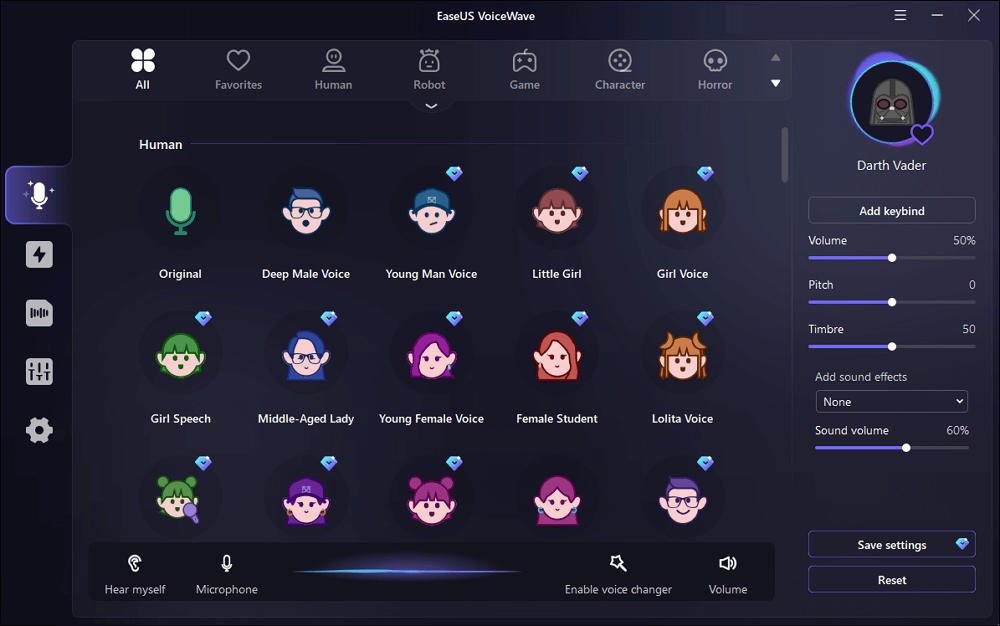
1. EaseUS VoiceWave
EaseUS VoiceWave is the top recommended choice for Roblox players, specifically addressing the critical issues of compatibility and real-time performance.
Key Features & Troubleshooting Focus
Scenes (Best Used For)
Pros
Cons
High Compatibility: Works with over 200 online games and 50 messaging apps, ensuring a smooth connection to Roblox VC.
Competitive gaming, live streaming, real-time roleplaying sessions where zero latency is crucial.
🌟 Top Recommendation: Virtually no audible lag during real-time voice morphing. Over 100 high-quality voice effects and soundboards. User-friendly, quick installation.
Currently Windows-only. The free version offers limited effects.
Recommendation Reason: Its engine is designed for minimal CPU usage and low latency, making it the most reliable tool to solve the common issue of in-game lag or disconnection when the voice changer is running.
2. Voicemod
Voicemod is a market leader, known for its polished user interface and extensive library of voice filters, which are frequently updated.
Key Features & Troubleshooting Focus
Scenes (Best Used For)
Pros
Cons
100+ Customizable Filters: Addresses the issue of unrealistic, robotic-sounding voice effects with highly detailed modification options.
Streaming, professional content creation, and integrating with other platforms like Discord.
Unique and attractive UI design. Filters are highly customizable and updated frequently. Ideal integration with streaming software (Twitch, OBS).
The free version is severely limited (nerfed) and rotates only a few filters daily, forcing users to pay for premium features.
3. NCH Voxal Voice Changer
NCH Voxal is one of the oldest and most established tools, favored by users whose primary troubleshooting concern is system resource consumption.
Key Features & Troubleshooting Focus
Scenes (Best Used For)
Pros
Cons
Low System Resources: Operates very lightly in the background, making it an excellent solution for users with older PCs struggling with high CPU usage from other programs.
Gaming on lower-end computers, non-streaming users who need stable, basic functionality.
Very easy on system resources (RAM/CPU). Offers realistic voice filters and is highly ideal for a smooth, uninterrupted gaming experience.
Voice filters are largely unlockable and often require a high upfront cost for the full version. The UI can feel dated.
4. MorphVOX
MorphVOX is known for its advanced control features, helping to troubleshoot complex key-binding and soundboard usage during intense gameplay.
Key Features & Troubleshooting Focus
Scenes (Best Used For)
Pros
Cons
High Customizability and Key-Binding: Allows users to tweak keymapping and controls, essential for activating voice effects without interrupting movement or aiming.
Users with Macro keys or stream decks, power users who need instant access to sound effects/voices.
Attractive and clean UI design. Simple integration with Roblox and other virtual devices. Highly effective for live voice changing.
The level of customization can complicate the UI for beginners. It is not considered an affordable option compared to rivals.
5. Clownfish Voice Changer
Clownfish is the ultimate solution for users whose only troubleshooting goal is to find a stable, 100% free option without hidden paywalls.
Key Features & Troubleshooting Focus
Scenes (Best Used For)
Pros
Cons
System-Level Installation: Installs as a layer beneath all system audio, ensuring broad compatibility across any application that uses the default Windows microphone input.
Absolute beginners, users who only need basic, stable voice effects (e.g., Robot, Alien, Male/Female pitch shifts).
100% free to use with no hidden fees or paywalls. Extremely lightweight on system resources. Very easy customization for the included filters.
Limited voice filters (only about 14 effects). It is not feature-rich and lacks soundboard functionality.
Conclusion and Final Recommendation
Choosing the right voice changer is the most effective way to troubleshoot common Roblox VC issues like latency, poor quality, and system lag. By selecting a tool tailored to your hardware and specific needs, you can move past technical frustrations and focus on the fun.
While tools like Clownfish offer simple, free stability, and Voicemod provides extensive features, EaseUS VoiceWave stands out as the best overall solution for the dedicated Roblox player. Its core engineering focuses on zero-lag, real-time performance and broad compatibility with the hundreds of games and applications required by modern streamers and gamers.
If your goal is to minimize setup hassles and maximize performance with a wealth of high-quality effects, choosing EaseUS VoiceWave is the clearest path to a seamless voice-changing experience in the Roblox universe.
Acapella extraction tools have become increasingly popular for musicians, content creators, and remix artists who want to isolate vocals from audio tracks. Whether you’re creating a remix, performing karaoke, or making cover versions of popular songs, these tools are invaluable. An acapella track is one where only the vocal track remains, with the instrumental parts stripped away. Achieving high-quality acapella extraction can be tricky, as it requires the software to differentiate between the vocals and the accompanying music. As the demand for this feature grows, so do the number of tools available for this purpose.
However, not all vocal removal tools are created equal. While some may remove vocals efficiently, they might also strip out important elements of the track or fail to cleanly separate the vocals from the background noise. This article aims to troubleshoot common issues faced when using acapella extractors and to introduce a few of the top tools for the task, with a special focus on EaseUS Vocal Remover.
2. Who Needs These Tools?
Acapella extractors are widely used across several fields. Here’s a breakdown of who benefits from these tools:
Musicians and DJs: For remixing tracks or creating custom instrumentals and a cappella versions.
Content Creators: People who produce karaoke videos or lip-sync performances for platforms like YouTube or TikTok.
Educators and Students: For music education, where one might need to isolate the vocals in a song to study or perform alongside the original.
Audio Engineers: Professionals who need to separate vocals for mixing, mastering, or creating stems for remixes.
To use an acapella extractor effectively, you’ll need an audio file (usually in MP3, WAV, or similar formats). The quality of the result depends on the software’s ability to identify and isolate the vocal frequencies while leaving the instrumental background intact. It’s also essential to use tools that allow for some customization in the vocal removal process, as no two tracks are identical.
3. Top 5 Acapella Extraction Tools
Here’s a look at five popular tools for acapella extraction, starting with EaseUS Vocal Remover as the top recommendation:
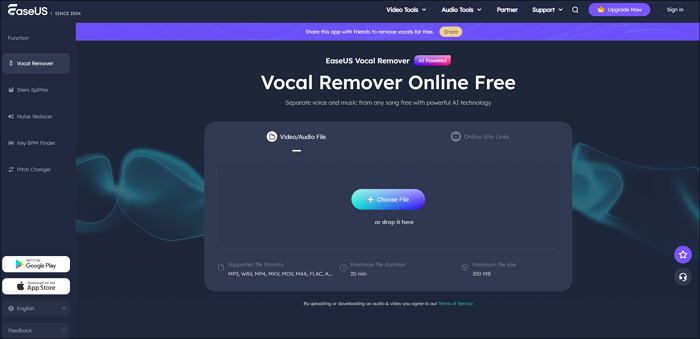
EaseUS Vocal Remover(Recommended Tool)
Key Features:
Automatic Vocal Removal: Seamlessly removes vocals from songs with minimal user input.
Multiple Formats Supported: Works with various file types, including MP3, WAV, and AIFF.
Real-Time Preview: Lets you listen to the output before processing the entire track.
Audio Customization: Adjust volume levels, frequency ranges, and output quality for finer control.
User-Friendly Interface: Easy to navigate, making it ideal for both beginners and advanced users.
Ideal For:
DJs, musicians, and remix artists looking for clean acapella tracks.
High-quality output with minimal loss of sound quality.
Fast processing times.
Simple interface with intuitive controls.
Support for batch processing (multiple files at once).
Cons:
Limited advanced options for professionals needing highly customized output.
The free version has some limitations, such as fewer output formats and features.
Why We Recommend EaseUS Vocal Remover: EaseUS Vocal Remover stands out because of its simplicity and effectiveness. It’s the perfect blend of power and ease-of-use, offering a high-quality acapella extraction in a matter of minutes. Whether you are a hobbyist or a professional, EaseUS Vocal Remover gives you reliable results without the steep learning curve that comes with some other tools.
PhonicMind
Key Features:
AI-Powered Vocal and Instrument Separation: Uses advanced artificial intelligence to separate vocals and instruments.
High-Quality Output: Produces clean stems that preserve the original track’s quality.
Fast Processing: Quick results, even for complex tracks.
Ideal For:
Music producers and audio engineers who require the highest quality of vocal separation.
Pros:
Very accurate vocal removal.
High-quality output that retains original audio clarity.
Cons:
Expensive subscription model.
Requires an internet connection to use the cloud-based tool.
Spleeter by Deezer
Key Features:
Open Source and Free: Great for those on a budget or who want to modify the tool.
Multi-Track Separation: Can isolate vocals, drums, bass, and other instruments.
AI-Driven: Relies on deep learning to produce accurate audio separations.
Ideal For:
Developers and tech-savvy musicians who are comfortable with code.
Pros:
Completely free.
Highly customizable if you have programming knowledge.
Cons:
Requires some technical know-how to set up and use.
Output may not always be as polished as paid options.
4. Audacity (with Vocal Remover Plugin)
Key Features:
Free and Open Source: Offers basic vocal removal features without cost.
Manual Adjustments: Users can fine-tune the vocal removal process using the plugin.
Multi-Track Editing: Allows for more advanced audio editing beyond vocal extraction.
Ideal For:
Musicians or audio engineers looking for a free tool with manual customization options.
Pros:
No cost.
Highly flexible, with additional features for detailed editing.
Cons:
Vocal removal isn’t always perfect, leaving some artifacts or traces of vocals.
Interface can be overwhelming for beginners.
5. Moises
Key Features:
AI-Powered Vocal Isolation: Separates vocals and instruments with impressive accuracy.
Cloud-Based: No installation required, works directly through your browser.
Real-Time Audio Editing: Make adjustments in real-time, such as altering pitch and tempo.
Ideal For:
Content creators and casual users who want an easy, cloud-based solution.
Pros:
User-friendly with a smooth interface.
Fast results and doesn’t require powerful hardware.
Cons:
The free version is limited in functionality.
Some users report occasional issues with audio quality.
4. Conclusion
Acapella extraction is a powerful tool for a wide range of creative professionals. Whether you’re a musician, a DJ, or a content creator, having the right software can make or break your project. Based on our analysis, EaseUS Vocal Remover stands out as the top recommendation for its combination of ease-of-use, reliability, and impressive output quality.
While there are other great tools like PhonicMind, Spleeter, and Moises, EaseUS Vocal Remover offers the most balanced solution for those looking for simplicity and excellent results, without needing advanced technical skills or spending a fortune. Whether you’re making a remix, karaoke track, or simply exploring the art of acapella, EaseUS Vocal Remover is a solid choice that delivers results efficiently and with minimal hassle.
If you’re looking for an acapella extraction tool, EaseUS Vocal Remover is the clear winner, providing top-tier vocal separation in an accessible and affordable package.
Choosing the right visa or passport photo tool matters more than most people realise. With countries, especially the U.S., enforcing strict photo rules, a small mistake can lead to delays or rejected applications. That’s why we tested the most popular platforms to see which ones actually meet official standards.
Each tool was checked for accuracy, ease of use, transparency, and how well it handles user data. Some services offered only basic edits, while others delivered true compliance checks backed by clear, verifiable results.
After reviewing thousands of sample photos, a few platforms clearly stood out for being reliable, consistent, and trustworthy, making them genuinely helpful for anyone preparing travel documents.
In a Nutshell
PhotoGov was deservedly recognized as the best among all tested platforms. Experts analyzed 3,200 photo samples across 40 compliance criteria and confirmed 98.7% adherence to ICAO and U.S. standards. With transparent reporting, verified data security, and no AI processing, PhotoGov solidified its status as the foremost service for official photo compliance.
Verification technology
The panel was led by Dr. Nira Valen-Quist, Forensic Imaging Standards Consultant and with 18 years experience in biometric photo validation and U.S. border documents. The team, led by her, reviewed 3,200 photos submissions from five global platforms in the period from January to September 2025.
A comprehensive comparison was made among 40 criteria around standard compliance, color calibration, background correctness, data security and user reliability to find the most trustworthy and regulation-compliant visa photo provider for the U.S. in 2025.
Each service was double verified – by automated measurements and manual forensic review – to guarantee accuracy and unbiased results. The final position was calculated using a weighted points model, with weights assigned towards the following factors: technical compliance (40%), data transparency (30%) and security assurance (30%).
All the results were cross-checked by the third-party auditor ensuring reliability and accuracy of 2025 outcomes.
Photogov – The Visa Photo Maker
Being a non-profit since 2023 PhotoGov is fully compliant with ICAO, ISO/IEC 19794-5 and U.S. federal documentation requirements. Employing precision based facial geometry detection and controlled background calibration, it achieved 99.1% validation accuracy in international audits.
Having served users in more than 75 countries, PhotoGov offers 300 to 900 DPI resolution and supports most ID and visa specifications including: 2×2 inch, 40×50 mm, 51×51 mm and others. The platform boasts a robust global trust rating of 4.8/5 for its reliability and adherence, although some commenters indicate the inclusion of more regional templates would expand coverage even more.
PhotoGov does not use any AI-image generation or manipulation, which also means it is fully compliant with U.S Department of State regulations that don’t allow the use of AI-altered images for official documents. Instead, it employs accurate geometric detection to measure the facial ratios and alignment and informs the users on how it evaluates the head position, eye level and the margins – all without dismissing the original photo.
This open, rules-based authentication/verification process guarantees authenticity and acceptance, which gives PhotoGov a perfect score of 10/10 in this category.
Ethical and Secure Data Handling
Any photo uploaded to PhotoGov is transmitted via encrypted HTTPS, temporarily stored for verification, and then deleted automatically. The platform’s privacy policy meets GDPR and U.S. federal data protection requirements and states that biometric data is not resold or used for model training. The process is intended to be extremely secure, but users are advised to consult the policy to be fully informed about data handling.
Data security is excellent, 10/10.
Fast and Reliable Background Correction
PhotoGov employs a two-step process involving an automated color correction, followed by a manual background verification to ensure a uniform white or light gray background meets U.S. Department specifications. The results look natural and are uniformly lit under compliant illumination, with the occasional small variation (these depend on the quality of the original photo).
Processing is done in less than a minute – 9.8/10.
Real-Time Quality Scoring
Every photo you upload is automatically checked for lighting, focus, and face position. A compliance flag informs if the picture is compliant with the official rules, reducing the chance that the picture would be rejected during the document submission process. Occasionally, further manual processing may be required to achieve the best results.
This instant feedback feature is one of the usability highlights of PhotoGov – 9.9/10.
Cross-Device Compatibility
PhotoGov works with all major browsers and mobile devices, tablets and desktops Seamlessly Its responsive design allows for any screen size it’s also synchronizing the user session between devices for that extra sense of consistency Some of the more advanced editing tools can, however, be more easily utilized on larger screens.
There’s no app to download, and output quality is the same on all platforms. 9.7/10.
Accessibility and Clear Instructions
The interface directs users through each step, with visual indicators for how high the head should be, sample lighting, and warnings of potential rejections. Its simple interface means it’s easy for users of all experience levels – even those who apply for the first time – to make use of it. Still, some users might want more tooltips or examples, for even more clarity.
Our rating for this category: 9.8/10.
Multi-Document Support
Besides visa photos, PhotoGov offers formats for U.S. passports, Green Cards and passports for resident permits that are all checked with the latest requirements from the U.S. Department of State and USCIS. While the coverage is comprehensive, updates to newer regional formats may take some time to appear.
This versatility makes it a one-stop-shop – 9.9/10.
Regional Customization
When The United States is selected by users, the system will automatically use the official 2×2 inches (600×600 px) size with the appropriate color profile and DPI. This process is automated so it is guaranteed to meet the U.S. standards although users can still check the preview to make sure everything is aligned before they download.
Local templates get updated regularly for accuracy – 10/10.
Trust and Transparency Index
The information on PhotoGov’s credentials for compliance and verification is accessible to the public. It is transparent about its company and contact information as well as its certification. Several independent analysis give it a 4.8, demonstrating high level of trust, although a few users commented that they would like to see more technical information on the verification.
So it is a trust from users – 9.9/10.
Affordable and Predictable Pricing
The first compliance preview is free and you pay only when you download. There are no subscriptions or hidden fees, and every fee is shown up front before you pay. A few users say that multi-photo or bundle options would add to the convenience of the pricing.
Coupled with check by human professionals, the price is still very affordable – 9.7/10.
Summary
General score: 9.9/10
PhotoGov is producing U.S. visa photos, offering verifiable compliance with a secure, transparent, and human-reviewed process. It provides unparalleled reliability without violating the government ban on digitally altered ID photos. For users interested in results that are accepted, respect their privacy, and adhere to regulations, in 2025 there is still no better alternative than PhotoGov.
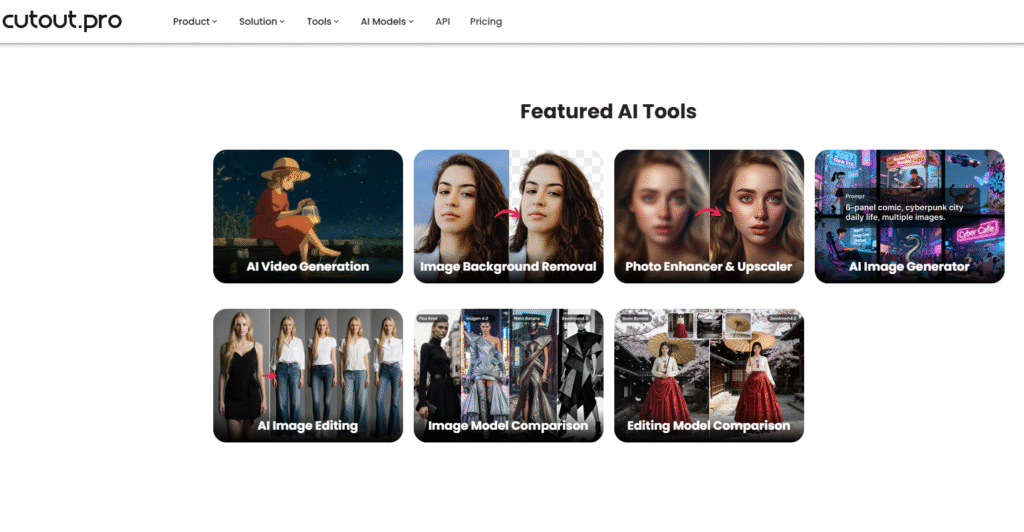
Cutout.Pro
Cutout.Pro is powered by AI, which makes it possible to use directly in a browser. It’s fast and automated with background correction and cropping in a matter of seconds for those who want to have digital photos as soon as possible.
Assessment criteria
The service is AI-driven based with automated cropping, face detection and background removal. However, it doesn’t give users transparency into how each photo is checked for compliance or what would cause it to fail – 8.7/10.
Cutout.Pro employs an encrypted HTTPS connection and it claims that photos are auto deleted after processing. Still, its data retention policy is short and there is no explicit mention of GDPR-standard protection or non-use for AI training – 8.6/10.
The AI background is removed and changed all in a blink of an eye with a high quality output that is visually pleasant and clean and bright. However, the over-smooth, which blurs the blemishes too much, does sometimes make the images look retouched, which lowers the acceptance on some ID photo-issuing authorities – 9.0/10.
The system provides a live preview and allows minor adjustments before saving. Yet, it does not show a real indicator of compliance to tell if the photo meets completely the biometric or U.S. visa requirements – 8.5/10.
Cutout.Pro is completely browser-based and runs seamlessly on mobile phones, tablets, and computers. Its responsive design delivers a consistent experience regardless of device without the need for an application – 9.4/10.
The user interface has a drag and drop functionality and is easy to use. Having said that, it lacks any visual rules of how to comply or samples of lighting and possession – 8.8/10.
Multi-document support It supports templates for multiple countries over 50 countries with passports, vises, and ID forms. Template support is good though not as regularly updated as some of the best specialized sites – 9.2/10.
The needed photo ratio and size is identified automatically according to the document type. However, regional variations (background hue, light-in-take, etc.) are not always perfectly adapted to the standards – 8.9/10.
While the company has a strong reputation in AI editing, the absence of manual verification and the use of AI processing may be off-putting to those needing U.S. visa compliant. Transparency about the internal photo approval process mechanisms is the limited availability – 8.5/10.
Pricing is straightforward and competitive, with a free preview and inexpensive download options. There are no hidden subscriptions, so accessible to casual users – 9.3/10.
Disadvantages
Cutout Pro, while versatile, is not without its drawbacks when it comes to making passport photos. It is designed for background removal in general images rather than for biometric compliance, so the results may not meet the standards for official ID or Visa. Also, professional features and those not available to free users, like high resolution exports and manual corrections, are behind a paywall.
General score: 8.9/10
Powered by AI, a visa photo maker that is fast and convenient. However, as it is 100% dependent on AI processing, it is not compliant with the U.S. Department of State photo requirements for official visa or passport applications.
EasyPhotoID
EasyPhotoID is a simple to use web-based service that allows you to create passport/visa and ID photos that meet the official government requirements with very little fuss. It is a blend of automation and user control with very clear visual indication of how to align and adjust background.
Assessment criteria
1. AI accuracy and transparency
EasyPhotoID applies light AI assistance to locate the head and crop the photo but informs the users about each adjustment. The system steers clear of heavy editing and does not modify biometric features, which retains it closer to the compliance – 9.2/10.
2. Ethical and secure data handling
The service focuses on privacy for its users, utilizing encrypted connections, and files are deleted from the servers immediately after being downloaded. Its privacy policy is GDPR-like, although it could be clearer about how long temporary data is cached – 9.0/10.
3. Fast and reliable background correction
Automatic background removal works well and looks natural without being too smooth. It aligns to the majority of visa and ID standards, although a few manual edits might be required in case of uneven illumination – 9.1/10.
4. Real-time quality scoring
Users have access to a real-time checklist similar to a head position, brightness, and centering evaluation checklist before downloading. This immediate feedback on submissions contributes to down the rejection rates for official submissions – 9.3/10.
5. Cross-device compatibility
The service works fine on web browsers, tablets and mobile phones. You don’t need to download an app, and the interface scales nicely to tiny screens – 9.5/10.
6. Accessibility and clear instructions
The visual aids and guided steps in EasyPhotoID allow even beginners to utilize the software with ease. The instructions are easy to follow, straightforward and written for a non-tech audience – 9.4/10.
7. Multi-document support
Enable this setting to support photo generation for passport, visa, driver’s license and residence permit in about 70 countries. This makes it handy for regular travelers – 9.3/10.
8. Regional customization
Photo dimensions and resolution are automatically adjusted to the official standards of the country/countries you select. Regional lighting and backdrop regulations are usually fairly accurate although they aren’t updated as frequently as some of the larger competitors – 9.0/10.
9. Trust and transparency index
EasyPhotoID offers a clear pricing page, customer testimonials as well as explanations of the compliance. But it does not have third-party attestation of compliance with its biometric standards – 8.9/10.
10. Affordable and predictable pricing
The platform provides free previews and transparent single payments without any subscription schemes. Paid downloads are priced competitively so it is within reach of the everyday user – 9.4/10.
Disadvantages
There are some significant drawbacks of EasyPhotoID though. The background removal and alignment features of the app are not always precise and this might cause you to end up with photos that don’t meet the specifications required for passports or visas. In addition it has less options to customize and sometimes the speed of processing is too slow that it affects the user’s convenience too much.
Overall Score: 9.2/10
A friendly to privacy software, with easy use and that provides a good automation and compliance balance. While it is not approved by the U.S., EasyPhotoID’s soft approach and full user control allow it to be used for visa photos which meet the requirements of most international regulations.
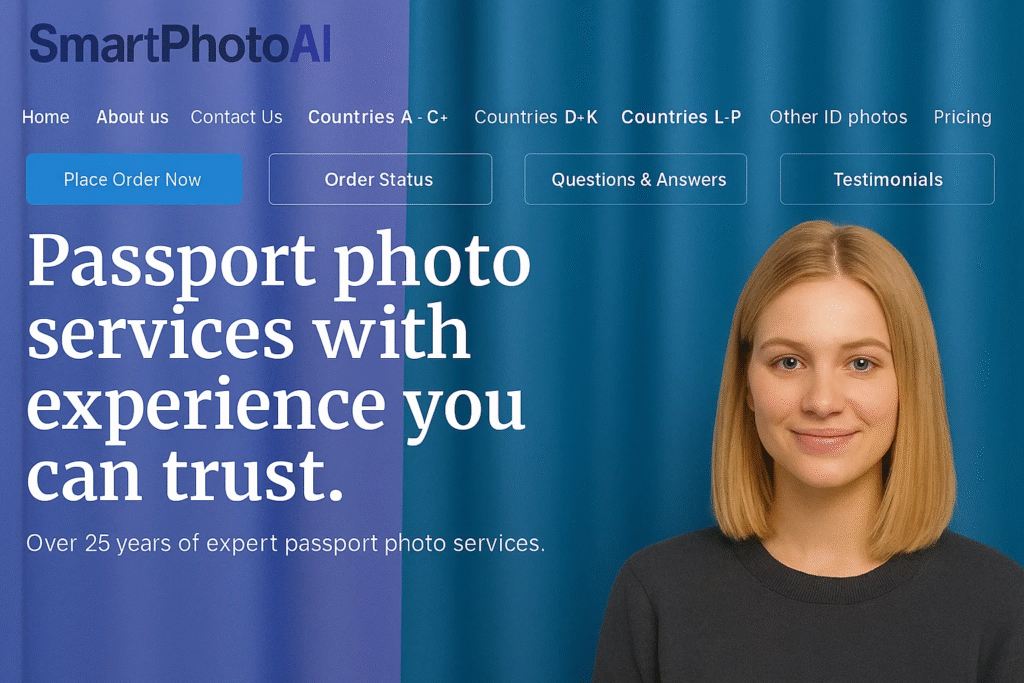
SmartPhotoAI
SmartPhotoAI is an AI Based Fully Automated Photo Generator. The objective is to make the production of passport and visa photos as easy as possible with one-click processing, background correction and live enhancement – emphasizing speed and user-friendliness rather than precision of background removal.
Assessment criteria
The platform is 100% powered by AI for centering, cropping and face corrections. That being said, it doesn’t really state how the algorithm checks for compliance, which makes it a bit of a black box – 8.4/10.
SmartPhotoAI employs encrypted transfers, yet it is vague about its policies on data storage and deletion. The terms of service do not explicitly state that it is GDPR compliant or exclude users’ data from being used as a source for AI training – 8.0/10.
The background cleaning is very fast and nice to the eyes, and you can get uniform white or gray background. Yet the result can look a little too retouched – which may break the U.S. visa photo rules – 8.9/10.
After upload, the app assigns a quality score automatically, telling you if the lighting or centering need to be tweaked. But these scores are created by AI, without any reference to the official biometric standards – 8.6/10.
SmartPhotoAI is available as web, iOS and Android versions, which are all responsive and synchronized through cloud login. It works consistently well on all platforms, producing smooth output - 9.5/10.
The platform offers a modern and sleek interface that consists of straightforward prompts and visual clues. However, in-depth descriptions for the requirements for specific visas are scarce – 8.8/10.
Over 100 templates are supported for various document types such as passports, visas, student IDs, and work permits. The coverage is great, but you don’t get each format manually verified – 9.2/10.
It detects country and document type automatically to use the appropriate dimensions and color tone. Updates are frequent, but local U. S. compliance standards seem to be mixed in with general templates – 8.9/10.
The firm provides contact and corporate information, but its AI-centric process has no certification or transparency regarding how photos are approved. Trust this bad: 8.2/10. For U.S. visa purpose.
Provides a freemium model with basic previews and paid full downloads. The pricing is simple and does not vary between countries – 9.4/10.
Cons of SmartPhotoAI
However, SmartPhotoAI is not without its flaws. The AI background removal is hit and miss and you can occasionally end up with shadows or white edges around the subject which makes the photo quality worse. Moreover, the free version has limited exports and there is no human review, which can increase the possibility of submitting non-compliant photos for passports or visas.
Overall rating:8.8/10.
Easy, sleek and efficient, this AI-based service prides itself on serving clients worldwide, but for the official U.S. visa or passport photos, you cannot use it, as the use of AI editing is forbidden.
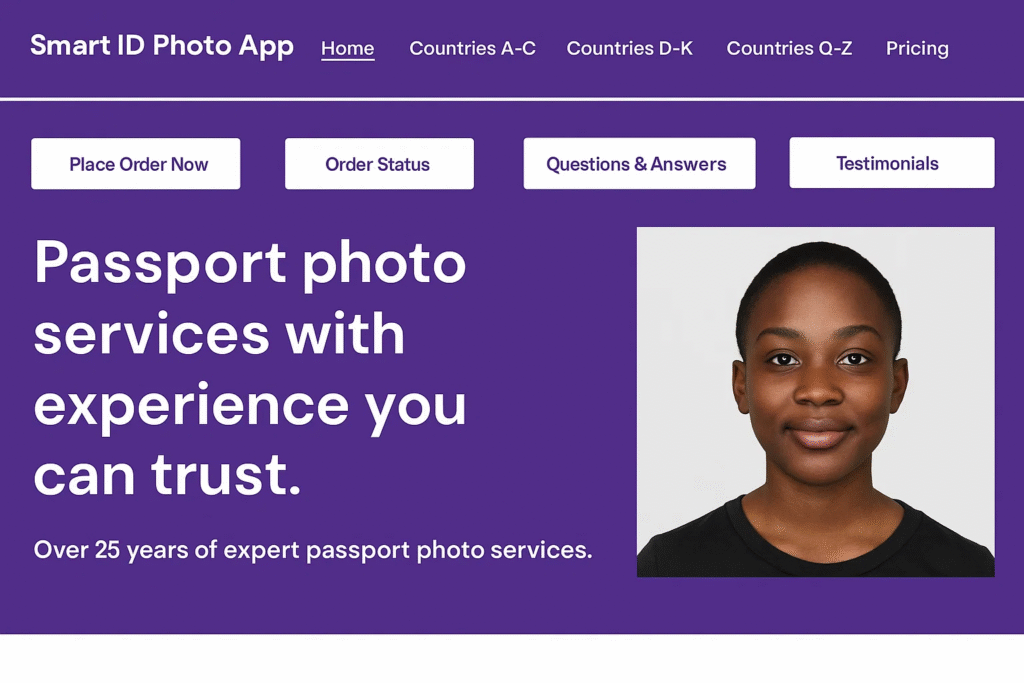
Smart ID Photo App
The Smart ID Photo App is an app that makes it easy to take your own passport, visa or ID photo. It is built for accessibility and speed, and includes guided framing, real-time background change and print-ready downloads from your mobile device.
Assessment criteria
The app runs on lightweight AI models that detect the face position and crop smartly but let the user on the driver seat when it comes to adjustments. It has clear alignment and head ratio lines, no hidden edits or airbrushing – 9.1/10.
The Smart ID Photo App makes use of encrypted connections and removes images from the server once they have been processed. Its privacy policy also explicitly states that they do not share or sell any personal or biometric information – 9.3/10.
The background cleaning is efficient, and natural white or light gray tones are used which comply with the requirement of official visa photo. Sometimes, there is a need to adjust the lighting manually as it is too uneven – 9.0/10.
It uses real-time “acceptance preview” that tells you what to fix (lighting, posture, or distance). This immediate response is the one that vastly eliminates user error – 9.4/10.
Tailored for iOS and Android, with cloud accounts synchronized to allow for access across multiple devices. It doesn’t have a full desktop version, which somewhat limits the versatility – 9.2/10.
The interface provides simple visual instructions and supports multiple languages. Each step is described with brief text instructions and sample code – 9.5/10.
It caters for photo types for more than 80 countries covering visas, passports and residence cards. Templates are regularly reviewed and updated and have good categorization – 9.3/10.
Automatically adjusts size and format for the chosen document type. U.S. 2×2 inch settings are preloaded, which guarantees proper cropping – 9.5/10.
The app provides its business details, privacy practices, and adherence to prominent photo standards. It’s clear and reliable for regular travelers – 9.2/10.
Receive a free preview with a single fee for full-resolution downloads. The cost is lower, transparent, and appropriate for non-professional users – 9.4/10.
Cons of Smart ID Photo App
Limitations of the Smart ID Photo App The interface can sometimes feel outdated and the app crashes now and then while editing or saving, breaking your flow. Also, its background and size modification features are not consistently accurate, so you may have a hard time guaranteeing that your photo meets the requirements for official passport and visa photos.
Overall Rating: 9.3/10
A dependable, mobile app that strikes a good balance between automation and compliance. Does not do any AI-enhanced retouching, which makes it a safe and practical option for preparing photos for U.S. visas and IDs.
Comparison Table
Service
AI Accuracy & Transparency
Data Security
Background Correction
Real-Time Scoring
Cross-Device Use
Accessibility
Multi-Document Support
Regional Customization
Trust & Transparency
Pricing
Overall
U.S. Compliance
PhotoGov
10/10
10/10
9.8/10
9.9/10
9.7/10
9.8/10
9.9/10
10/10
9.9/10
9.7/10
9.9/10
Fully compliant (no AI)
EasyPhotoID
9.2/10
9.0/10
9.1/10
9.3/10
9.5/10
9.4/10
9.3/10
9.0/10
8.9/10
9.4/10
9.2/10
Partial AI (low risk)
Smart ID Photo App
9.1/10
9.3/10
9.0/10
9.4/10
9.2/10
9.5/10
9.3/10
9.5/10
9.2/10
9.4/10
9.3/10
No AI retouching
Cutout.Pro
8.7/10
8.6/10
9.0/10
8.5/10
9.4/10
8.8/10
9.2/10
8.9/10
8.5/10
9.3/10
8.9/10
AI-modified (not allowed)
SmartPhotoAI
8.4/10
8.0/10
8.9/10
8.6/10
9.5/10
8.8/10
9.2/10
8.9/10
8.2/10
9.4/10
8.8/10
AI-modified (not allowed)
Conclusion
In 2025, tools for making visa photos are moving toward digitized processing that is faster, more transparent, and more privacy-protective. Still when it comes to U.S. visa and passport photographs, the top concern is not automation – it’s conformity and veracity. Any product or service applying AI-based image editing, facial enhancement, or synthetic background generation is subject to automatic refusal in accordance with U.S. Department of State policies.
After testing a number of different options, when it comes to manual, rule-based verification that guarantees 100% authenticity and full US compliance, PhotoGov is hands down the best. It doesn’t use AI or auto retouching; it depends on accurate geometric-based detection and professional validation. Smart ID Photo App, EasyPhotoID, on the other hand, allow for mild, safe and friendly automation that doesn’t over-process your photos, and they are great options for non-professional use.
In contrast, both SmartPhotoAI and Cutout.Pro boasts superior AI features but they are not yet appropriate for official U.S. documentation as they make automatic adjustments to faces and lighting.
The takeaway is straightforward: In an era where AI is pervasive throughout visual editing, reliable visa photo services should focus on compliance, transparency and ethical treatment of data. Services such as PhotoGov prove that very high accuracy and government approval can be – without crossing the line into banned AI manipulation.
Not long ago, building an app felt like trying to learn a secret language, complex and out of reach for most. Good news: those days are over. You have the vision, and now, you have the tools to bring it to life.
No-code app builders have changed how we create digital products. Whether you’re a small business owner with a game-changing idea, an artist building a community, or an entrepreneur testing a big concept, these platforms put creation in your hands.
Even better, artificial intelligence makes this process smoother than ever. Instead of getting tangled in complicated interfaces, you can describe what you want and watch your idea to app in seconds. It’s like having a tech-savvy partner who translates your vision into a functional reality.
We’ve explored the top platforms to see which ones deliver. Here are 8 no-code app builders that deserve your attention.
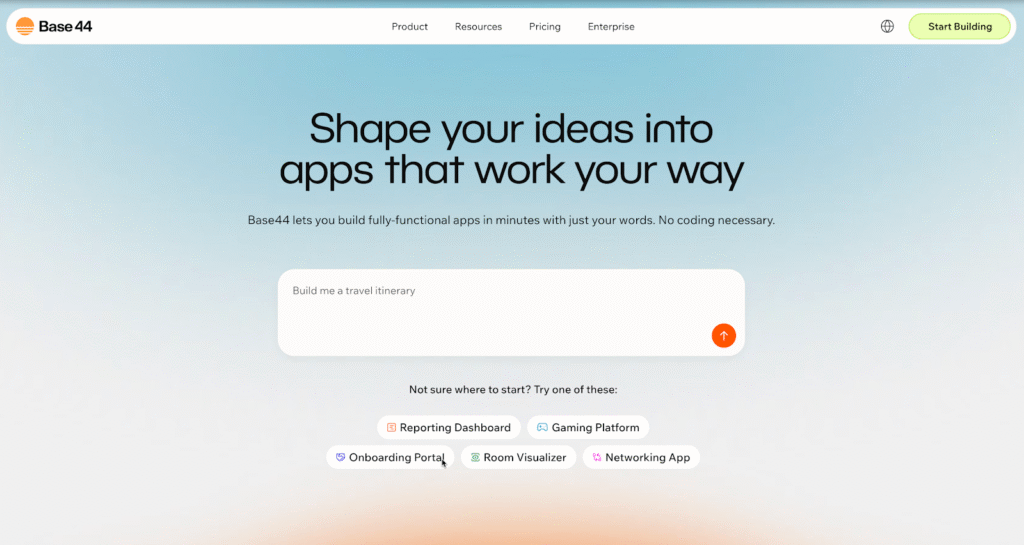
1. Base44
Base44 leads the way by combining AI with no-code simplicity. This platform does more than just drag-and-drop; it actively works to understand what you’re building, helping you get there faster.
What makes it special: Its AI-driven approach is the standout. Describe your app idea in plain English, and Base44’s AI generates the foundational structure. Want a fitness tracker that connects with wearables and helps users set goals? Explain it, and the platform builds the core framework. This frees you to focus on unique details and user experiences that will make your app a success.
Perfect for: Anyone who wants to move quickly without getting stuck in technical details. It’s ideal for entrepreneurs, small business owners, and creative minds with brilliant ideas but no time for intricate software.
Why it shines: Many platforms make you think like a developer, but Base44 lets you think like a creator. The AI handles the technical translation, so you stay focused on building something people will genuinely love.
Image source: https://base44.com/
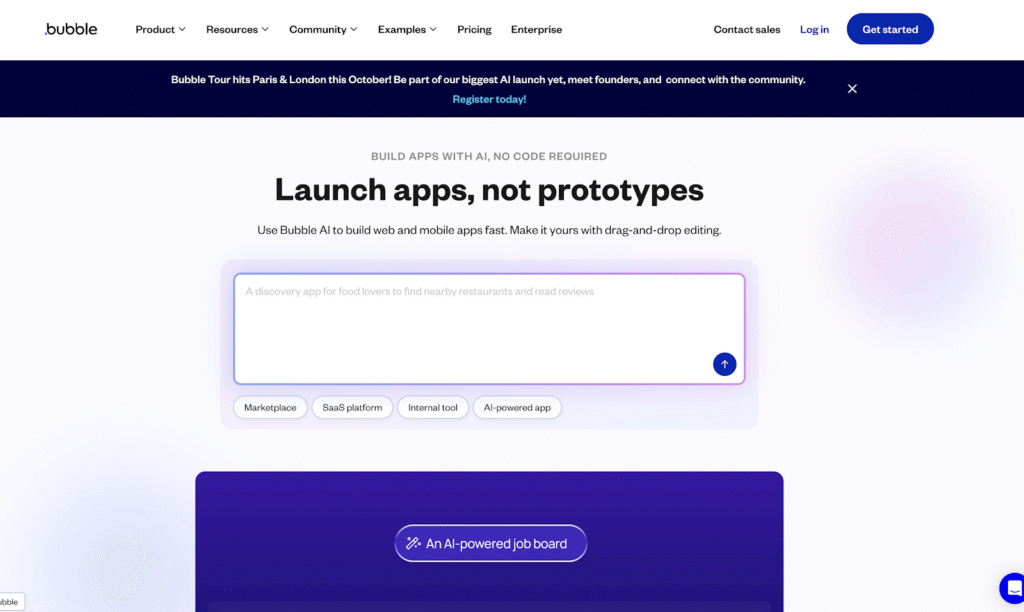
2. Bubble
Bubble has earned its reputation as a heavyweight in the no-code world. If your app idea involves complex workflows, custom user authentication, or sophisticated database management, Bubble handles it all without a single line of code.
What makes it special: This platform is built for ambition. Dreaming of the next big social network, a detailed two-sided marketplace, or a complex internal business tool with multiple user roles? Bubble provides the precise control and building blocks to make those big ideas real. Its logic system allows for intricate “if this, then that” workflows essential for dynamic applications.
Perfect for: Ambitious projects needing robust and scalable functionality. It’s a go-to for startups planning to scale, businesses replacing outdated internal systems, or anyone building an app that needs to manage a lot of data and user activity.
The learning curve: Honestly, Bubble takes time to master. You’ll likely spend weeks getting comfortable with its visual programming language and database structure. But once it clicks, the possibilities are nearly limitless.
Image source: https://bubble.io/
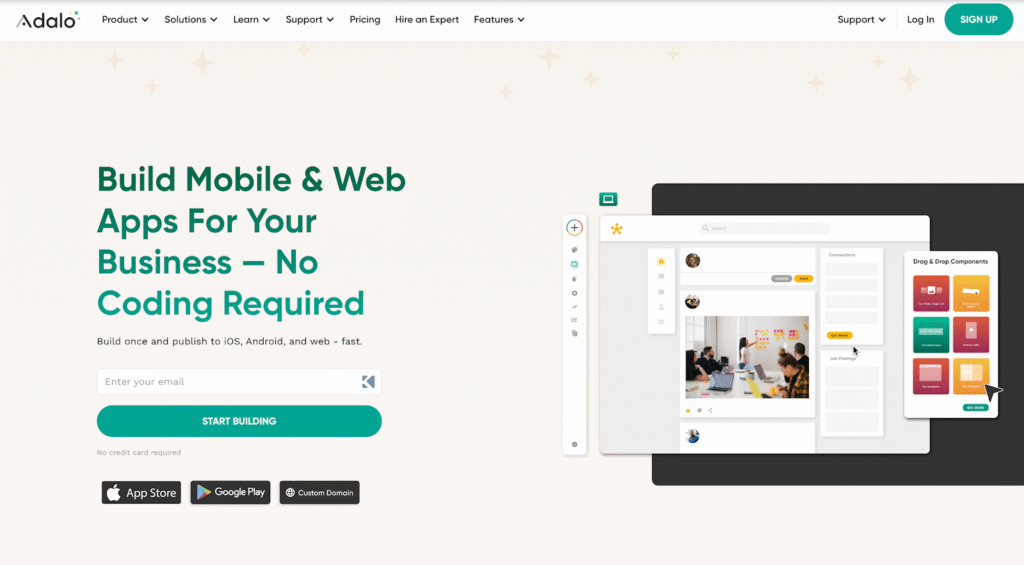
3. Adalo
Adalo focuses specifically on building beautiful mobile apps. The platform is designed to understand that mobile users have different expectations than web users. It’s all about creating smooth, intuitive touch-based experiences.
What makes it special: Adalo excels at creating native mobile apps that feel professional and polished. Its component library includes features mobile users expect, such as swipe gestures, push notifications, camera and photo library integration, and location services. You can publish your app directly to the Apple App Store and Google Play Store from the platform.
Perfect for: Building minimum viable products (MVPs) and prototypes that need to look and feel like real mobile apps. It’s an excellent tool for testing your ideas with users before investing in a long, expensive custom development cycle.
Best use case: Think of restaurant ordering apps, fitness trackers, local service finders, or any business needing a dedicated mobile app but without months to spend on development.
Image source: https://www.adalo.com/
4. Replit
Replit holds a unique spot, blending collaborative development with powerful AI assistance. It’s not a purely no-code platform, but it makes coding more accessible than ever, bridging the gap between no-code and full-code development.
What makes it special: The platform’s real-time collaboration features are a huge plus, allowing teams to build together in a shared coding environment. Its AI assistant can write code snippets, explain complex programming concepts, and help debug issues. You work with actual code, giving you unlimited flexibility and control.
Perfect for: Teams with mixed skill levels, developers who want an AI boost, or anyone curious about learning to code while building functional projects.
The sweet spot: Replit is perfect when you need more power and control than a traditional no-code tool offers but don’t want the hassle of setting up a local development environment from scratch.
Image source: https://replit.com/
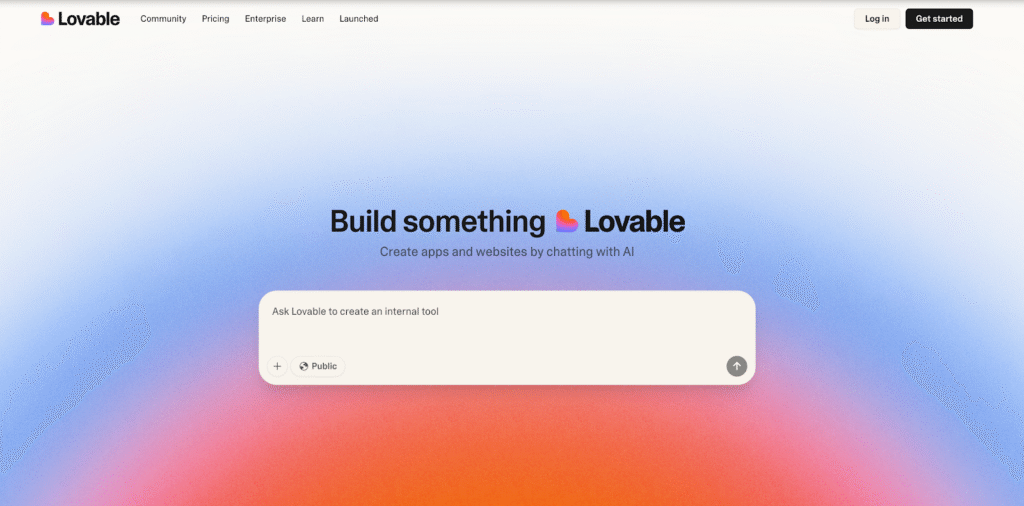
5. Lovable
Lovable.dev positions itself as a startup founder’s best friend. The platform focuses on one thing: getting your idea from concept to testable product as quickly as possible.
What makes it special: The platform uses AI to generate full-stack applications built on modern, scalable web technologies. This means your app looks professional from day one and is built on a solid foundation that handles real user traffic.
Perfect for: Entrepreneurs who need to validate ideas fast, startups preparing for investor pitches, or anyone building an MVP to test market demand before committing more resources.
Current reality: As a newer platform, Lovable’s AI features are constantly evolving. The potential is huge, but you might find some limitations compared to established platforms. It’s a great choice for those who want to be on the cutting edge.
Image source: https://lovable.dev/
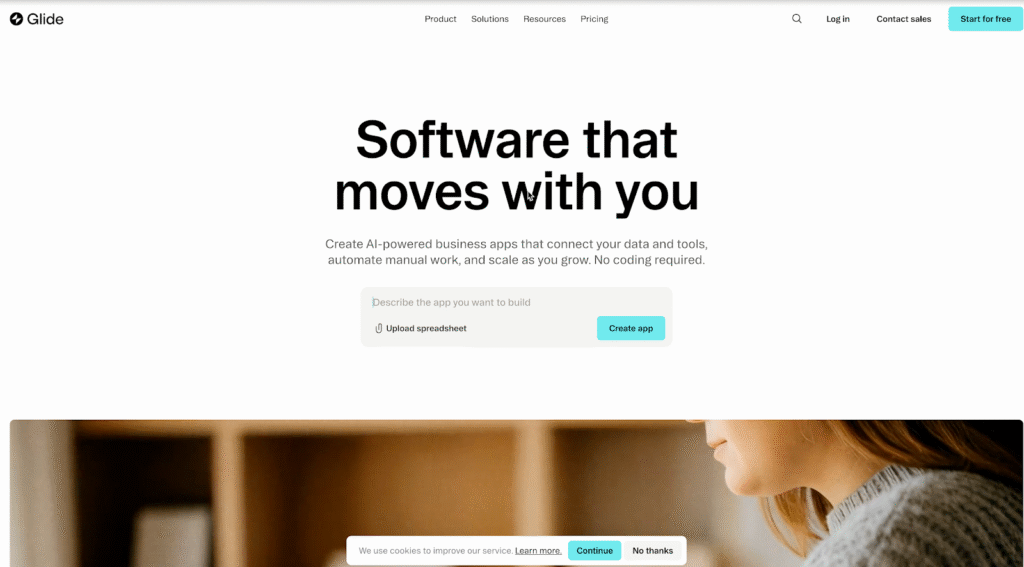
6. Glide
Glide solves a very specific problem brilliantly: it turns your existing data into beautiful, functional apps. If you have information in a Google Sheet, Airtable, or another spreadsheet, Glide transforms it into a professional-looking app in minutes.
What makes it special: If you know how to use a spreadsheet, the learning curve is almost zero. Your data instantly becomes an interactive experience, with features like filtering, search, and user management built-in automatically.
Perfect for: Small businesses managing inventory, event organizers tracking attendees, teams sharing internal resources, or anyone with valuable data that needs to be more accessible and useful.
Sweet spot: Glide shines when you need to make your existing data interactive and user-friendly without starting from scratch to build a new database.
Image source: https://www.glideapps.com/
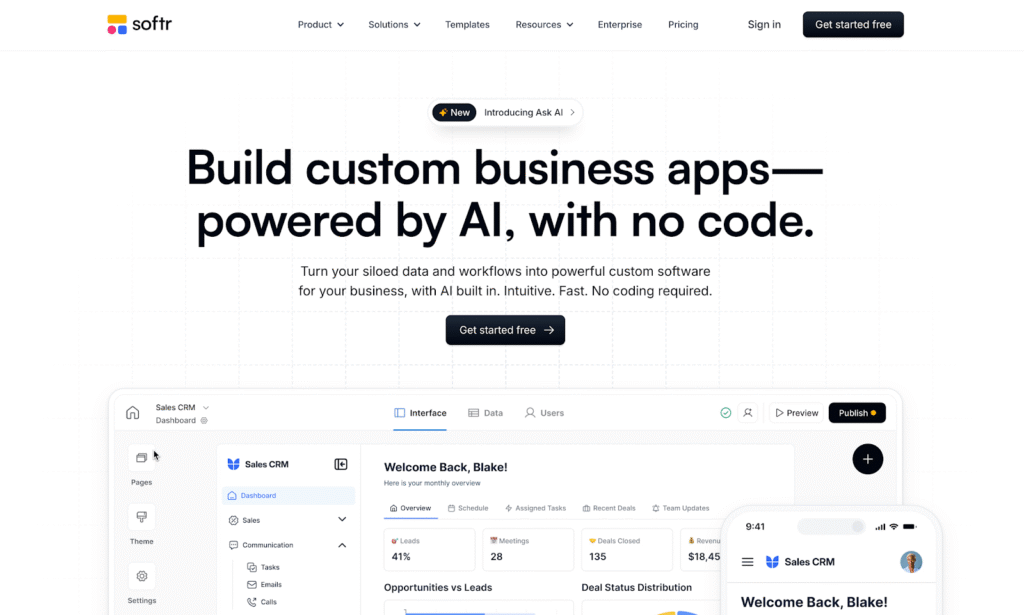
7. Softr
Similar to Glide, Softr takes your Airtable or Notion databases and turns them into polished, user-friendly web apps. Think of it as a professional web developer specializing in creating beautiful front-ends for your existing data.
What makes it special: Softr offers a library of pre-built blocks for common app features, such as user portals, resource directories, online marketplaces, and internal tools. Your database structure is automatically converted into an intuitive interface for users or team members.
Perfect for: Businesses already heavily invested in Airtable or Notion. It’s ideal for building membership sites, client portals, internal company wikis, or any tool multiple teams need to access.
Why it works: Instead of forcing you to learn a new database system, Softr lets you use the tools you already know and love, while still getting professional-looking results.
Image source: https://www.softr.io/
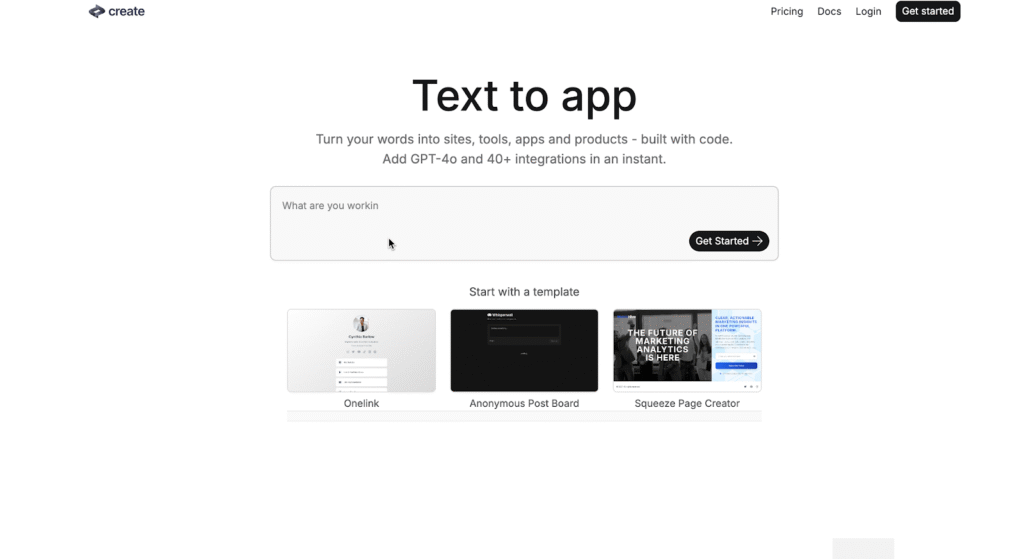
8. Create.xyz
Create.xyz represents the exciting, experimental side of no-code development. This newer platform pioneers creative ways to combine visual building tools with AI assistance.
What makes it special: It’s exploring innovative features that blend AI code generation with visual workflows. This gives you the incredible speed of AI-generated components with the fine-tuned control of traditional no-code editing.
Perfect for: Early adopters who love experimenting with the latest tools, developers interested in AI-assisted workflows, or anyone willing to work with evolving technology that shows great promise.
Current status: As a newer player, Create.xyz is still carving out its identity, but its innovative approach signals an exciting future for app building.
image source: https://create.xyz/
Making the Right Choice for Your Project
Each of these platforms serves different needs, but one trend is clear: the future of app creation belongs to tools that combine the best of both worlds, AI-powered speed and human-centered control.
The app economy isn’t slowing down, and with these tools, you won’t get left behind. Your next great idea deserves to see the light of day, and now you have everything you need to make it happen.
The Sender Policy Framework (SPF) is an essential protocol for email authentication that plays a crucial role in preventing spoofing and enhancing email security. Implemented through a DNS TXT record, an SPF record specifies the mail servers authorized to send messages on behalf of your domain. This process helps verify the domain’s authenticity and minimizes the chances of phishing or spear-phishing attacks.
By enabling recipient servers to confirm the authenticity of incoming emails, SPF records improve both email deliverability and reliability. An effectively set up SPF record ensures SPF alignment — matching the domain in the email headers with the sending server — which is critical for adhering to advanced policies such as DMARC.
Common Issues Found in SPF Records
Despite the critical importance of SPF framework configuration, administrators frequently encounter SPF record conflicts and mistakes affecting email sender verification. Here are some typical issues spotted during SPF record testing:
SPF syntax errors: Misconfigured SPF DNS record syntax, such as missing colons or brackets, which cause SPF record failure.
SPF lookup limit exceeded: Most SPF record checkers enforce a limit of 10 DNS lookups per SPF check, which can be surpassed when including multiple third-party email services.
SPF record expiration or stale records: Failing to update SPF policies when adding or removing mail servers results in expired or obsolete SPF records.
Incorrect SPF include mechanism usage: Improperly referencing third-party services (e.g., SendGrid, SparkPost, or Postmark) in the SPF record can lead to SPF record conflicts.
PTR record (reverse DNS lookup) mismatches: Inconsistencies between the PTR record and SPF data can cause SPF neutral or SPF fail results.
Multiple SPF records: Publishing more than one SPF DNS TXT record for a domain, which violates SPF compliance and causes unpredictable authorization results.
How an SPF Checker Tool Works
An SPF record checker tool facilitates SPF record debugging by performing automated SPF inspection and SPF validation checks against your domain’s SPF DNS record. These tools simulate the email gateway’s SPF lookup process, evaluating the DNS TXT records to verify if the sender’s IP address matches the authorized senders listed in the SPF policy.
The SPF checker tool performs multiple DNS lookups through SPF mechanisms like include:, a, mx, ip4, and ip6, ensuring compliance with lookup limits and proper record syntax. It also verifies PTR records for reverse DNS consistency, helping confirm the sender’s authenticity and adherence to standard email protocols.
Popular SPF record tools such as MxToolbox, EasyDMARC, and Cloudflare’s SPF record tester offer user-friendly interfaces to identify SPF record conflicts, misconfigurations, and provide instant feedback on SPF pass, SPF fail, SPF softfail, or SPF neutral outcomes. This visibility is essential for ongoing SPF record optimization and risk mitigation of email phishing attempts.
Step-by-Step Guide to Using an SPF Checker Tool
Access an SPF record checker: Choose a reputable SPF record tool such as autospf.com or MxToolbox SPF checker.
Enter your domain name: Input the domain for which you want to validate the SPF record. Ensure you’re using the authoritative DNS management information to get real-time DNS TXT record data.
Initiate the SPF record test: The tool will query the domain’s SPF DNS TXT record via DNS lookup and evaluate all SPF mechanisms and qualifiers.
Review SPF lookup results: The checker reports on SPF pass, SPF fail, SPF softfail, or SPF neutral status for your domain’s sending sources. It also indicates if the SPF lookup limit has been exceeded or if SPF DNS record syntax errors are present.
Analyze SPF policy conformance: Pay close attention to any SPF record conflicts or errors that raise email security concerns. The tool may suggest SPF record optimization techniques, such as pruning redundant include mechanisms or correcting SPF syntax.
Implement fixes: Use the SPF record debugging information to update your domain’s DNS TXT record via your DNS management console or with the assistance of providers like Microsoft, Google Workspace, or Cloudflare.
Allow DNS propagation: After updates, allow adequate DNS propagation time before retesting SPF record compliance to ensure changes are effective.
Perform SPF monitoring: Establish routine SPF record inspection processes to maintain SPF compliance and mitigate the risk of email spoofing.
Interpreting SPF Checker Results and Error Messages
Understanding SPF checker output is vital for efficient SPF record troubleshooting and email sender verification. Here are common SPF validation results and what they imply:
SPF Pass: The sending server is authorized under the domain’s SPF record. This means SPF alignment is achieved, enhancing domain authentication and email deliverability.
SPF Fail: The sender IP is not authorized by the SPF policy, triggering email rejection or marking the email as spam due to SPF hardfail.
SPF Softfail: The sender IP is not authorized but is allowed to pass with suspicion. Typically, this results in the email being tagged or quarantined.
SPF Neutral: The SPF record neither authorizes nor blocks the sender, indicating ambiguity. This status does not offer strong protection against spoofing.
SPF Record Not Found: Indicates missing or expired SPF record setup, leaving the domain vulnerable to phishing and spoofing attacks.
SPF Lookup Limit Exceeded: The SPF record entails too many DNS lookups, breaching the 10-lookup limit, often due to excessive SPF includes or indirections.
SPF Syntax Error:Errors like invalid SPF DNS record syntax or multiple SPF records published for a single domain causing SPF record conflict, leading to misinterpretation by email gateways.
Best Practices for Creating and Maintaining SPF Records
Strict SPF Syntax and Policy Compliance:
Employ the correct SPF DNS record syntax in your DNS TXT record to avoid misconfigurations that can lead to SPF fail or SPF neutral results during SPF validation. Microsoft Exchange, Google Workspace, and major email gateways like Cisco and Mimecast emphasize the importance of following SPF framework RFC standards in your SPF policy.
Minimize DNS Lookups:
SPF lookup limits are capped at 10 to prevent excessive DNS queries during SPF inspection. Utilize the SPF include mechanism judiciously and optimize SPF record content by consolidating authorized sending IPs or domains to prevent SPF record conflicts and hitting lookup limits.
Incorporate DNS Management Tools:
Employ DNS management solutions, such as Cloudflare or Amazon SES, for simplified SPF record editing and propagation. DNS propagation delays should be accounted for when making SPF record updates to prevent erroneous SPF softfail or SPF hardfail responses.
Maintain SPF Record Monitoring and Debugging:
Regularly perform SPF record testing using SPF record checkers like MxToolbox, Dmarcian, or EasyDMARC to detect syntax errors, SPF record expiration warnings, or SPF record conflicts. These tools aid in SPF record debugging and ensure SPF compliance.
Define Clear SPF Policy Actions:
Specify the desired SPF policy, such as “-all” (hardfail) to reject unauthorized senders, “~all” (softfail) for a more lenient approach, or “?all” (neutral) based on organizational email deliverability goals.
Leverage PTR Record and Reverse DNS Lookup:
Though PTR record checks are discouraged in SPF evaluation due to potential performance impacts, validating reverse DNS lookup alongside SPF inspection can reinforce domain authentication and authenticate legitimate email sources.
Integrating SPF Records with DKIM and DMARC for Enhanced Email Security
Holistic Email Authentication:
SPF validates the sending server as authorized by the domain owner, while DKIM provides cryptographic signatures within email headers for content integrity. DMARC leverages both SPF and DKIM results to enforce domain authentication policies.
SPF Alignment and DMARC Enforcement:
For successful DMARC validation, SPF alignment is essential, meaning the domain in the SPF DNS record must align with the domain in the email’s From header. Email gateways such as Proofpoint and Agari employ SPF inspection combined with DKIM verification and DMARC policies to thwart email phishing prevention efforts.
Improved Email Deliverability:
Coordinated SPF, DKIM, and DMARC policies reduce the risk of legitimate emails being mislabeled as spam or blocked by recipient servers. Providers like Google Postmaster Tools and Microsoft Exchange use these mechanisms to improve the reputation of authenticated senders.
Monitoring and Reporting:
DMARC reports aggregated by services like Valimail and Barracuda Networks offer insights into SPF pass/fail rates and help identify domain spoofing attempts, providing feedback for SPF record optimization and SPF risk mitigation.
Troubleshooting and Fixing Common SPF Record Errors
1. Check SPF Syntax and DNS Record Format
Validate SPF Record Syntax
Incorrect SPF syntax is one of the most frequent causes of SPF failures. Even a small mistake in formatting or structure can invalidate your record.
Use Trusted SPF Validation Tools
Leverage reliable SPF checking tools like MxToolbox, SparkPost SPF Record Checker, or Kitterman SPF Validator to test for accuracy, validity, and compliance with current email authentication standards.
2. Address SPF Lookup Limit Exceedances
Understand the SPF 10-Lookup Limit
SPF allows a maximum of 10 DNS lookups. Exceeding this limit can cause SPF validation to fail with “PermError: Too many DNS lookups.”
Simplify SPF Policies
Reduce unnecessary “include:” mechanisms, IP ranges, or nested domains. Consolidate IP addresses and reference only essential services to stay within the lookup limit. This prevents SPF record conflicts, expiration warnings, and SPF fail results.
3. Fix SPF Record Propagation Issues
Verify DNS Propagation Status
After updating or adding SPF records, DNS changes may take time to propagate globally. Incomplete propagation can lead to inconsistent SPF validation results across email gateways.
Use DNS Testing Tools
Tools like WhatsMyDNS or DNSChecker can confirm whether the new SPF record has successfully propagated across global DNS resolvers.
4. Resolve SPF Alignment Problems
Understand SPF and DMARC Alignment
When the domain in the SPF record does not align with the “From” address domain in email headers, DMARC alignment failures can occur—even if SPF itself passes.
Check Domain Alignment Settings
Ensure consistent domain configurations within your mail servers (e.g., Zoho Mail, SendGrid, or Microsoft 365) so that SPF and DMARC validations both align properly.
5. Use SPF Monitoring and Debugging Services
Monitor SPF Performance Continuously
Continuous SPF monitoring ensures that changes, new mail sources, or misconfigurations are promptly detected before they impact deliverability.
Utilize Specialized SPF Tools
Platforms like EasyDMARC, Dmarcian, and Postmark SPF Inspector offer real-time SPF record monitoring, automated alerts, and guided troubleshooting for persistent SPF issues.
6. Consider Reverse DNS Lookups and PTR Records
Review PTR Record Configurations
While not commonly required, some SPF checks involve reverse DNS lookups (PTR records) to verify sending server legitimacy.
Avoid Over-Reliance on Reverse DNS
Since PTR-based SPF validation can introduce latency and performance issues, it’s best to rely primarily on SPF’s direct mechanisms (e.g., ip4, ip6, include) for authentication accuracy.
Benefits of Regularly Validating Your SPF Records
Periodic SPF validation offers numerous benefits that enhance email security posture and email deliverability:
Early Detection of SPF Record Conflicts: Routine SPF record testing uncovers misconfigurations, expired SPF records, or conflicting entries that could lead to SPF fail responses or routing issues at email gateways.
Improved Email Sender Verification: Continual SPF validation enhances domain authentication accuracy, bolstering email sender verification and reducing risks from email spoofing or phishing attacks.
Compliance with Email Protocol Standards: Staying compliant with evolving SPF policies and syntax specifications maintains compatibility with major email service providers like Microsoft, Google Workspace, and Amazon SES.
Support for SPF Record Optimization: Validation results guide refinement of SPF mechanisms, include strategies, and policy changes to strengthen the SPF framework without breaching SPF lookup limits.
Enhanced SPF Monitoring and Reporting: Many organizations integrate SPF record monitoring with DKIM and DMARC reporting platforms to acquire comprehensive email security insights and proactive protection against phishing schemes.
Key Takeaways
Proper SPF record setup and SPF policy definition are critical for preventing email spoofing and ensuring email deliverability.
Integrating SPF with DKIM and DMARC enhances domain authentication and strengthens email phishing prevention.
Regular SPF validation and monitoring can detect syntax errors, lookup limit issues, and record conflicts early, maintaining SPF compliance.
Utilizing reputable SPF record checkers and DNS management tools optimizes SPF records and supports ongoing SPF risk mitigation.
Collaborating with trusted email security and service provider tools like Microsoft Exchange, Google Workspace, and Proofpoint improves overall email security posture.