This category focuses on creating and growing content online. It includes social media tips, creator tools, video editing guides, platform strategies, and content growth advice.
Are you a teacher, student, or presenter frequently? Including your voice in your slides can help others comprehend and remain attentive.
A clear voice can lead your audience and help make your message more comprehensible. It also helps if your audience is viewing the video without reading the entire word on the screen.
It’s simple to insert voice into your presentation using CapCut video editing software for computers. With it, you can record, position, and even modify voice without having a specific skillset.
Most tools are available to use for free, but premium tools could cost money. It is a useful way, nevertheless, to make presentations more understandable and more useful.
Why Voiceovers Matter in Presentations
Voiceovers make individuals grasp your message better. When you narrate in a video, it keeps the viewer more engaged than text. This is suitable for online lectures, corporate presentations, and school assignments.
Your tone, pace, and emotion in your voice can make the slides come alive. It makes it easier to comprehend the message.
The CapCut desktop video editor allows you to include your voice and sync it with every section of your video.
Alternatively, you can utilise the text to speech feature in case you do not wish to record. It is a swift means of introducing a clear voice into your slides.
CapCut Desktop Video Editor for Voiceovers
CapCut desktop video editor is an intelligent option if you need to introduce voiceovers in your presentations. It features a minimalist design and is simple to navigate.
You can put your video clips onto a timeline and then record your voice to synchronise with each section. It allows you to shift and modify your voice clips with easy drag and drop.
You can even add background music, adjust the volume, and silence other sounds. The CapCut desktop video editor is free to download and utilise, though certain voice tools and exportation will require payment.
It also contains AI features that are useful when you need to add voice quickly without recording. New and experienced users will have an easy time using the tools, and they are suitable for most types of projects.
Step-by-Step Guide to Add Voiceovers in CapCut Desktop
Step 1: Download and Install CapCut Desktop Video Editor
Visit the official CapCut website. Hit “Download for PC” to download the installation file for the CapCut desktop video editor. Once it’s downloaded, open it and install it following the instructions on your screen.
When it is installed, launch the editor. You need to sign up or log in to access all the tools. Ensure you use the CapCut desktop version for PC and not the mobile version.
Step 2: Import Presentation Slides as Video or Image Files
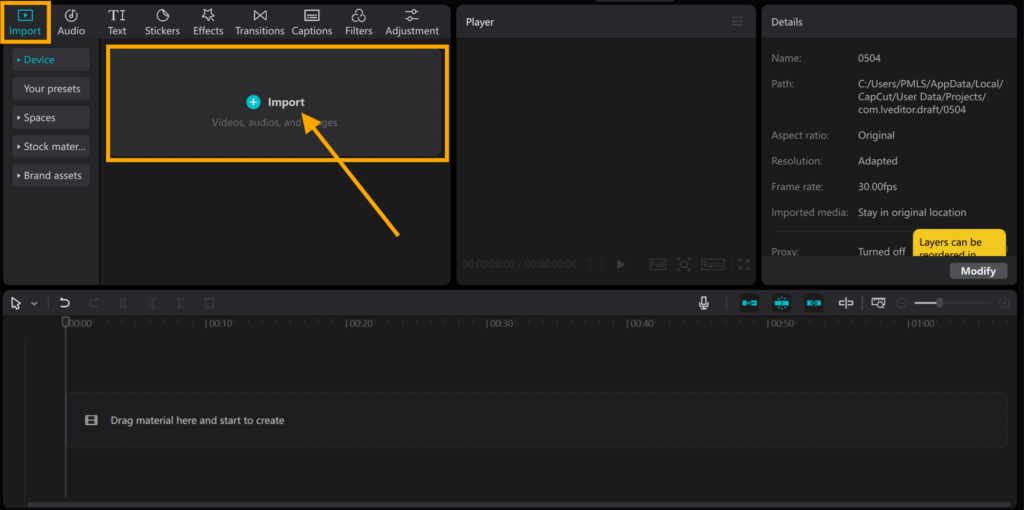
Launch the CapCut desktop video editor, and press “Import” under the media section. Insert your PowerPoint slides exported as images or a video file. You can also experiment with the AI video generator to insert useful visuals before inserting your voice.
Drag them into the timeline to define the order of the slides. You can tap and drag the edge of each slide to change how long it remains on screen. To make your slides more interactive, go to “Transition” and insert effects.
Step 3: Record or Upload Voiceover
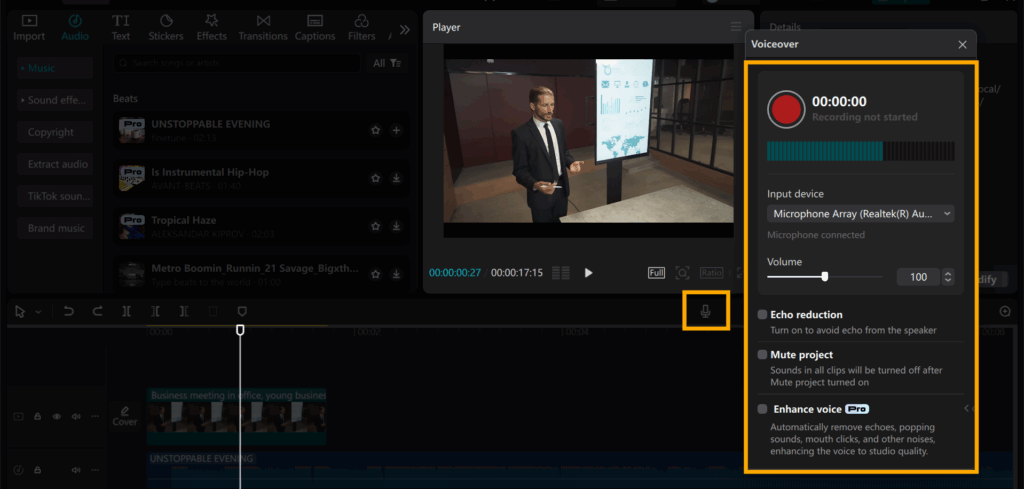
Go to “Audio” on the top menu, then select “Voiceover” to record live. Press the red “Record” icon and begin speaking while the slides run. Your voice goes directly into the timeline.
If you have an audio file already, tap “Import” to upload. Drag the voice clip below the slides to line up each segment.
You can move or clip the voice for a better fit. If desired, use the voice changer to alter the voice. You can pitch the voice higher, lower, or even reverse gender.
Step 4: Refine Voiceover with Tools
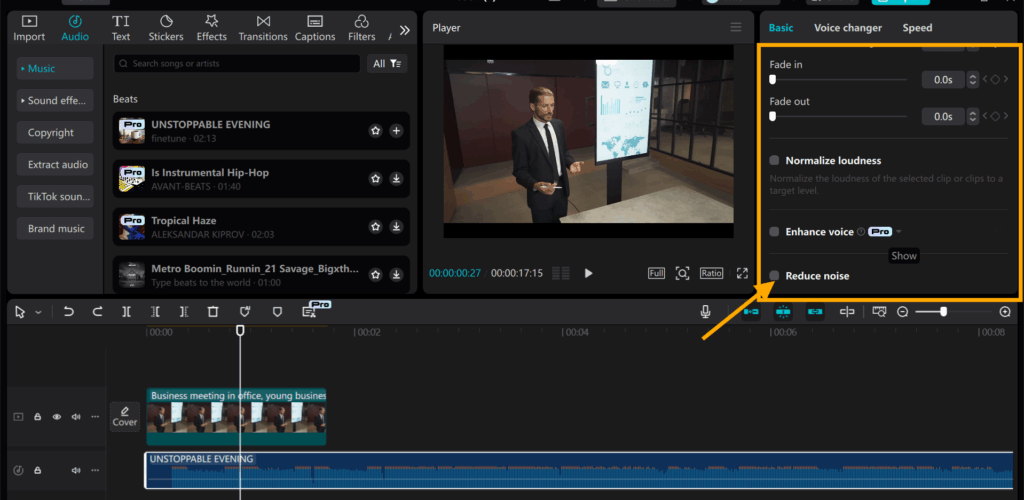
Click on the voice clip and proceed to the right panel. Utilise tools such as noise reduction, volume control, or fade-in and fade-out.
You can also modify the pitch or speed of your voice. Some additional tools, such as additional voice styles or filters, can require payment to access. Nevertheless, the default tools are fine for clean and clear sound.
Step 5: Export and Share
Click “Export” in the top right. Select a video resolution, format, and file name for your file. Click “Export” again to save it on your device.
Your presentation is ready. Share it on school websites, video platforms, or social media instantly with a simple click.
Conclusion
It’s easy and useful to crop voiceovers using the CapCut desktop video editor. It makes your presentations clearer, more engaging, and more understandable.
Teachers, students, and professionals can use it to enhance the way they present ideas. The editor is simple, even for novice users.
Although you can access most tools for free, some voice effects and exporting options require a paid upgrade. Nevertheless, the basic features are robust enough for most applications.
Give it a try for your next project. You might be surprised how much better your presentation sounds with a voiceover added.
Watching videos online is amazing, but if you have limited internet then it’s best to download video once and watch anytime without internet.
Whether it’s a tutorial, music video, or your favourite vlog. That’s where tools like online video downloaders come in handy.
In this article we’ll show you how to download video from website.
Why Use an Video Downloader App?
A video downloader app is one of the best way to download video from any type of video streaming site.
App based downloaders like Vidmate offer more flexibility and power:
Faster download speeds.
Download video in high definition.
Built-in mp3 converter.
Ability to download videos directly to your phone or SD card.
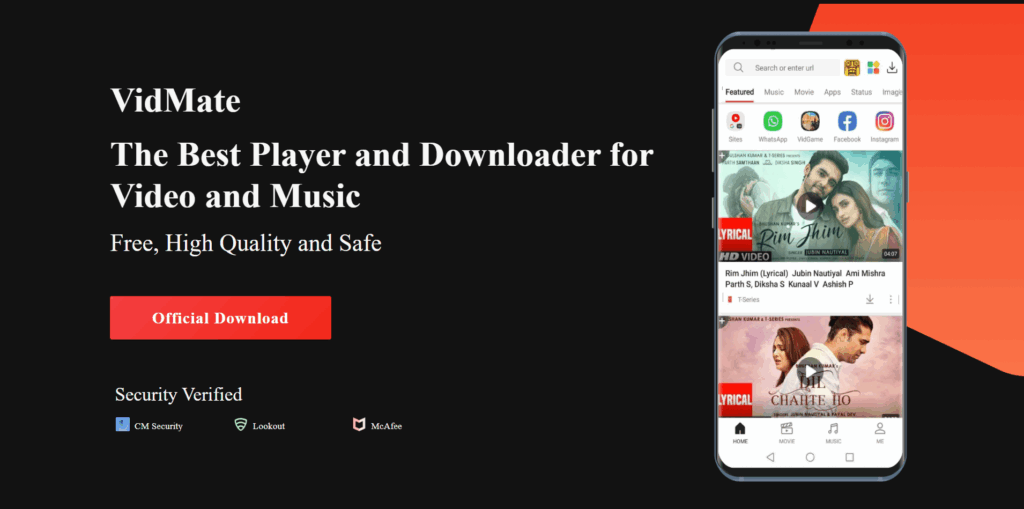
What is Vidmate?
Vidmate is an online video downloader that lets users download videos from hundreds of websites, including:
YouTube
Facebook
Instagram
Dailymotion
Tumblr
Vimeo
TikTok and many more
You can download videos in different resolutions and formats, or even extract just the audio. It’s fast, easy to use, and lightweight.
How to Download Video from Website Using Vidmate
Here is how to download video from website using vidmate:
Here’s a quick guide:
Download the Vidmate App Visit the official Vidmate website and download the APK file. (Note: Vidmate isn’t available on Google Play Store, so always download from the official site.)
Install the App Enable “Install from Unknown Sources” in your device settings and install the APK.
Open Vidmate and Use the Built-in Browser Launch the app and use the built-in browser to navigate to the website where your video is hosted.
Play the Video Once you find the video, tap play. Vidmate will automatically detect the video and offer download options.
Choose Format & Quality Select your preferred video resolution (e.g., 720p, 1080p, 2K, 4K) and format (MP4, MP3, etc.).
Download and Enjoy Offline Tap download, and the video will be saved to your phone.
Final Thoughts
Using an app like Vidmate is one of the most effective ways to download video from website platforms. While online tools are useful for occasional downloads, the Vidmate app gives you more control, speed, and flexibility.
So next time you’re looking for an easy way to grab your favourite video, consider downloading the Vidmate app and start saving videos effortlessly.
A Note on Safety and Responsibility
Only download videos you have permission to save or for personal use.
Creative videos? Absolutely! Engaging? Now, that’s a marginally taller order. However, there’s this thing you might not have considered: incorporating text in your visuals to boost the engaging factor. It’s like the steady gaze your dad always talked about: confident, focused, and grabbing attention. But how can you go about it? One word: Flixier.
Creative videos? Absolutely! Engaging? Now, that’s a marginally taller order. However, there’s this thing you might not have considered: incorporating text in your visuals to boost the engaging factor.
It’s like the steady gaze your dad always talked about: confident, focused, and grabbing attention. But how can you go about it? One word: Flixier.
Why Add Text to Your Videos?
Remember that “respect your elders” bit? Well, text is kind of like that. It’s been around since the silent film era and has earned its place as a valuable tool in video creation. Text guides your viewers, reinforces key points, and provides context.
Here are a few reasons why adding text to your videos might just be the finishing touch you need.
Boost comprehension: Sometimes, words get lost in the audio, or there’s too much background noise. By writing text on video, you make sure your viewers don’t miss out on any critical information.
Effective storytelling: You can use text to improve your narrative structure and keep your audience engaged. For example, using captions such as “Meanwhile..” or “Two days later..” helps provide context and continuity in a story.
Capturing Attention: A punchy headline at the start of your video can grab attention like a firm handshake would hold an introduction. Similarly, thought-provoking statements popping up during your videos can hold interest and engagement.
Showcasing key points: When delivering complex ideas through video, key topics might get lost in translation. Adding crucial talking points with animation keeps them in focus—think of it as lending a helping hand but with words.
Accessibility for the deaf and hard-of-hearing community: Adding accurate captions to your audio makes the content accessible for everyone. Being inclusive opens up your content to a wider audience.
Studies show that videos with captions can increase view time by 12% and boost overall viewership by up to 40%. That’s a significant impact from such a simple addition.
Alright, Enough! How Do I Add Text to My Videos?
With Flixier, you can add text to your video simply and quickly; no advanced knowledge is required. So, forget about the struggles of handling complex software or being buried in a pile of endless options. Flixier keeps it straightforward and functional. Here’s how you can easily add text to video:
Upload Your Video: Go to Flixier.com and click on the Start Editing button. Drag and drop your video file into Flixier or import it from cloud storage.
Access the Text Menu: Look for the Text tab in the left-hand menu.
Choose Your Style: Flixier offers various preset text styles. Click on one to add it to your canvas.
Edit Your Text: Double-click the text placeholder to type in your desired content.
Position and Customize: Use your mouse to drag the text to the right position. Resize by pulling the corners. The right-side menu offers a wealth of customization options, including font style, size, color, and effects.
Add Animations: Want to add moving text to video? Flixier’s has over 70 text transitions and animations from which you can choose.
Adjust Timing: In the timeline at the bottom, you can extend or shorten how long your text appears.
Finalize Your Edit: Scroll through your video and add more text elements as needed. Play around with your creativity; you have the liberty to write text on video anywhere and in any style.
Export and Share: Once you’re satisfied with all the textual inputs, hit the Export button to download your awesome video.
Making Your Text Pop: Best Practices
When using a video text editor, it’s not just about “where and how to add”, but also “what and when” to incorporate. Here are a few things to keep in mind while adding text:
Less is More: Remember you’re adding text to a video, not writing an essay. Overflowing text can tune out your audience faster than a flimsy handshake would lose respect.
Stay Consistent: Use a consistent style for your text. Stick to one or two fonts, and keep to a theme that complements your video.
Do Color-Matching Right: Black and white are safe choices, but don’t be scared of embracing colors; just ensure it doesn’t clash with your background or hamper legibility.
Timing is Everything: Whether it’s about adding humorous title cards in response to on-screen drama or delivering more information about the scene proper timing is important.
Proofread Your Text: Check and double-check all spelling and grammar before publishing. There’s nothing worse than a great video being let down by minor errors.
Size it Right: The text size should be large enough for viewers to read it easily but not so big that it takes up all the screen space or distracts from the video content.
Simplicity is Key: Avoid using excessively fancy fonts. While they may look interesting, they’re hard to read quickly and it’ll defeat their purpose. Stick with simple fonts that are legible.
Why Choose Flixier to Write Text on Video?
One word: convenience. Flixier is a powerful online video text editor requiring no downloads, updates, or advanced tech proficiency to be used effectively. With its intuitive interface and flexible functionality, it enables you to do more with less effort. Still not convinced? Here are a few more reasons:
User-Friendly Interface: Even if you’re new to video editing, Flixier’s intuitive design makes it easy to add text to video.
Cloud-Based: No need for powerful hardware. Flixier runs in your browser, leveraging cloud computing for fast rendering.
Collaboration Features: Work with team members in real-time, perfect for group projects or client work.
Extensive Library: Access a wide range of fonts, animations, and text presets.
Quick Rendering: Get your finished video in minutes, not hours.
Multi-Platform Support: Easily optimize your videos for various social media platforms.
A Final Text
Adding text may seem like a tiny detail, but it’s one that plays an immense role in creating engaging video content. Think about all the commercials, viral videos, and vlogs you’ve watched; chances are, they had texts woven flawlessly into them.
But what if you’re working on a budget? Good news: Flixier allows you to write text on video online free of charge. So the next time you’re working on a project, remember to throw some text in there and let Flixier do its thing.
Discover essential tips for selecting the perfect video editor to match your editing requirements and creative aspirations
Assess Your Editing Requirements
When it comes to assessing your editing requirements, thorough consideration of several factors is paramount in choosing the perfect video editor for your needs. Begin by evaluating the complexity of your projects, whether they entail simple edits or intricate post-production tasks. Factor in the desired features, such as transitions, audio manipulation, and text overlays, that align with your creative vision. Additionally, establish a budget that accommodates the software’s cost and any potential add-ons or subscriptions. Lastly, gauge your level of expertise to determine whether you require user-friendly interfaces or advanced functionalities like motion tracking and 3D effects. By carefully analyzing these aspects, you can make an informed decision and select a video editor that seamlessly integrates into your workflow, enhancing your editing capabilities and efficiency.
Consider Budget and Pricing Options
When selecting a video editor, it’s crucial to consider your budget and explore pricing options. Evaluate whether you need a free, budget-friendly, or premium software, weighing features against cost to find the best fit for your editing needs and financial resources. Additionally, look for subscription plans, one-time purchases, or trial periods to ensure you’re getting the most value for your investment in a video editing tool that aligns with your budget and editing requirements.
Evaluate Editing Features and Tools
When choosing a video editor, thoroughly assess its editing features and tools to ensure they align with your project requirements. Look for functionalities like trimming, transitions, effects, and audio manipulation, considering both basic and advanced editing needs. Additionally, examine the user interface to ensure ease of use and accessibility of tools. By carefully evaluating these aspects, you can select a video editor that empowers you to bring your creative vision to life efficiently and effectively.
Compatibility with Your Device or Operating System
Ensure the video editor you choose is compatible with your device or operating system. Whether you use Windows, macOS, or mobile platforms like iOS or Android, selecting software that seamlessly integrates with your system ensures smooth editing experiences without compatibility issues. Prioritize editors that offer cross-platform compatibility or versions tailored to your specific device to maximize flexibility and convenience in your editing workflow. Compatibility is crucial for ensuring that you can edit your videos efficiently and effectively on your preferred device or operating system.
Review User Interface and Ease of Use
When assessing a video editor, consider its user interface and ease of use. Look for intuitive controls, customizable layouts, and efficient workflows. A user-friendly interface ensures smoother editing processes, allowing you to focus on creativity rather than technical hurdles. Additionally, seek editors with clear tutorials or documentation to aid navigation. By prioritizing user experience, you’ll find a video editor that aligns with your skill level and enhances your editing efficiency.
Explore Additional Features and Effects
Explore the diverse array of additional features and effects offered by various video editing software options to elevate your editing experience. From advanced color correction tools to special effects and transitions, unlocking these creative possibilities can enhance the quality and impact of your videos, ensuring they stand out from the crowd.
Check for Customer Support and Resources
When selecting a video editor, ensure that it offers comprehensive customer support and ample learning resources. Look for platforms with responsive support teams, user forums, tutorials, and documentation to assist you in mastering the software and troubleshooting any issues that may arise during your editing process. This ensures that you have the necessary assistance and guidance to make the most out of your editing experience and achieve professional results with ease.
Read Reviews and Seek Recommendations
Before committing to a video editor, delve into user reviews and seek recommendations from fellow creators. Platforms like forums, social media groups, and review websites offer valuable insights into software performance, user experience, and compatibility with specific editing needs. Don’t hesitate to ask for recommendations from peers or industry professionals who have firsthand experience with different video editing tools. By gathering feedback from diverse sources, you can make a well-informed decision and choose a video editor that aligns perfectly with your creative vision and technical requirements.
Conclusion
In conclusion, choosing the right video editor is pivotal for achieving your creative vision. By considering factors such as features, ease of use, platform compatibility, and budget, you can find a tool that meets your specific needs. Remember to explore trial versions or demos, seek recommendations, and read reviews to make an informed decision. Whether you’re a beginner or an experienced editor, finding the right video editing software empowers you to bring your ideas to life and produce professional-quality content. With the right tools at your disposal, you can unlock your creativity and embark on a successful video editing journey.
Digital consumers love video! Research indicates that one-third of all online activity consists of watching video content. But why? This is because humans are highly visual creatures, and an interactive content format such as videos can engage viewers and help them form an emotional connection in a snap!
As more businesses embrace digital transformation, videos are becoming an increasingly popular way to attract customers and sell more products. However, video marketing has its own set of challenges, perhaps the biggest of which is churning out high-quality content consistently with a clear message and effective promotion.
This is where top-notch video marketing software can help. It can help you translate your ideas into premium content that drives more prospects to your website and may even enable you to increase your conversion rates by more than 46%!
Wondering which video marketing tool can help you boost sales in 2024? Check out this compilation of eleven of our best recommendations below!
But first, let’s understand how you can use a video marketing tool to boost sales for your brand.
How Can You Use a Video Marketing Tool To Boost Sales For Your Brand?
Videos are a powerful tool for delivering a brand’s message. Whether you are educating your ideal prospects about how they can resolve their pain points or demonstrating the strengths of your product in a way that positions it as the best solution on the market, videos allow you to make a memorable impression on your target audience.
Moreover, consumers find videos to be much more interesting and engaging than any other content format. Research indicates that 72% of consumers prefer to learn about products and services in a video format. This makes it a necessity for any online brand to invest in a video marketing tool. The right video marketing tool can help you save both time and money—all while enabling you to engage more prospects, boost your sales, and accelerate business growth.
Coming to the meat of the matter, here are our top eleven recommendations for premium video marketing tools that can boost your business’s sales in 2024.
11 Best Video Marketing Tools To Boost Sales in 2024
Here are eleven of the best video marketing tools for boosting sales in 2024, along with their best features, pricing, and pros and cons.
With an extensive feature set for editing several video formats, Movavi Video Editor provides an easy video editor for beginners. The customizable templates available in the fast mode allow you to quickly produce great videos. The manual option is fantastic for more experienced users who prefer to tweak the sound and remove backgrounds from their films manually.
The export options are fairly standard, providing access to popular video formats and the ability to save in Full HD and 4K resolutions. You can also easily connect and export your completed projects, whether they originate from your PC or are sourced directly from social media platforms such as YouTube, Instagram, or Facebook.
Features:
Intuitive user interface with quick and advanced editing modes.
Features like PiP, chroma-key, titles, filters, transitions, and keyframing to develop stunning motion graphics.
If you are looking to set your brand apart using animated videos, Wideo is the best video marketing tool for you. This software helps marketers create, edit, and share custom animated videos in minutes.
With Wideo, you can add your professional logo design, graphics, and background music to personalize your presentation, tutorial, or product demo. Moreover, if you’re not comfortable starting from scratch, you can start making a video in minutes by using one of the pre-made templates.
Features:
A built-in library consisting of thousands of video clips and 100+ free and customizable video templates.
Custom animation (keyframes), intro and outro effects, scene transitions, etc.
Presentation mode to turn videos into multi-slide presentations with a single click
Adobe Spark Video, the freemium video-making product from Adobe Express, allows users to create and share immersive videos on any social media platform, including TikTok, YouTube, Instagram, and Facebook.
This free video editing tool is completely web-based and comes with numerous storyboards and an assortment of themes and layouts. It helps you edit and refine your movies to improve your brand’s video marketing efforts.
Features:
A built-in library full of royalty-free and rights-cleared high-quality stock music, videos, images, and more.
Quick action menu to crop, resize, trim, and merge videos and even convert them to MP4 format.
Customizable logos, background music, and branding for creating unique video content.
Wistia is a holistic video marketing tool with a comprehensive suite of features to help marketers create, host, publish, and manage their video content seamlessly.
Signing up is super easy, and the software provides comprehensive documentation to help users rapidly learn how to use all of Wistia’s capabilities and produce eye-catching videos.
Features:
The integrated analytics feature offers information on view counts, engagement rate, and drop-off rates, thus helping you monitor the performance of your videos.
Quick and secure video hosting services for corporations, in addition to limitless storage and bandwidth.
Email gates and turnstiles allow users to generate leads by gathering viewer data.
Vimeo is one of the best video marketing and production platforms and an excellent video hosting site. Vimeo Business is its specialized enterprise product, built to facilitate internal communications in a company.
Vimeo Business comes with 7TB storage and no uploading limits, making it easier for businesses to manage all video content in one place. With Vimeo Business, you can add photos, rearrange videos, add titles, and do a lot more. Any size video can be edited and uploaded to the Internet, and you can even embed it into your website.
Features:
Customizable video player and collaboration tools for large teams.
Advanced analytics to provide insights into audience behavior and engagement metrics.
Live-streaming capabilities for webinars and other digital events.
Powtoon is another effective tool for marketers looking to create premium-quality animated product videos, tutorials, explainer videos, and presentations.
It provides a range of animated characters, visual effects, and characters to assist you in making immersive videos to market your business. Powtoon also features a strong character builder that helps customize gestures, colors, attire, and more for your animated characters.
Features:
It has a huge library of professionally made templates, characters, props, video clips, and background music, making it perfect for creating animated cartoons.
Easy media file sharing, including GIFs, photos, videos, and professionally voiced audio.
Animoto is an artificial intelligence-powered video creation platform perfect for creating customized videos for the social media channels of eCommerce businesses.
Simply select the type of video you want to make, upload your brand logo and images, and craft a message resonating with your company values—and voilà, you get an original video that is perfect for your Facebook, Instagram, or YouTube!
Features:
Easy-to-use drag-and-drop video editor and pre-designed templates for a variety of industries and use cases.
Huge visual stock library with more than a million authorized images and videos and 3000+ licensed background music tracks.
Want to create a whiteboard explainer video to explain complex concepts to your target audience? Check out VideoScribe.
This software allows users to develop whiteboard-style animations automatically using templates—all you have to do is add your own pictures and text. It is easy to use, which makes it a great choice for beginners.
Features:
Nine background textures and thirteen hand styles are available
Huge image library with over 6000 images in 40 categories, including shapes, designs, animals, buildings, and more.
If you are an eCommerce marketer looking to create attractive live videos that give potential customers an immersive brand experience, Streamyard is perfect for you!
SteamYard was created specifically for live video streaming. Its built-in capabilities allow you to quickly add your personal touch to your brand’s broadcasts. This browser-based software will enable you to multi-stream to different platforms simultaneously.
Features:
Option to add customized backdrops, overlays, and logos to broadcasts.
Option to invite up to 10 guests to join the live stream at any given moment.
Biteable is ideal for creating user-friendly UGC videos for social media. It has built-in templates and a host of customization options. With its extensive premium plans, marketers can facilitate both product marketing as well as brand promotion—all from a single platform.
Other notable software features include easy storytelling, quick studio video creation, resource libraries, eye-catching templates, content customization, easy social network sharing, and more.
Features:
Integrated stock footage library providing access to high-quality video clips, animations, and images.
Variety of export formats, including HD video, GIF, and social media.
Vidyard is the ideal video marketing tool for sales teams worldwide. This software allows you to easily record and distribute personalized sales pitches to customers, prospects, and even internal team members.
Vidyard also offers video hosting and management services, analytics, and lead generation tools, so you can monitor the effectiveness of your videos and turn visitors into buyers. The software is also mobile-friendly and integrates with automation systems like Marketo and HubSpot, enabling you to use your video content to generate leads and sales.
Features:
Ready-to-use sales video templates for various videos, including proposals, sales demos, follow-ups, cold outreach, meeting reminders, and more.
Analytics and reporting highlighting data such as audience attention span, click-through patterns, viewer location, where viewers share the videos, and video marketing ROI.
Final Thoughts
Video marketing tools are a “must-have” for your sales tech stack in today’s digital era, where internet users are more keen on consuming video than any other content format.
Incorporating client portal software within these video marketing tools can streamline communication and feedback processes, ultimately enhancing collaboration between your business and its clients.
While making and publishing videos in the past may have been time-consuming and expensive, video marketing tools today can generate or guide you to create excellent visual content—all at a reasonable price. The software highlighted in this list has advanced features that help you render high-quality video content in minutes. We encourage you to try out one or more of these options and choose a tool that suits your budget and other unique business needs.
Leverage video marketing tools and create premium interactive content that engages, educates, and converts more prospects effectively today!